LaserStudio
The ultimate control room for LightBurn: master material libraries, vectors and projects in a single high-performance workflow.
What you get
Prepare your machine's material libraries
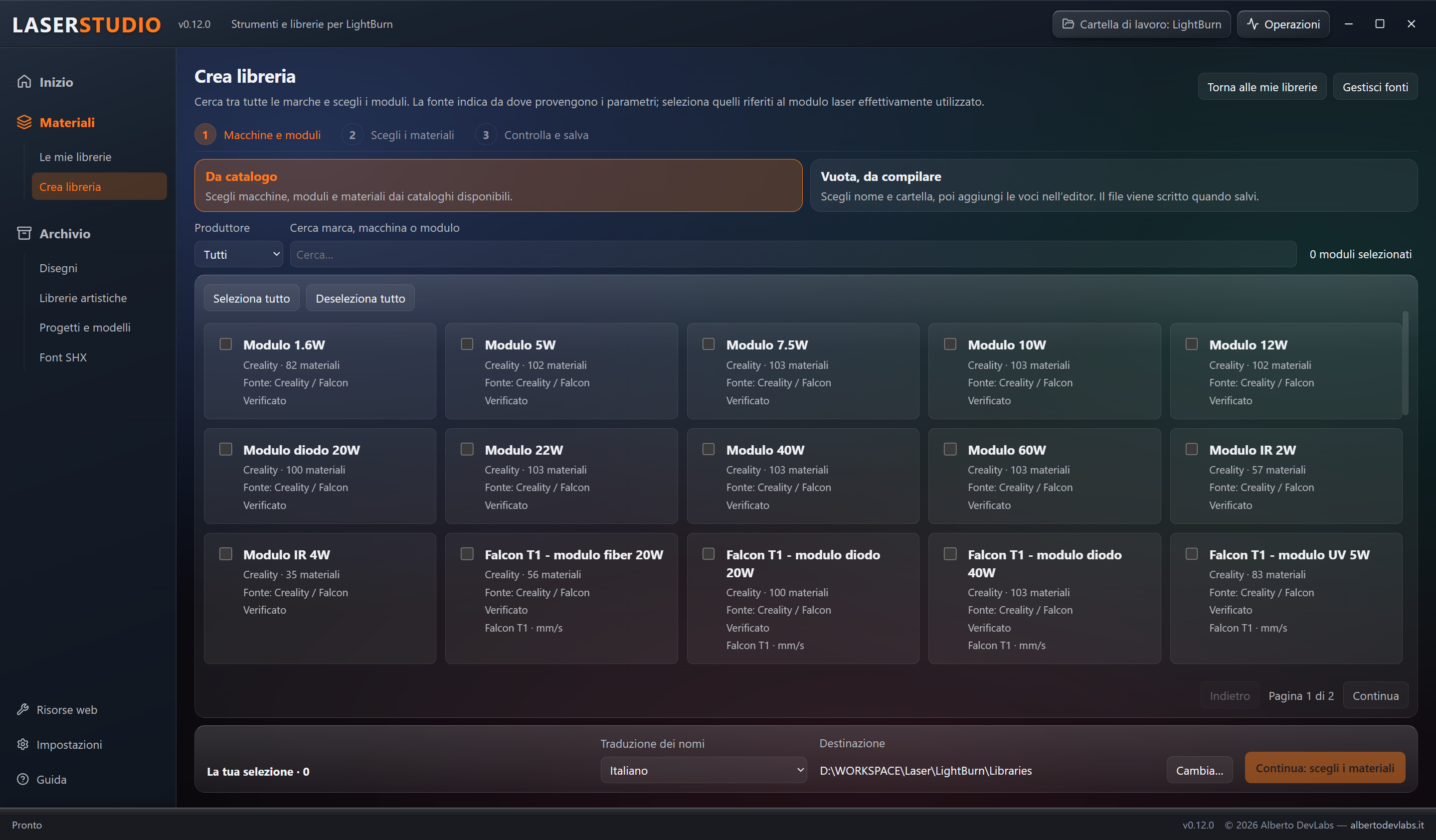
Pick machines, modules and materials from the Creality, LaserGRBL, xTool catalogues or from your own sources and prepare the .clb files for LightBurn. Parameter preview, export language and a summary of new files and replacements help avoid manual transcription. Parameters are not automatically adapted to different lasers, nor certified on the actual material.
Find drawings again with search and previews
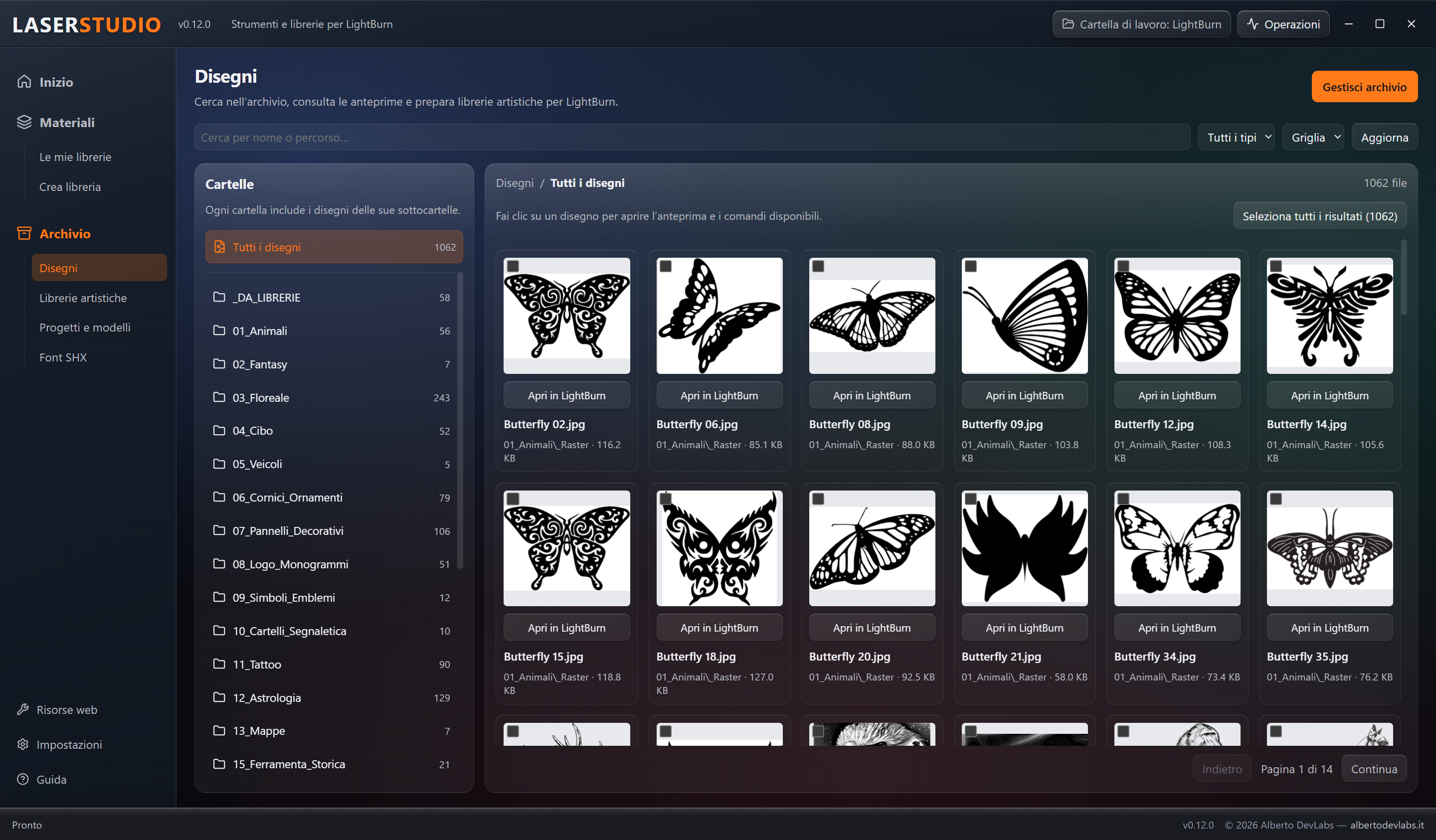
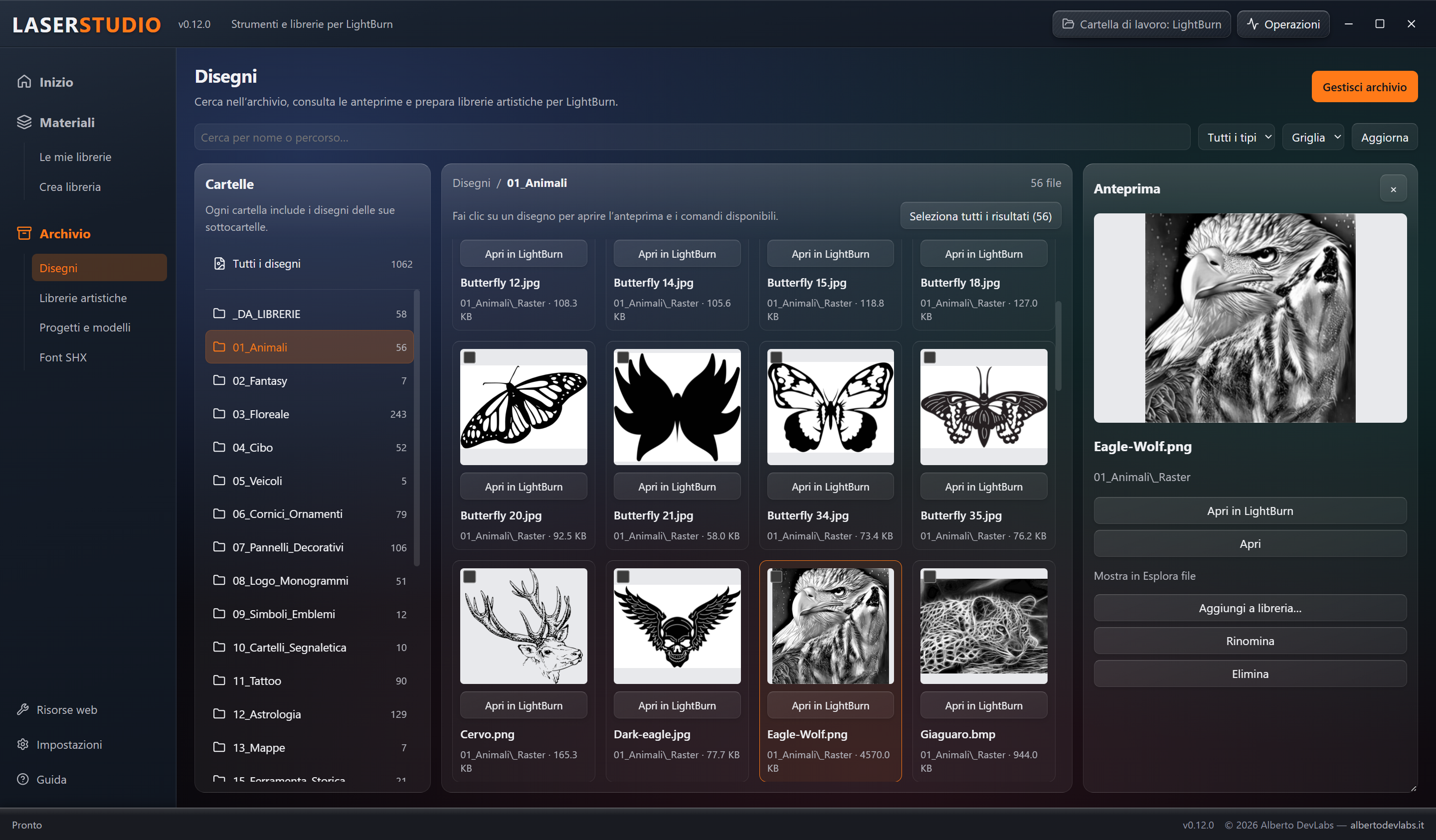
Search by name or path in Sorgenti, filter raster and vector files and browse categories, grid, list and pages. The side panel and the large preview help you recognise files before opening them in LightBurn. Variants that cannot be rendered are flagged; a missing thumbnail does not prove the file is unusable.
Organise downloaded files and set duplicates aside
Analyse incoming files, choose categories and names and review a summary before applying the moves. Duplicates are compared by SHA-256 content and the selected ones are moved to quarantine; the selected leftovers go to the Recycle Bin. Check archive offers the same path for files already collected. Completed stages may remain applied if a later one fails.
Screenshots and video
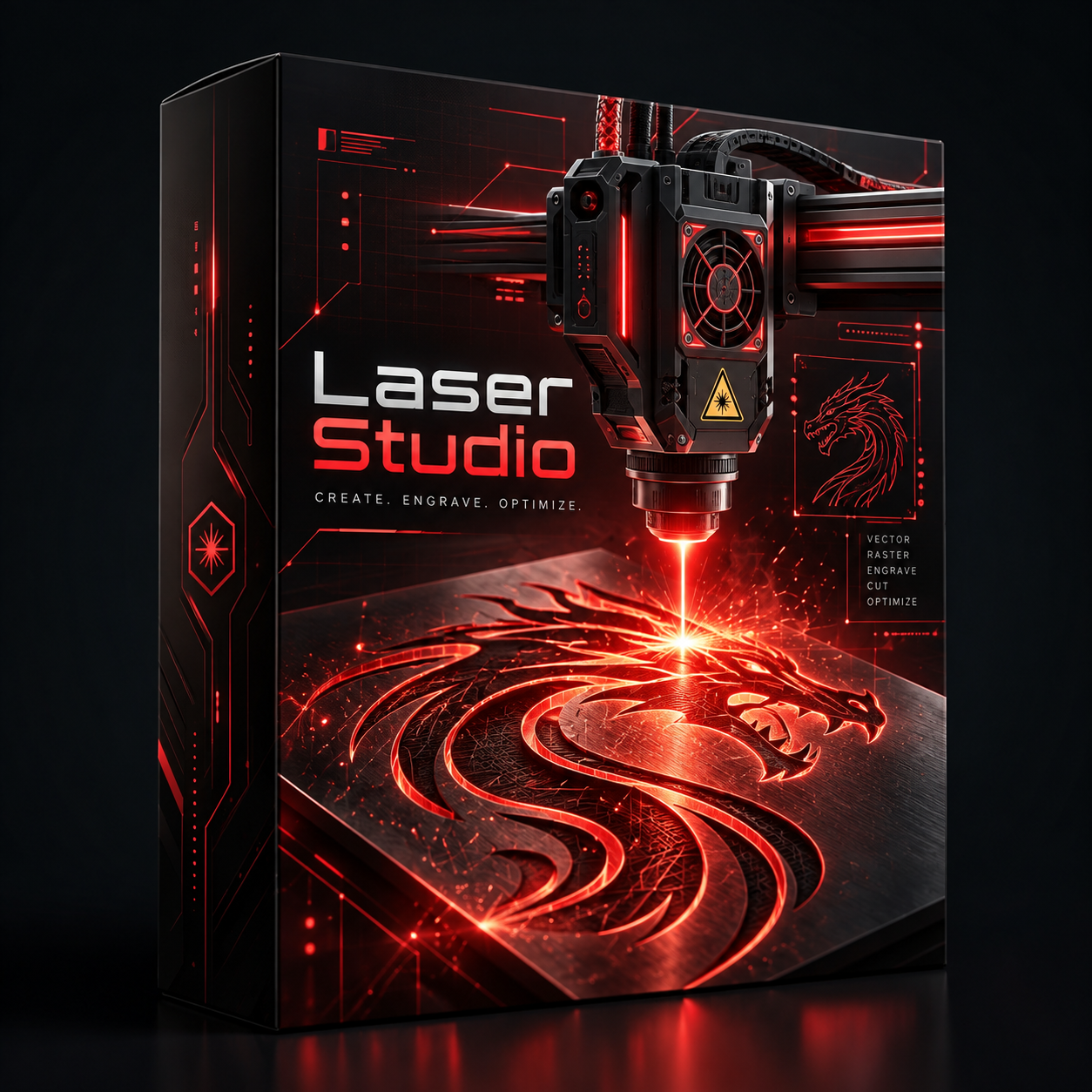
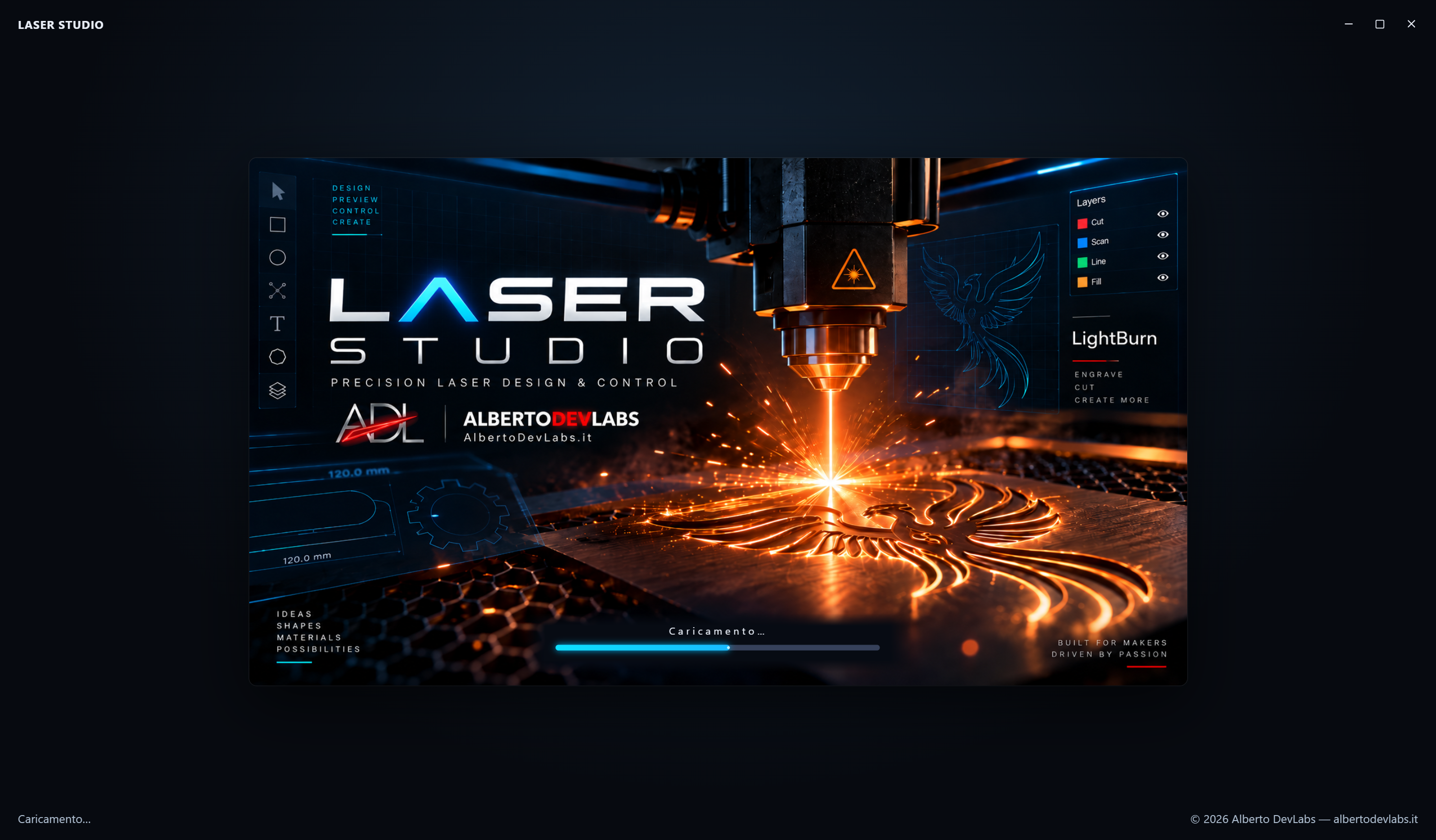
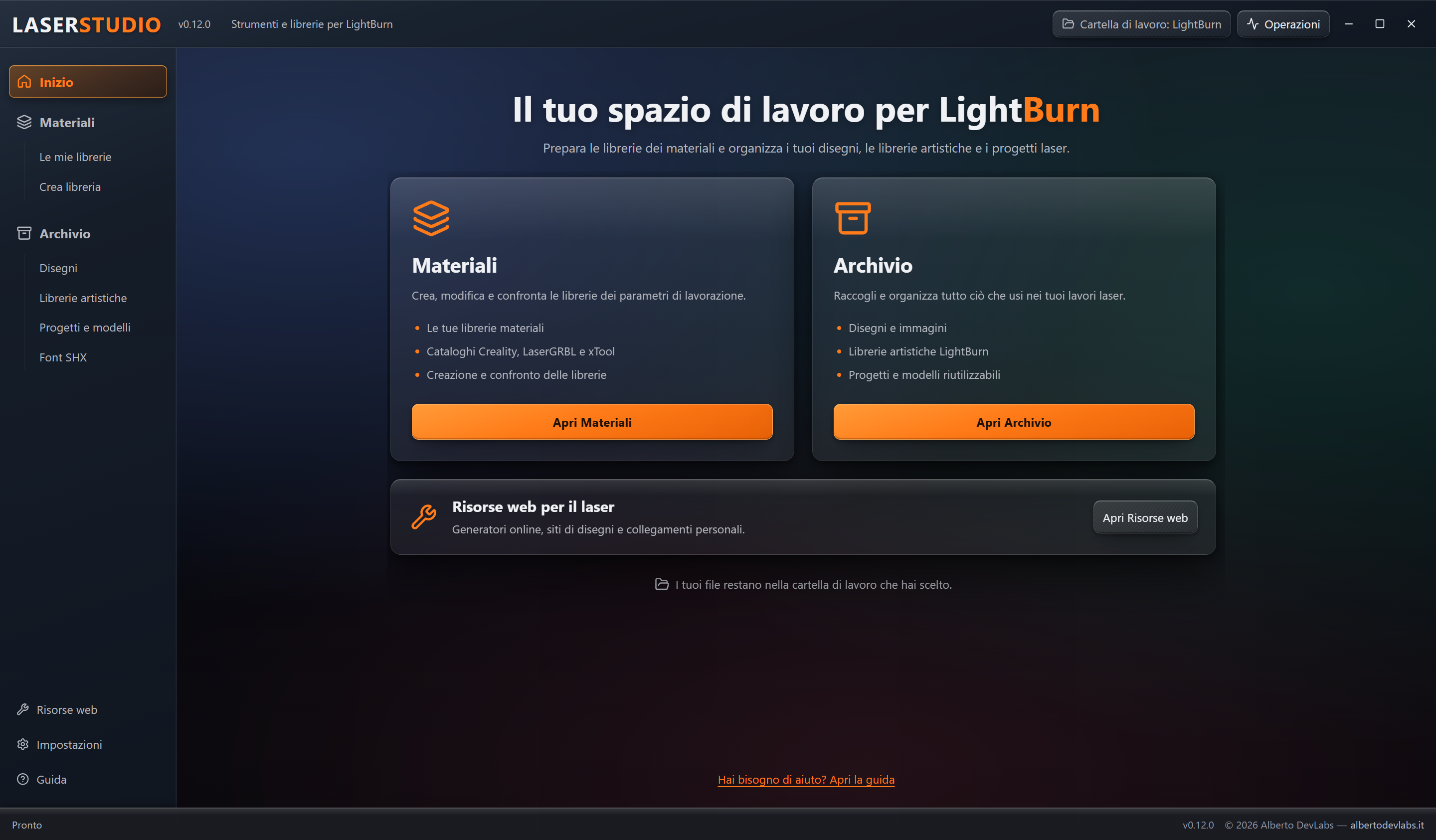
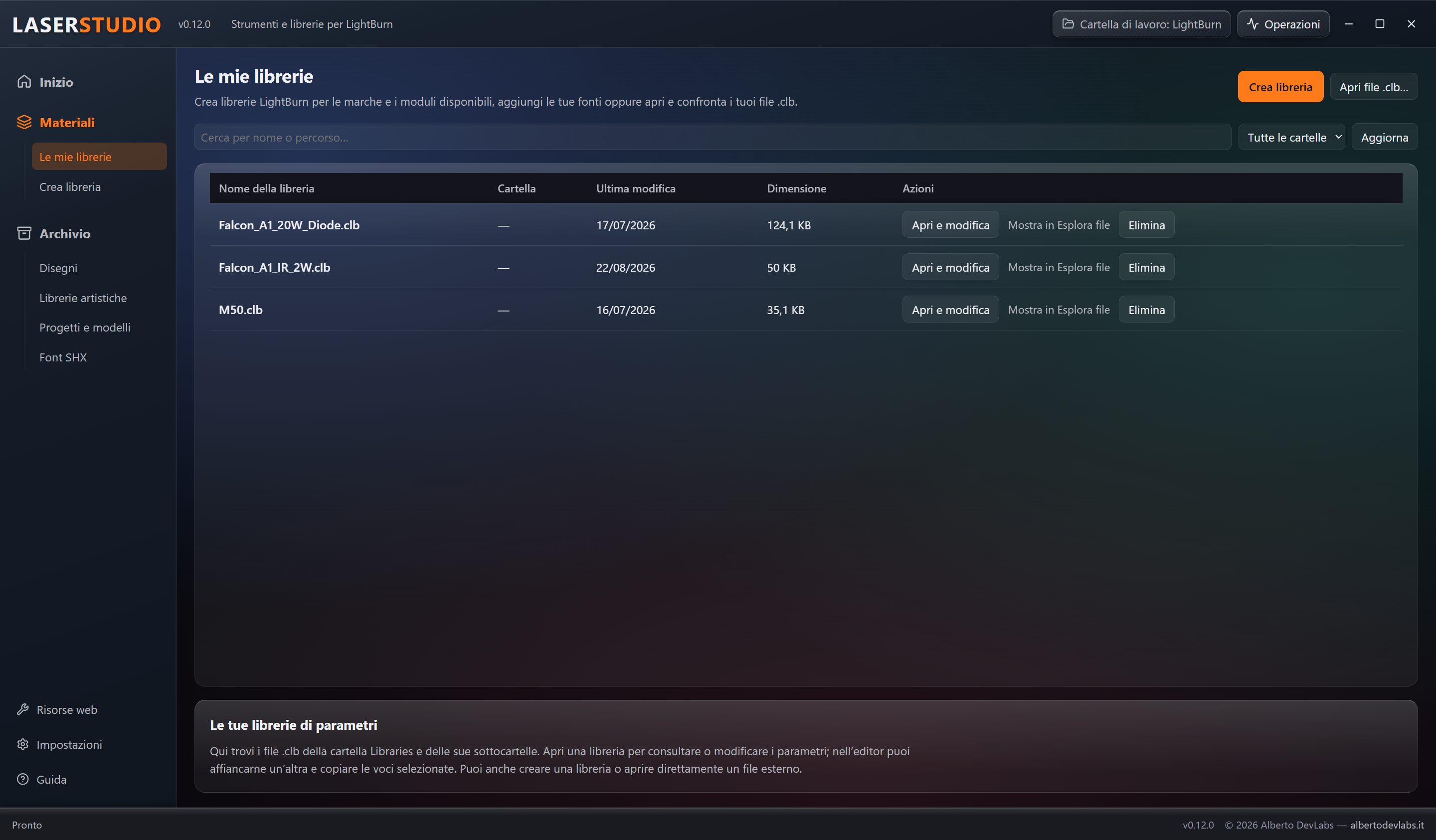
Features
Edit and compare two material libraries
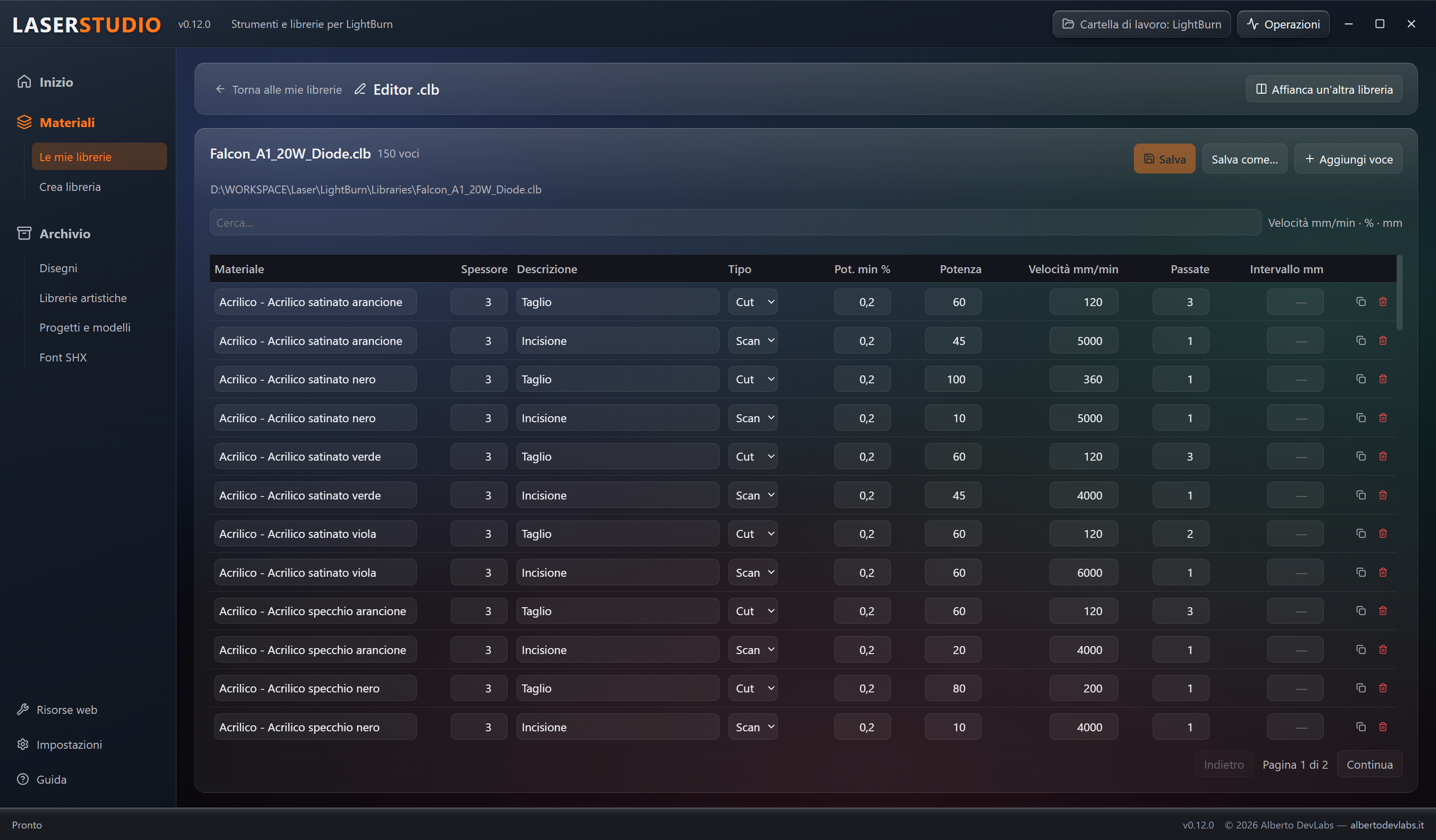
Edit materials, thicknesses, powers, speeds in mm/min, passes and intervals; add, duplicate or delete entries. Two panels let you compare libraries and copy the selected entries to an explicit destination. Each document keeps its own save action and unhandled XML content is preserved semantically.
Collect drawings into art libraries
Create and extend .lbart libraries from SVG, DXF, images and AI in the supported variants, also starting from the drawings ticked in the archive. Browse items and thumbnails and import clipart from local Falcon Design Space files. Files that cannot be converted are reported; LBArt format support is not universal.
Extract and regenerate drawing collections
Extract every item of a collection as a .lbrn2 project and PNG thumbnail in Output, keeping the original library. You can also rebuild collections from categories after a preliminary analysis: missing or empty sources and failed conversions keep the previous library. Extraction does not vectorise images.
Manage catalogues and personal parameters
Check where the data comes from, choose local sources or embedded bases and import LaserStudio JSON v1, Creality, LaserGRBL and xTool sources. Personal copies can be updated, disabled or removed without deleting the originals and the libraries created. The xTool base is partial and comparisons do not automatically update the catalogues.
Export with units and names suited to the library
Conversions keep the units expected by the sources, including the exception of Falcon T1 cutting, already in mm/s. The language of the exported names is chosen separately from the interface among the five available languages; personal entries keep the rules of their own format. Modules without usable parameters do not produce empty libraries.
Reuse projects and templates
Import copies of .lbrn and .lbrn2 projects, search them and use the dedicated preview with zoom and pan. From Templates, Create project produces a copy in Projects without modifying the template: useful for plaques and recurring jobs to be customised in LightBurn.
Choose SHX fonts from the visual sample
Import and search SHX files and compare the Laser Studio 123 sample drawn with their strokes. It is useful for choosing typefaces for tags, codes and technical lettering. Unsupported variants and characters are flagged; importing does not install fonts in Windows and requires configuring the folder in LightBurn.
Manage files from their context
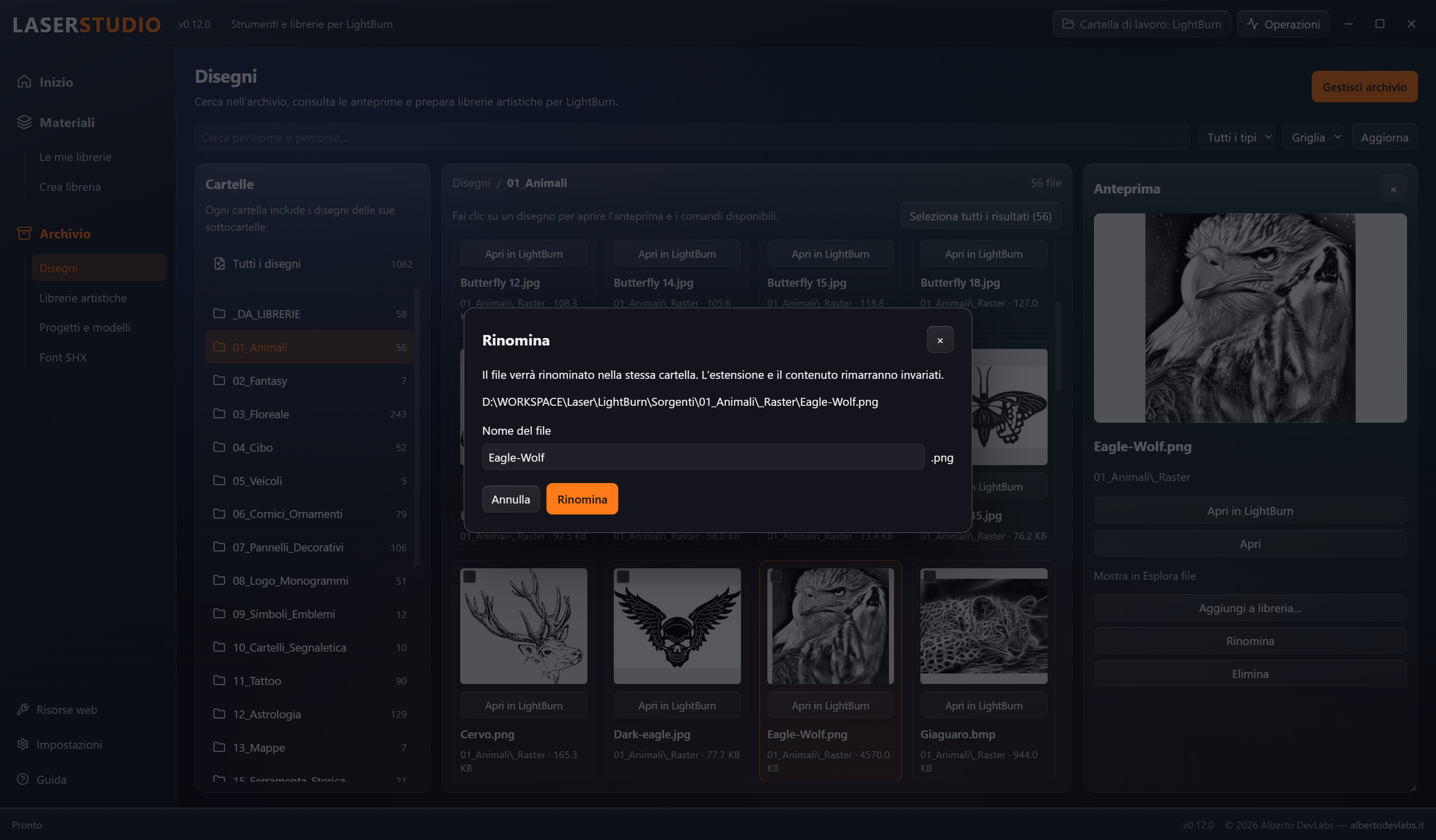
Open files in LightBurn, locate them in File Explorer, rename a drawing keeping its extension and folder, and move confirmed files to the Recycle Bin. The inventories distinguish materials, drawings, art collections, projects and fonts; renaming changes the actual names on disk.
Start from an organised folder
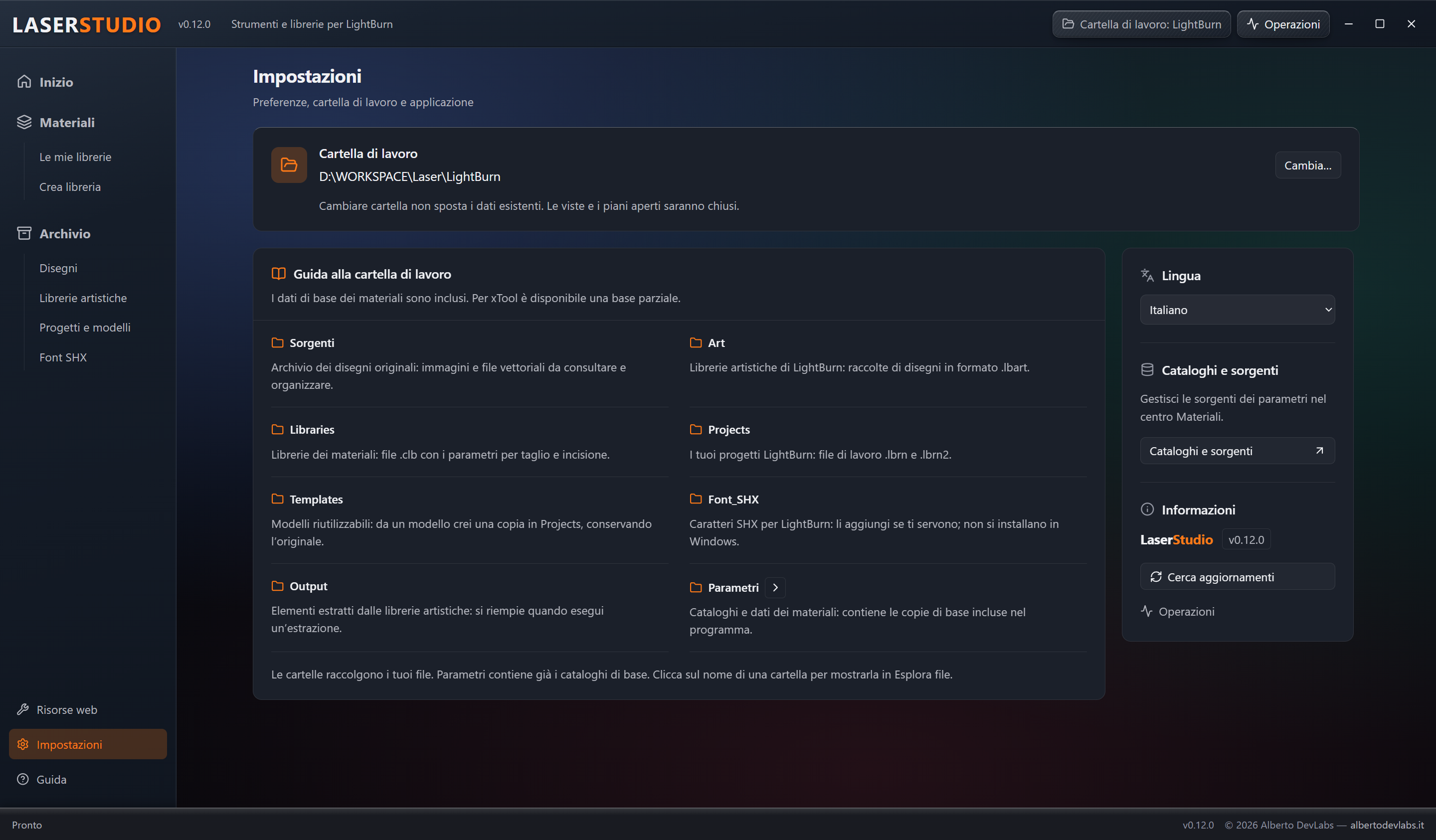
A working folder brings together Libraries, Sorgenti, Art, Projects, Templates, Font_SHX, Output and Parametri. Missing subfolders are created without emptying the existing ones. Only a new or completely empty folder receives 16 embedded drawings; changing archive does not automatically transfer the data.
Keep generators and web resources at hand
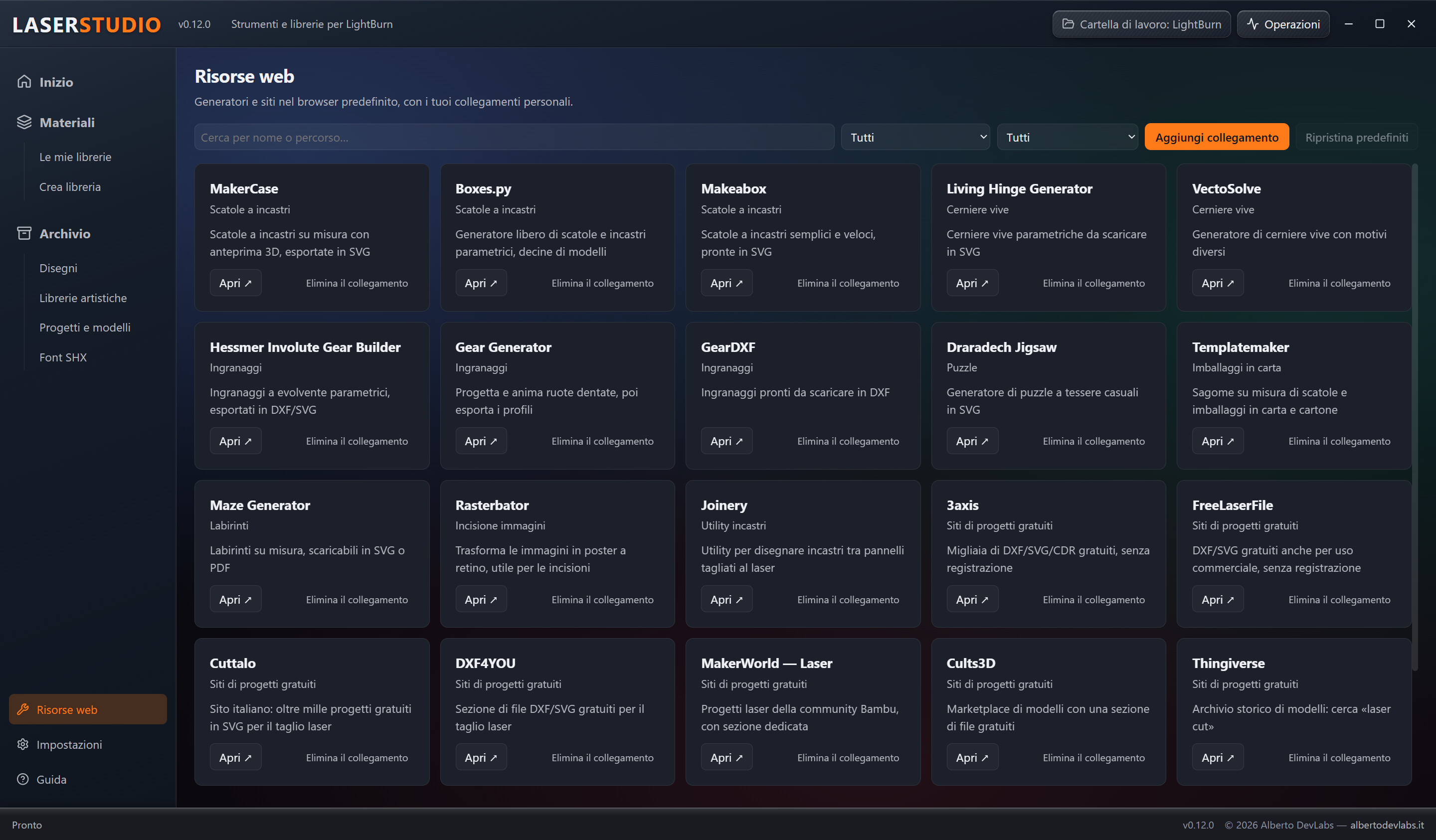
Collect searchable links to online generators and drawing sites, add your own resources and restore the defaults without losing your additions. Sites open in the browser: downloads and content licences remain managed by the respective resources.
Track operations and keep work in progress
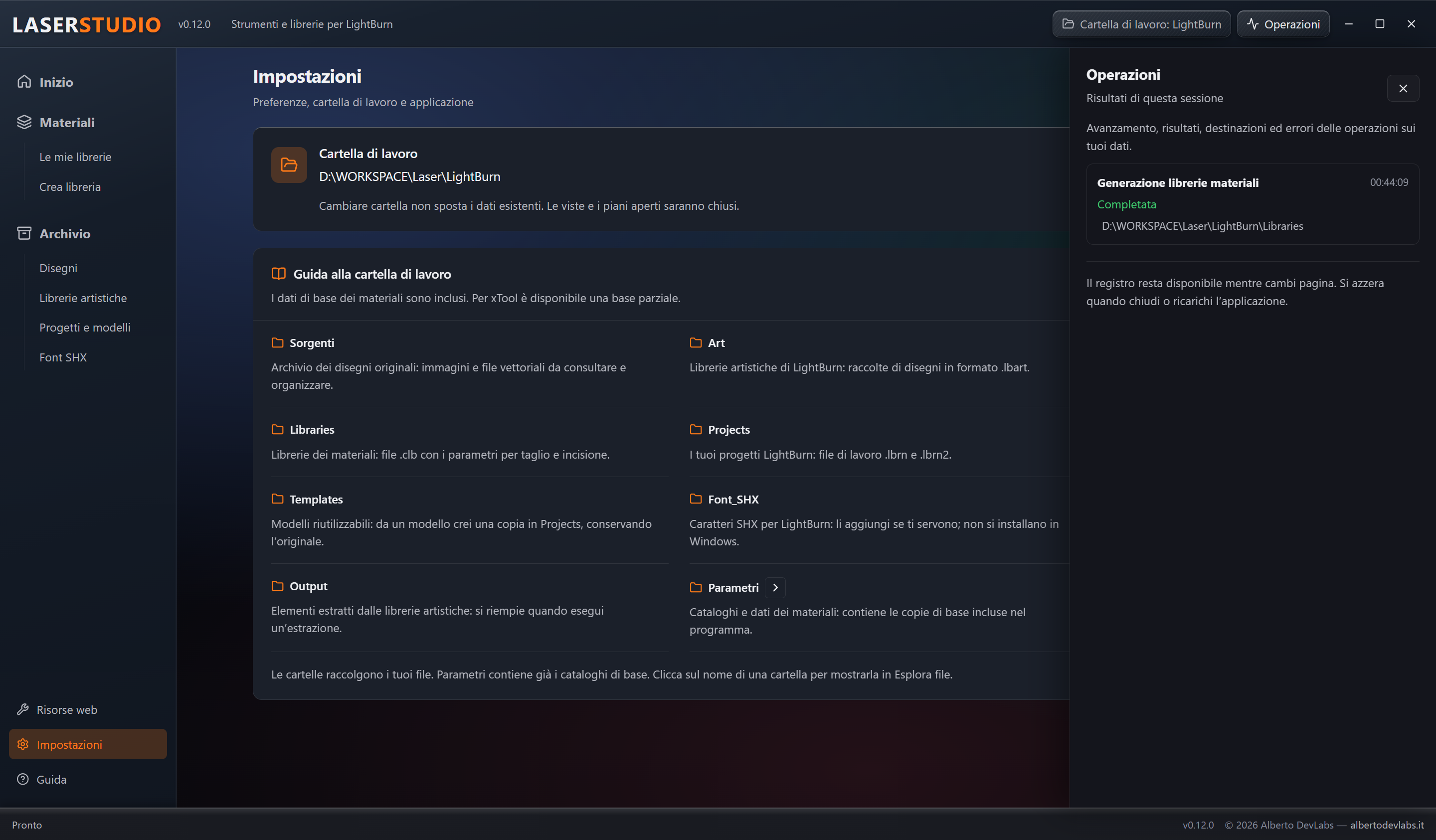
Operations shows progress, destinations, results, skipped files and errors. Navigation keeps the session's filters, plans and documents; prompts about unsaved changes help manage closing and switching archive. Backups and write protections are not the same as recovery after an unexpected shutdown.
Built-in guide and interface in five languages
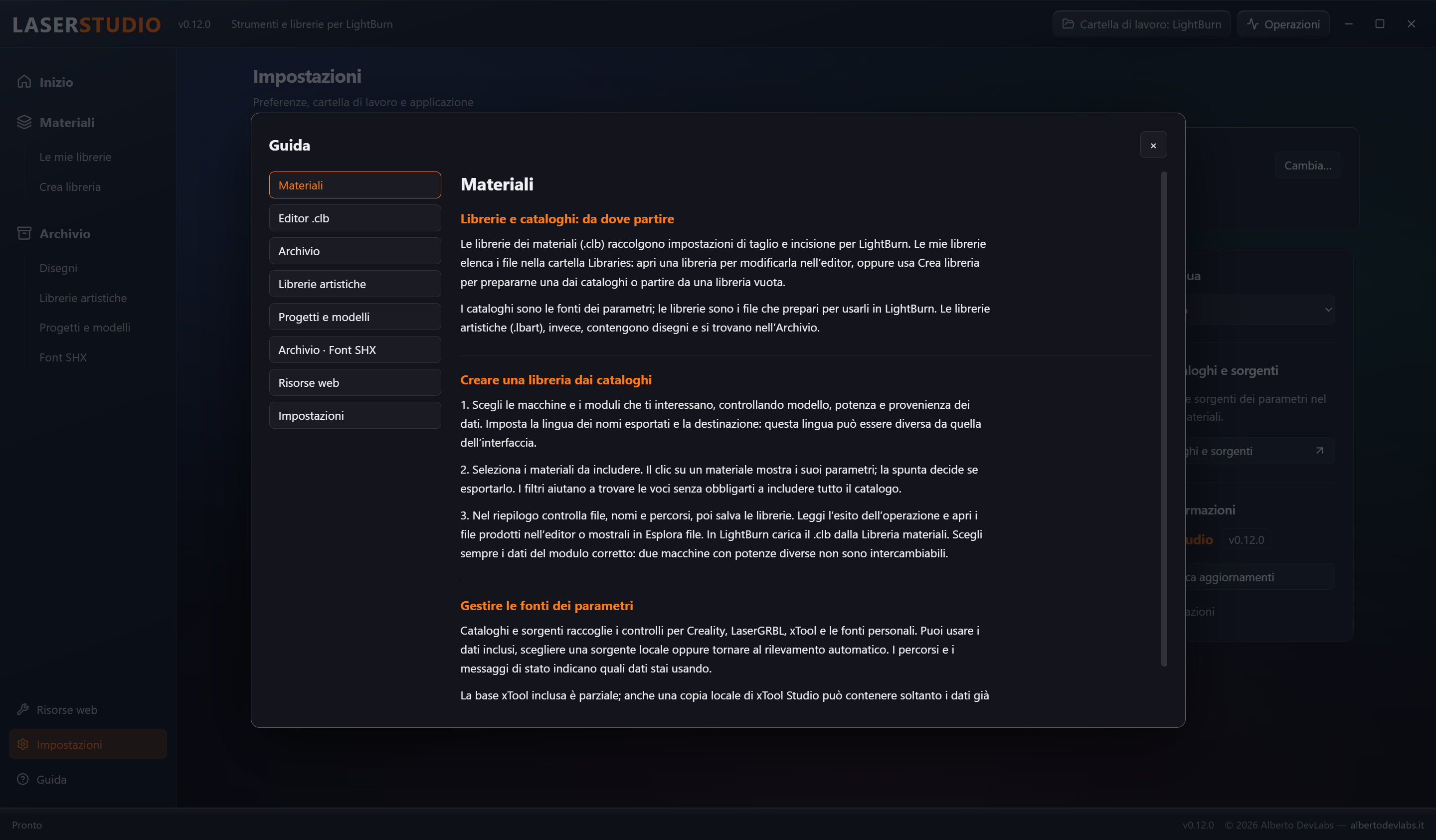
Interface, per-section guide and installer are available in Italian, English, German, French and Spanish. Settings gathers working folder, language and information; updates include size and SHA-256 checks and are disabled in development. The window starts centred and not maximised.
System Requirements
- Windows 10 or 11, 64-bit.
- Microsoft WebView2 Runtime, normally present on up-to-date Windows systems.
- A writable working folder and enough space for the archive, imported copies, exports and backups.
- LightBurn to use the .clb and .lbart libraries and work on the projects produced.
- Optional: Falcon Design Space to detect local Creality materials; its local files are required to import Falcon clipart.
- Optional: LaserGRBL to read local StandardMaterials.psh and UserMaterials.psh; an embedded base derived from version 7.14.1 is available.
- Optional: xTool Studio with material data already loaded to browse the local catalogue; a partial embedded base and the import of personal JSON files are available even without Studio.
- Internet connection to open web resources and check for or download updates.
Documentation
Who LaserStudio is for
LaserStudio is a Windows desktop application for those who use LightBurn and need to prepare cutting and engraving parameters, find drawings again and keep their laser archive tidy.
It brings together operations normally spread across manufacturers' catalogues, Windows folders and file conversions: it creates .clb material libraries, collects drawings into .lbart art libraries, organises downloaded files and keeps projects, templates and SHX fonts. It is useful both for preparing a library for your own machine and for managing collections reused across different jobs. Machining and the final editing of projects take place in LightBurn.
The version indicated by the source manifests is 0.12.0. The availability of the corresponding installer should be distinguished from the state of the code. The editorial status assigned by the author remains "Stable"; this description does not constitute a new round of testing.
Installation and requirements
Requirements for use
You need Windows 10 or 11 64-bit, Microsoft WebView2 Runtime and a writable folder with space for the archive, copies, exports and backups. LightBurn is needed to use the libraries and work on the projects produced.
Falcon Design Space, LaserGRBL and xTool Studio are optional for detecting their respective local data. Creality, LaserGRBL and xTool material bases are included; the xTool base does not represent the entire online catalogue. Personal xTool JSON files can be imported without Studio. Importing Falcon clipart, on the other hand, requires the local Falcon Design Space files.
The connection is needed for web resources and updates, not for downloading the sample drawings, which are embedded.
Installing the program
- Open the public releases page: https://github.com/AlbRelic/LaserStudio/releases/latest.
- Check the release version and download
LaserStudio-setup.exe. - Run the NSIS Windows installer and follow the procedure in the language you choose. Italian, English, German, French and Spanish are available.
- Start LaserStudio and choose the working folder.
WebView2 must be present for the interface. By the author's instruction, the installer is not run and the application is not installed on the development machine.
Working folder and first start
Creating or opening the archive
At first start, choose a new or existing folder; the suggested name is LightBurn. The program only creates the missing subfolders, without transferring or emptying content that is already there.
| Folder | Purpose |
|---|---|
Libraries | .clb material libraries. |
Sorgenti | Drawings and images, including in subfolders and categories. |
Art | .lbart art libraries. |
Projects | LightBurn .lbrn and .lbrn2 projects. |
Templates | Templates to copy for new jobs. |
Font_SHX | Fonts to make available to LightBurn through separate configuration. |
Output | Files extracted from art libraries. |
Parametri | Catalogue bases and personal sources. |
Only a folder that did not previously exist or is completely empty receives 16 sample drawings in Sorgenti: JPG, PNG, BMP, DXF and SVG organised by category. They are included in the program, require no download and are not restored after deletion. Existing archives do not receive samples, even if they contain only empty subfolders.
Libraries, projects, templates and fonts are populated with the user's files. The material bases are copied into Parametri only when they are missing.
Changing folder
In Settings use Change, choose the new folder and handle any unsaved changes before confirming. The command changes the archive being browsed; it does not automatically transfer files from the previous folder.
Materials: creating libraries for LightBurn
Choosing machines and materials
- Go to Materials → Create library.
- Search for and select machines or modules in the active catalogues. Check manufacturer, power and data provenance.
- Set the language of the exported names and the destination. The export language can differ from the interface language.
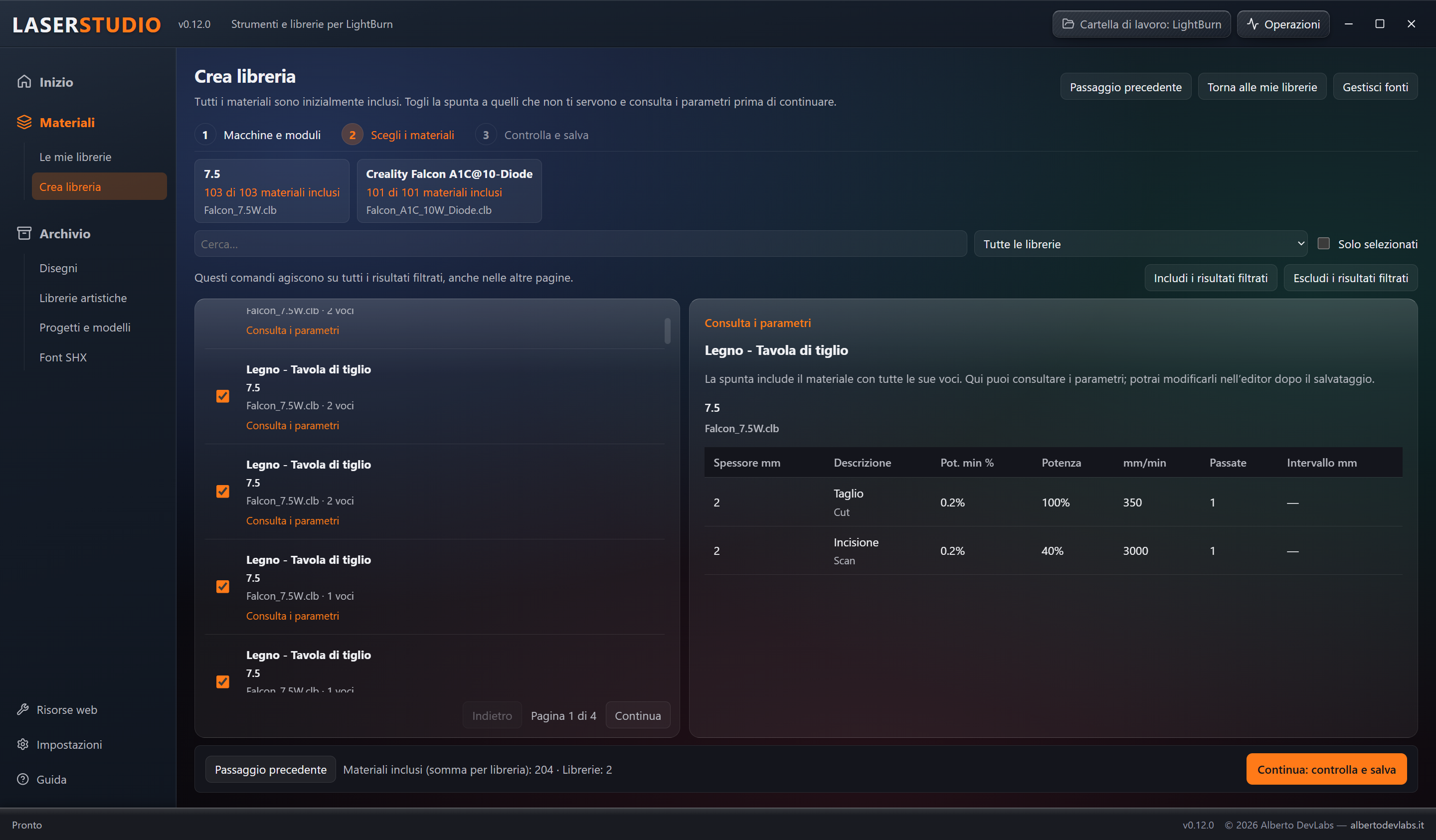
- Select the materials to include: clicking shows the parameters, while the tick decides inclusion.
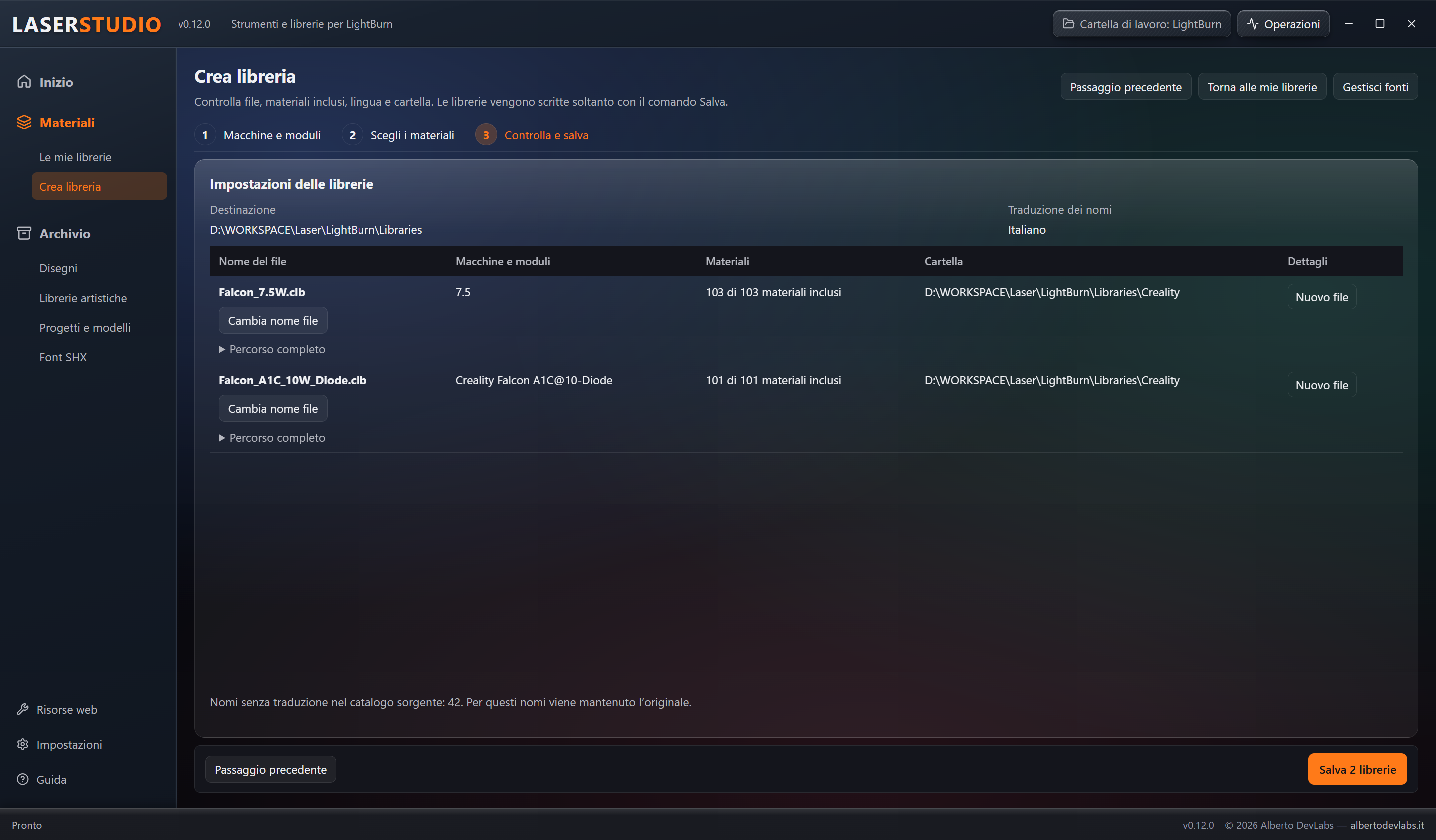
- Continue to the summary and check files, names, folders, new creations and replacements.
- Confirm the save and read the result in Operations.
- Load the resulting
.clbinto LightBurn's Material Library.
Speeds are converted according to the units of the source and of the CLB format. Data expressed in mm/min is converted to mm/s when required; cutting for Falcon T1 modules, already in mm/s in the Creality data, keeps its own unit. In the editor, speeds are shown in mm/min.
Modules without usable parameters do not produce empty libraries. Any markings on modules describe the available data: they do not certify the machining result. Compatibility between machines is not inferred, nor is the power of one laser adapted to another. Choose the correct module and check the parameters on the actual material.
Embedded catalogues and local data
In Catalogues and sources you can check the detection status, the paths used and any errors. You can manually choose a source or return to automatic detection.
- Creality: reads Falcon Design Space's
materials.json, with an embedded base and the option to select a local file. - LaserGRBL: embedded base derived from version 7.14.1 and reading of the local
StandardMaterials.pshandUserMaterials.pshfiles. Personal entries are recognisable and are not translated like the standard catalogue. The data includes manufacturers such as Ortur, Atomstack, Longer, Two Trees, SculpFun, Comgo, YoraHome, AlgoLaser, LEON3D, MECOLOUR and NASUM, within the limits of the entries actually present. - xTool: reads the local copy of the xTool Studio catalogue through a temporary snapshot of the store and the blobs. In automatic mode, if no usable laser data is available, the partial embedded base is used. A readable manual selection keeps priority. Local data too may include only what Studio has already loaded.
The embedded base is read from the program's resources, not from its editable copy in Parametri. To use a modified copy you must select or import it explicitly. The copied xTool base is located in Parametri/xTool/Base/catalogo.json; personal JSON files remain separate in the Parametri/xTool folder.
Refresh re-reads the sources. Comparison with the embedded bases does not automatically synchronise catalogues or libraries. An incomplete comparison is flagged and a difference does not prove that a source is more recent.
Importing xTool parameters
Use Import xTool parameters (.json) to copy personal files exported from Studio into Parametri/xTool. Personal entries are usable even without Studio installed. Module variants and the line, fill and bitmap engraving modes remain distinct in the entry descriptions.
Adding and managing personal sources
In Your sources → Add source, select a file, check the machines with usable parameters, assign a name and confirm. LaserStudio JSON v1, Creality JSON in the materials.json format, LaserGRBL PSH and xTool JSON compatible with the reader are recognised.
Changing the extension does not make a file compatible. Unknown formats, invalid data or sources without usable parameters are rejected. The preview describes the exportable modules; it does not certify the parameters on the laser.
The source is kept as an independent copy under Parametri/Personali/<id>.json; you do not need to keep the original accessible. Update from file repeats the preview while preserving the source's identity. Disable excludes it from module selection. Remove moves the managed copy to the Recycle Bin, without deleting the original, the backups or the libraries already created. The suggested destination for personal libraries is Libraries/Personali/<id>/.
LaserStudio JSON v1 personal format
The root contains format with value laserstudio.materials, version with value 1 and the machines list. Each machine contains id, brand, name and entries. Machine identifiers must be unique, at most 80 characters long and made of ASCII letters, digits, hyphens or underscores.
| Entry field | Required value |
|---|---|
material | Material name. |
thickness_mm | Non-negative thickness in mm, or -1 when not applicable. |
description | Description unique for material and thickness. |
operation | cut or engrave. |
speed_mm_min | Positive speed in mm/min. |
power_percent | Power from 0 to 100%. |
passes | Integer number of passes, at least 1. |
line_interval_mm | Optional: positive interval in mm or null. |
Unknown fields and invalid values are rejected. Units are not inferred automatically; speed conversion to mm/s happens only once. Materials with the same name and thickness are grouped. Personal names and descriptions keep the language of the file.
Limits: 25 MB per file, 2,000 machines and 20,000 entries per machine. Texts must be non-empty, without control characters and at most 500 bytes long. The sources guide in the app includes an example; its values are illustrative and must be replaced with real, verified data.
My libraries and CLB editor
Browsing, creating and deleting libraries
My libraries lists the .clb files in the Libraries folder recursively, with search and folder filter. Open an entry to edit it, show the file in File Explorer, open an external CLB or create an empty/personal library.
Delete is available for .clb files inside Libraries and moves them to the Recycle Bin after confirmation. The command is blocked during an operation or when the file is open in the editor: first close the document, choosing whether to save or discard. If the Recycle Bin is not usable, the program does not fall back to permanent deletion.
Editing entries
The table lets you edit material, thickness, description, operation type, minimum and maximum power, speed in mm/min, passes and interval. Value limits apply, such as powers between 0 and 100%, positive speed and at least one pass.
Use the commands to add, duplicate or delete entries. Save writes the document; Save as lets you create another library. Check the path in the confirmation. Changes made in cells stay in memory until saving.
Comparing two files
Compare with opens a second library side by side. Tick the entries in the source panel and use Copy selected to the indicated destination. Each panel has its own document and its own save action: save the destination one after copying. In case of matching names the copies are distinguished, with no silent overwriting.
Ctrl+S saves the panel that has focus. Moving to another section keeps the session's documents, but is not the same as saving them. When closing the document, changing the working folder, exiting and before updates, pending changes are handled: save, discard or cancel the action.
Attributes and XML content not handled by the editor are preserved semantically; byte-for-byte identity of the serialisation is not promised. If the file has changed externally, the editor blocks overwriting.
Archive: finding and managing drawings
Search and previews
Archive → Drawings browses Sorgenti and its subfolders. Choose a category, search by name or path and filter raster or vector files. You can switch between grid and list and use pagination. Refresh re-reads changes made with other programs.
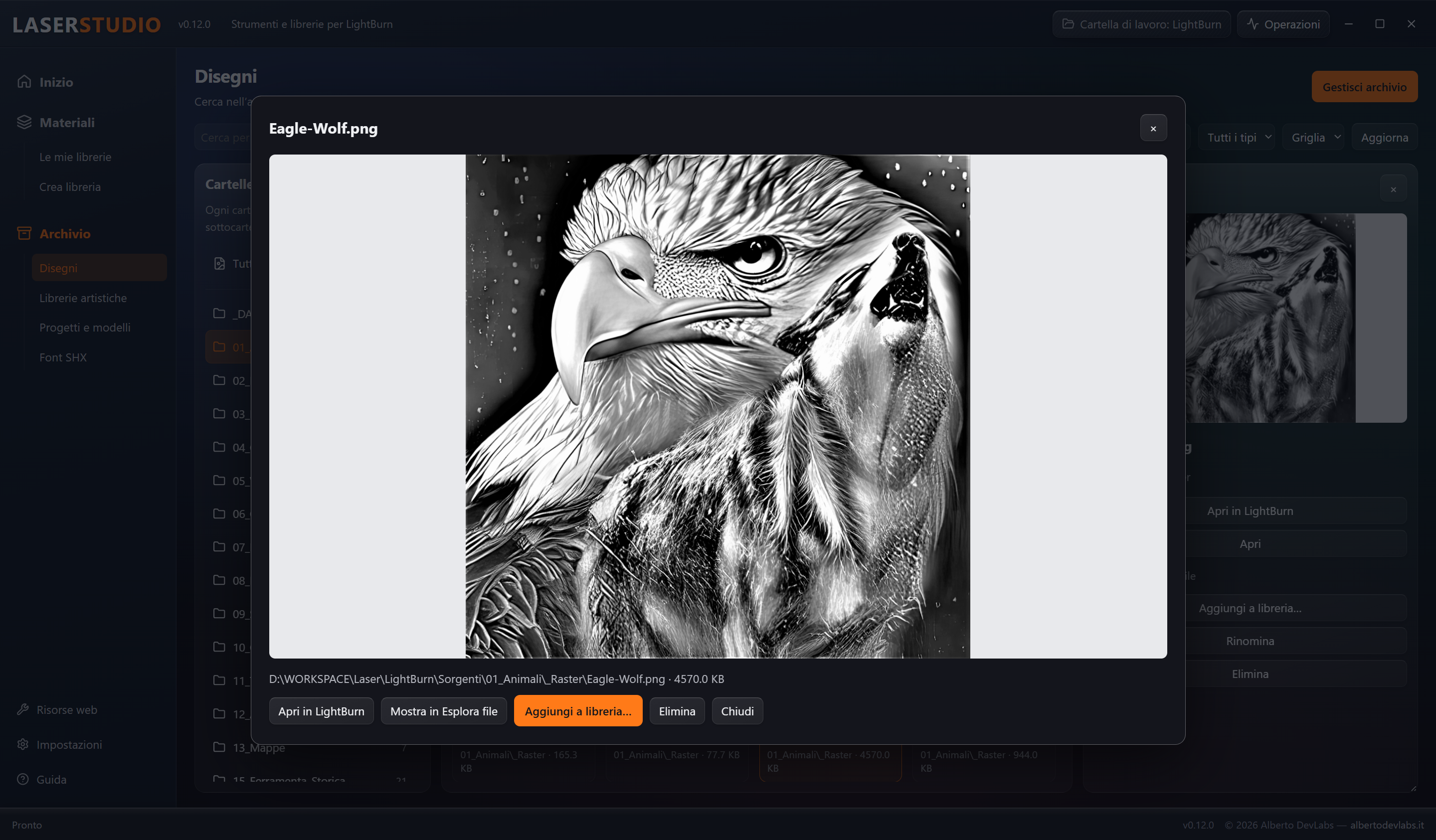
Clicking the image or the name selects the file for the resizable side panel. Open, or clicking the side image, opens the large preview. Closing the large preview keeps the selection. Space opens the preview of the current file when focus is not on controls that have their own action; Esc closes the large preview.
The ticks indicate the files intended for multiple operations. Select results includes the filtered results even beyond the visible page; Deselect all clears the ticks. Ctrl+A selects the filtered results when the command is handled by the view.
Opening, adding, renaming and deleting
- Open in LightBurn: sends the file to the program for the actual work. Opening does not prove that every piece of content is represented by LaserStudio's preview.
- Show in File Explorer: locates the file on disk.
- Add to library: inserts the ticked files into the chosen art collection. Check the report of items added, already present and skipped.
- Rename: changes the real name of a single drawing within the same folder. The extension stays fixed and a name already in use is not overwritten. It is available in the side panel and with a single file ticked.
- Delete: after confirmation, moves the indicated files to the Recycle Bin. Recovery is done from the Windows Recycle Bin.
Previews do not modify the originals; renaming and deletion, on the other hand, are real operations on the files.
Importing and organising the archive
Preparing the plan
- Open Import and organise and choose the folder of incoming files.
- Start Analyse.
- Examine files, duplicates and leftovers and choose the items to include.
- Assign categories, including to the selected items, and correct the names in the plan. Renaming keeps the extensions and destination conflicts must be resolved before applying.
- Review the summary with actions and destinations.
- Confirm the application and check Results.
The analysis does not apply any moves. Files and plans are re-checked before the planned operations; changes compared with the analysis may require repeating it.
Duplicates, leftovers and maintenance
Duplicate comparison uses SHA-256 content, not just the name. It can include files already present in the archive, indicating the matches. Items selected for removal from the set are moved to the _DUPLICATI_RIMOSSI quarantine, not deleted permanently.
Cleanup recognises leftovers such as macOS ._* stubs; extended mode includes service files such as .DS_Store, Thumbs.db, desktop.ini and __MACOSX leftovers. Only the items selected in the plan are handled and leftovers go to the Recycle Bin.
Check archive uses the same environment to examine duplicates and leftovers in drawings already archived. Compatibility warnings on the listed files do not guarantee the preview of every item inside a grouped folder.
The application runs successive stages. If one fails, the previous ones may remain applied: read the results before repeating the work. No global undo of cleanup, quarantine and moves is promised.
Art libraries
Browsing and building collections
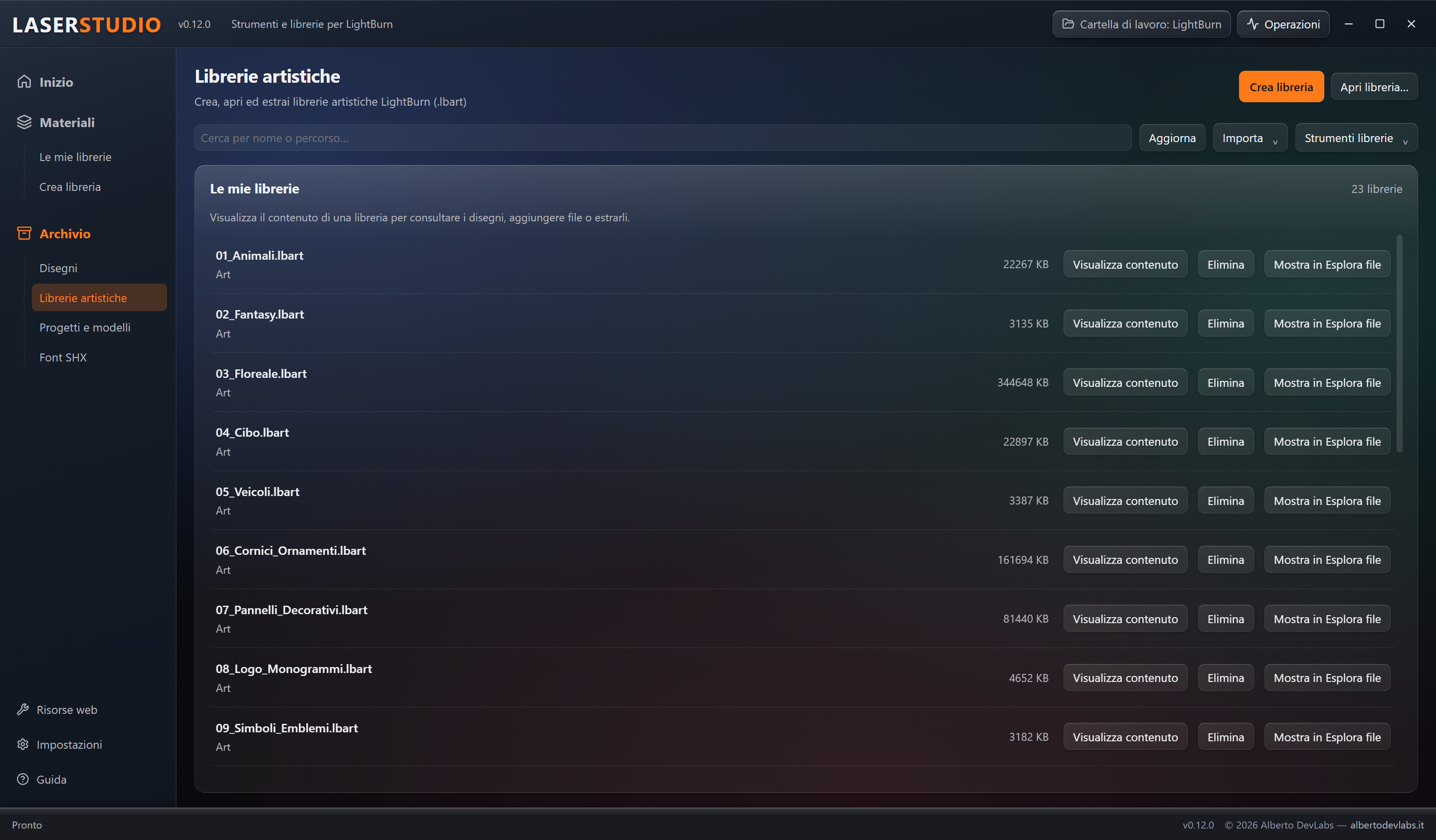
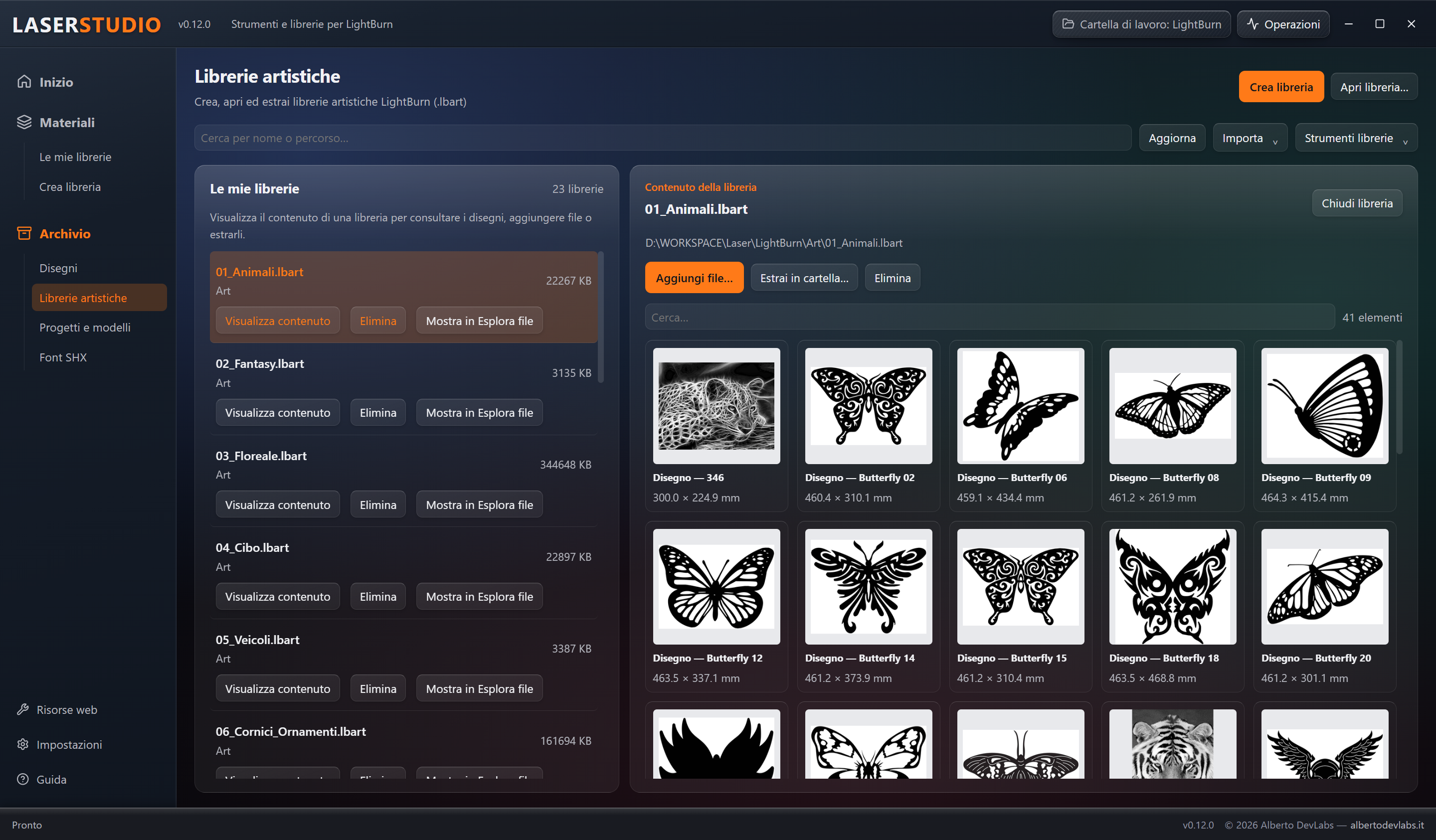
Archive → Art libraries lists the .lbart files in Art. View content opens the collection and lets you search items by name and check their thumbnails and dimensions. Clicking an item opens the large preview.
Create library starts from the drawings selected on disk; Add files extends the open one. Adding is also available from Drawings. SVG, DXF, raster images and AI in the supported variants are handled. Raster and vector can coexist in the same library; the item names distinguish the type of content. The conversion handles the orientation required by the LightBurn format.
The LBArt format is not officially documented in the reference implementation and is handled on the basis of real files: universal compatibility with every variant is not guaranteed. Check the results to find out which files could not be converted or were already present.
Importing Falcon clipart requires the local Falcon Design Space files. Select the entries to import; the available names and categories are presented in Italian or, in the other languages, in English where a translation exists, falling back to the original name for unmapped entries.
Extracting items
Extract to folder shows quantity and destination before confirmation. For each item it saves a .lbrn2 project and a .png thumbnail in Output/<library name>/.
Example: 06_Cornici_Ornamenti.lbart produces Output/06_Cornici_Ornamenti, with pairs of files having the same name. The project lets you open the item in LightBurn; the PNG serves to recognise it.
Extraction keeps the original library and performs no tracing or vectorisation. A vector stays a vector; an embedded image stays an image in the .lbrn2 too. The PNG is a raster thumbnail, not a vector drawing with separable objects.
Regenerating from categories
Start the analysis of the Sorgenti categories, check the collections involved and confirm the regeneration. Collections are rebuilt from the sources, not simply extended with new items.
Replacement happens after a successful conversion, keeping the previous version in .bak. Missing or empty categories, or those with failed conversions, keep the previous library. Collections outside the managed names are not involved. Read the report to distinguish completed operations from errors.
Close library ends the browsing session. Show in File Explorer locates the file; Delete moves the indicated collection to the Recycle Bin, after confirmation.
Projects and templates
Importing and browsing
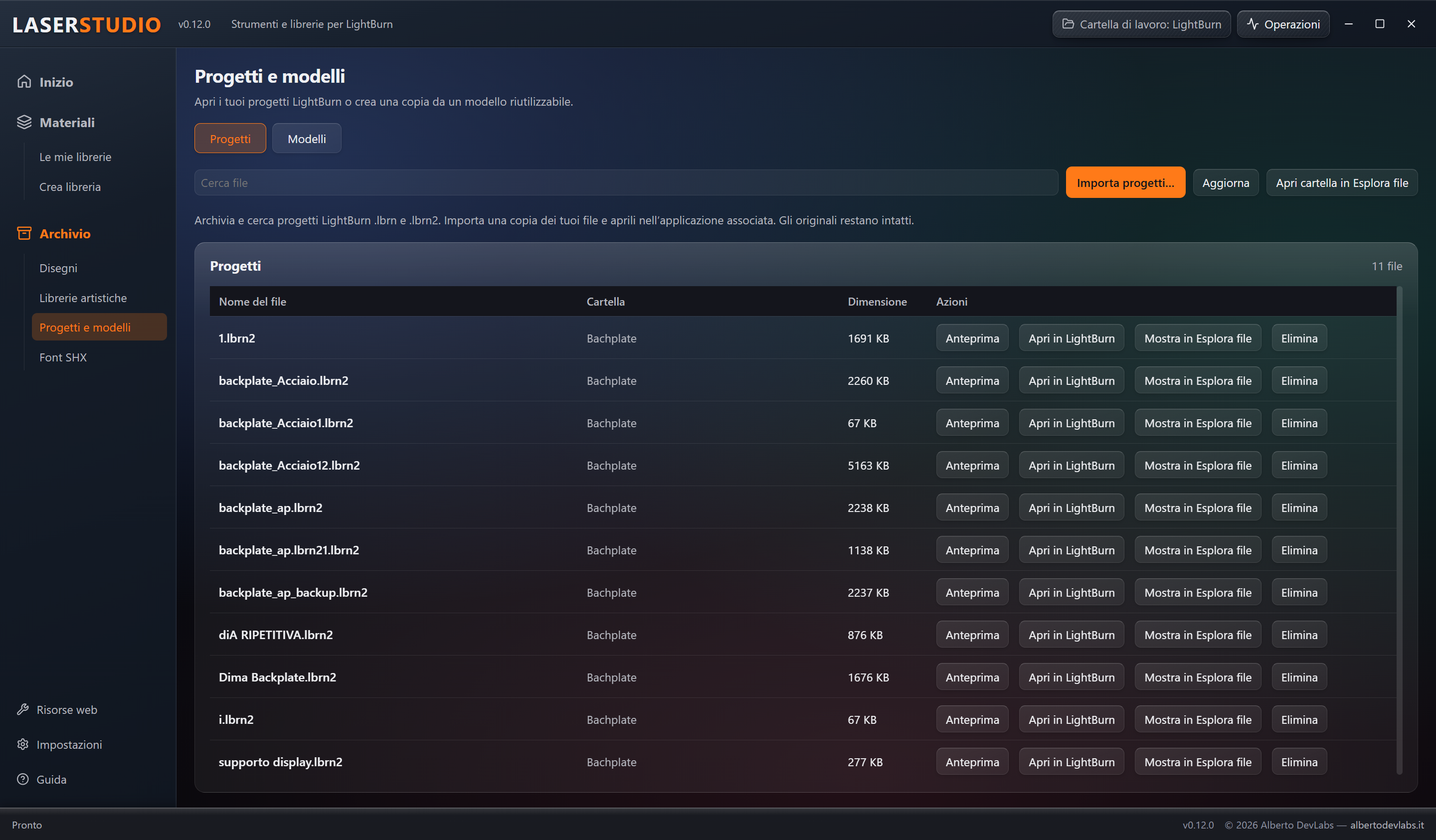
In Projects and templates, choose the appropriate tab and use Import to copy .lbrn or .lbrn2 files into Projects or Templates. Search, pages and Refresh help you browse them. Open folder shows the current area in File Explorer.
Preview opens a view with zoom, pan and fit to window. The dedicated reader can show supported geometries or use the embedded thumbnail; warnings indicate elements not rendered and limits. The sharpness of an embedded thumbnail depends on the image saved in the project.
To work on the file use Open in LightBurn. Show in File Explorer and Delete are available, with a move to the Recycle Bin after confirmation. The preview does not save changes into the project.
Creating a job from a template
In the Templates tab choose Create project, enter a name and check the destination in Projects. You get a copy and the template remains unchanged. If the name is already in use, choose another one.
For example, a base plaque kept in Templates can become a separate copy for each job, to be customised afterwards in LightBurn.
SHX fonts
Import and preview
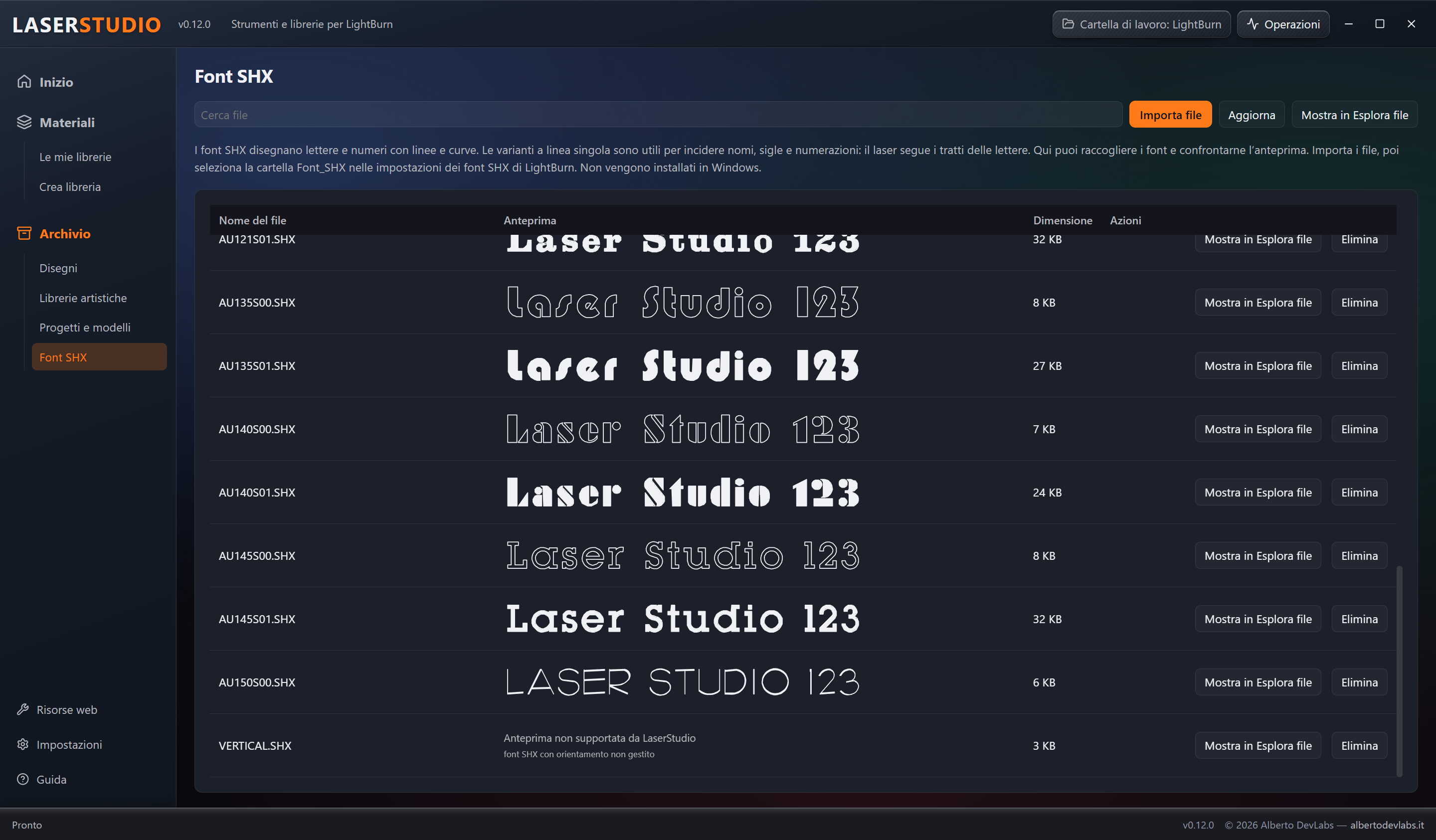
In Archive → SHX fonts, Import copies the chosen files into Font_SHX. Use search and Refresh to browse them and re-read any external changes.
Each row shows the Laser Studio 123 sample through the font's strokes, with the file size and commands. Previews are requested when the rows become visible. The reader is dedicated and separate from those for drawings and projects; it handles Shapes 1.0 and Unifont 1.0/1.1 variants within size and complexity limits. Unsupported variants, missing characters and unreadable files produce specific messages.
Use in LightBurn
SHX files describe characters with lines and curves. Single-line variants are useful for names on tags, codes, numbering and technical lettering; not all SHX files have this structure.
In LightBurn's SHX font settings, choose the Font_SHX folder of your working folder, not a single file. Importing in LaserStudio does not automatically configure LightBurn and does not install fonts in Windows. File Explorer and deletion to the Recycle Bin let you manage the collected copies.
Web resources
The page brings together searchable links to online generators and drawing sites: finger-joint boxes, living hinges, gears, puzzles, packaging, mazes and other laser resources.
Open launches the default browser; the site is not embedded and LaserStudio does not download its content by itself. After downloading, you can organise the files in the Archive.
Add link stores a personal name, address and description. You can remove links and restore the default ones without deleting your personal entries. Drawing licences remain those declared by the respective sites.
Settings, guide and operations
Languages and folders
Settings offers working folder, language, updates, diagnostics and information. Clicking a folder name opens it in File Explorer; the arrow next to Parametri shows its catalogues. To choose the material sources use Catalogues and sources.
Interface and guide are available in Italian, English, German, French and Spanish. The choice is remembered between launches and does not rename files or folders, nor translate personal links. The language of the exported names is chosen while creating the CLB and does not rewrite libraries already saved.
Guide, session and progress
The built-in Guide is organised into Materials, CLB Editor, Archive, Art libraries, Projects, Fonts, Resources and Settings. Operations shows progress, destinations, results, skipped files and errors of the session's tasks.
Navigation keeps the session's filters, selections, plans, documents and comparisons. This behaviour does not constitute automatic recovery after a process crash. Save documents before finishing work.
The window opens centred, not maximised and sized to the monitor's area. The splash stays visible for at least five seconds and waits for the interface to be ready; its animation does not measure archive loading and does not represent a global preloading of the drawings.
Updates
Information shows the version and the command to check for updates. The intended path for the installer checks release provenance, size and SHA-256. Unsaved changes are handled before the update. Installing updates is disabled in development.
Compatibility and limits
Previews and conversions
| Format | What to expect |
|---|---|
| SVG | Display and conversion of supported features; unhandled effects may not be reproduced. |
| DXF | Supported geometries, with limits on entities and variants; text annotations may be omitted from the preview with a warning. |
| AI | First page of PDF-compatible AI files and recognised paths of GNU libplot PostScript AI files. Other legacy AI files may require a compatible re-save. |
| PNG, JPG/JPEG, BMP, GIF, TIF/TIFF, WebP | Raster previews; no implicit vectorisation. |
| LBRN and LBRN2 | Dedicated project preview, through supported geometries or embedded image. |
| SHX | Sample with a dedicated reader, within the variants and complexity handled. |
| PDF and PLT/HPGL | No dedicated preview reader. Support for PDF-compatible AI files is not the same as general support for PDF documents. |
"Preview not supported by LaserStudio" indicates a limit of the reader. "Unable to generate the preview" indicates an error with a reason to check. A joint lack of support by LaserStudio and LightBurn is stated only when confirmed; in other cases compatibility may be unverified.
A missing preview does not prove that LightBurn cannot open the file. A successful display does not guarantee complete conversion into an art library. Previews do not modify the originals.
Documented issues
The 0.11.1 changelog records slow initial thumbnail loading, including JPEG, missing previews for Roman Clock Free AI File.ai and Steampunk Butterfly.svg in the 19_Orologi category, and cache reuse after restart still to be confirmed. In this preparation there is not enough evidence to declare those points resolved in 0.12.0 or to promise specific performance.
Data protection
The replacement writes provided for settings, CLB and LBArt prepare the content before replacement and keep .bak backups. Some batch operations provide for restoring previous writes if a later one fails. Regeneration keeps the libraries when the sources are missing, empty or not convertible.
These protections do not replace a backup of the archive and do not guarantee a transaction resistant to sudden power interruptions. The unified organisation plan may leave already completed stages applied. Always check results and destinations after an error.
Imported parameters describe catalogue or personal data, not a guaranteed result on your own laser. Material tests and the final machining setup remain necessary in LightBurn.
Information for developers
LaserStudio uses Rust, Tauri 2, Svelte 5 and TypeScript. For development, Node.js with npm, Rust/MSVC, Windows SDK and WebView2 are documented.
From PowerShell, in the project root, the preparation and start commands are npm.cmd ci and npm.cmd run tauri dev. The available commands for checks and builds are npm.cmd run check, cargo test --manifest-path src-tauri/Cargo.toml, npm.cmd run build and npm.cmd run tauri build. These are distinct operations to be run only when requested. The installer is produced in src-tauri/target/release/bundle/nsis/.
By the author's instruction, building and publishing are separate and publishing the new version is handled by GitCode. A successful build is not the same as a tested program and a push alone does not authorise a release.
This manual was prepared by reading the relevant materials and sources, without writing files, testing, launching, installing, building or publishing.
© 2026 Alberto DevLabs — https://albertodevlabs.it
Get it LaserStudio
Premium Version
The ultimate control room for LightBurn: master material libraries, vectors and projects in a single high-performance workflow.
Buy – €34License for 3 computers · How buying works