WinTamer
Control panel that blocks everything Windows 11 does on its own, with a section dedicated to AMD PCs.
What you get
Six tabs
YOUR PC (actual hardware and download links), THIS COMPUTER (13 entries), WINDOWS CLEANUP (47 entries in five categories: Updates, Artificial intelligence, System, Telemetry and privacy, Ads and clutter), AMD (5 entries), PERSONALIZATION (7 entries) and MY ENTRIES (user-created entries).
Entries written as what Windows does today
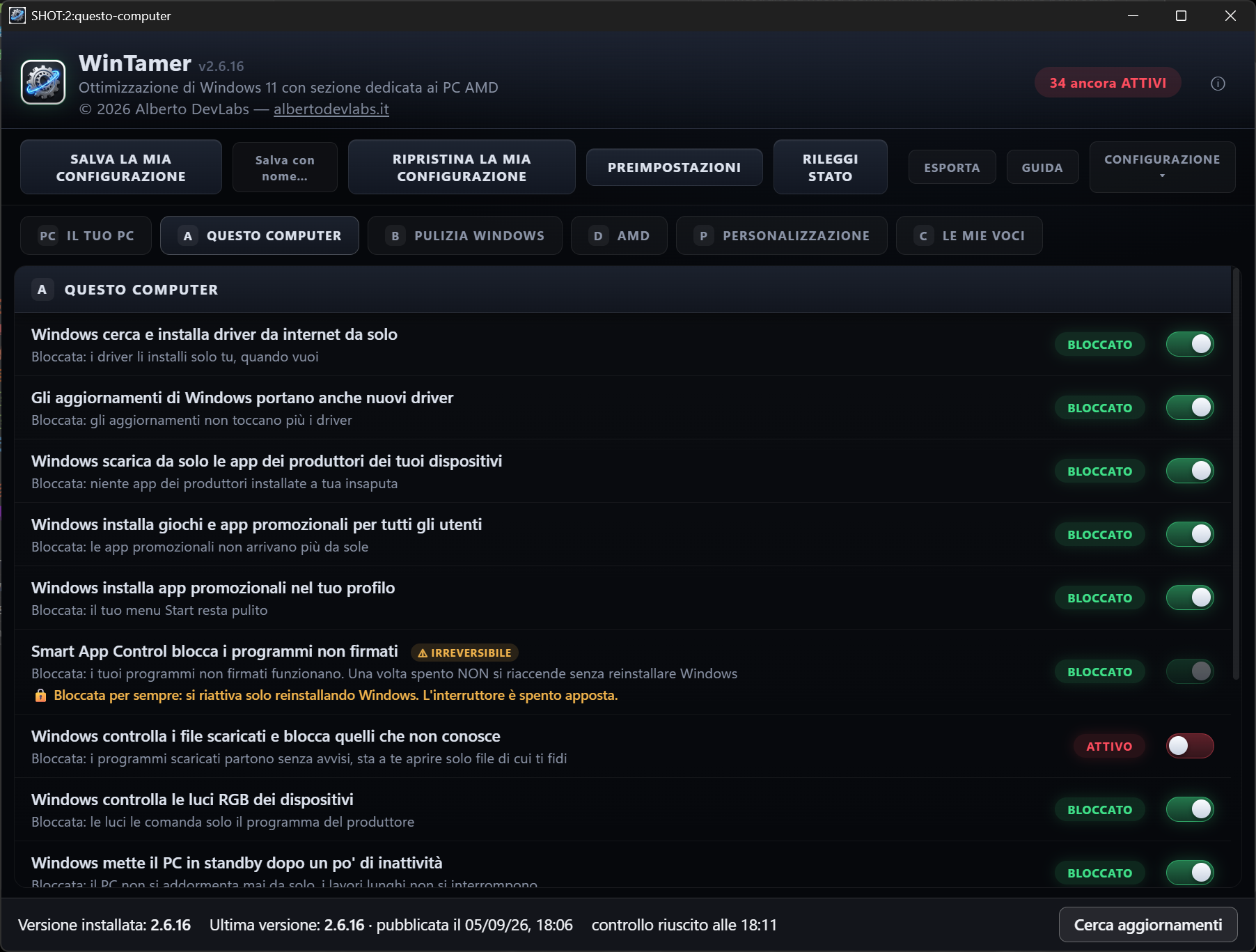
Each title describes a Windows behavior; the ACTIVE status (red) means it is doing it, BLOCKED (green) that it no longer does it, NOT PRESENT (grey) that the component does not exist on this PC. Each entry has a toggle and a counter at the top tells you how many entries are still ACTIVE.
YOUR PC tab
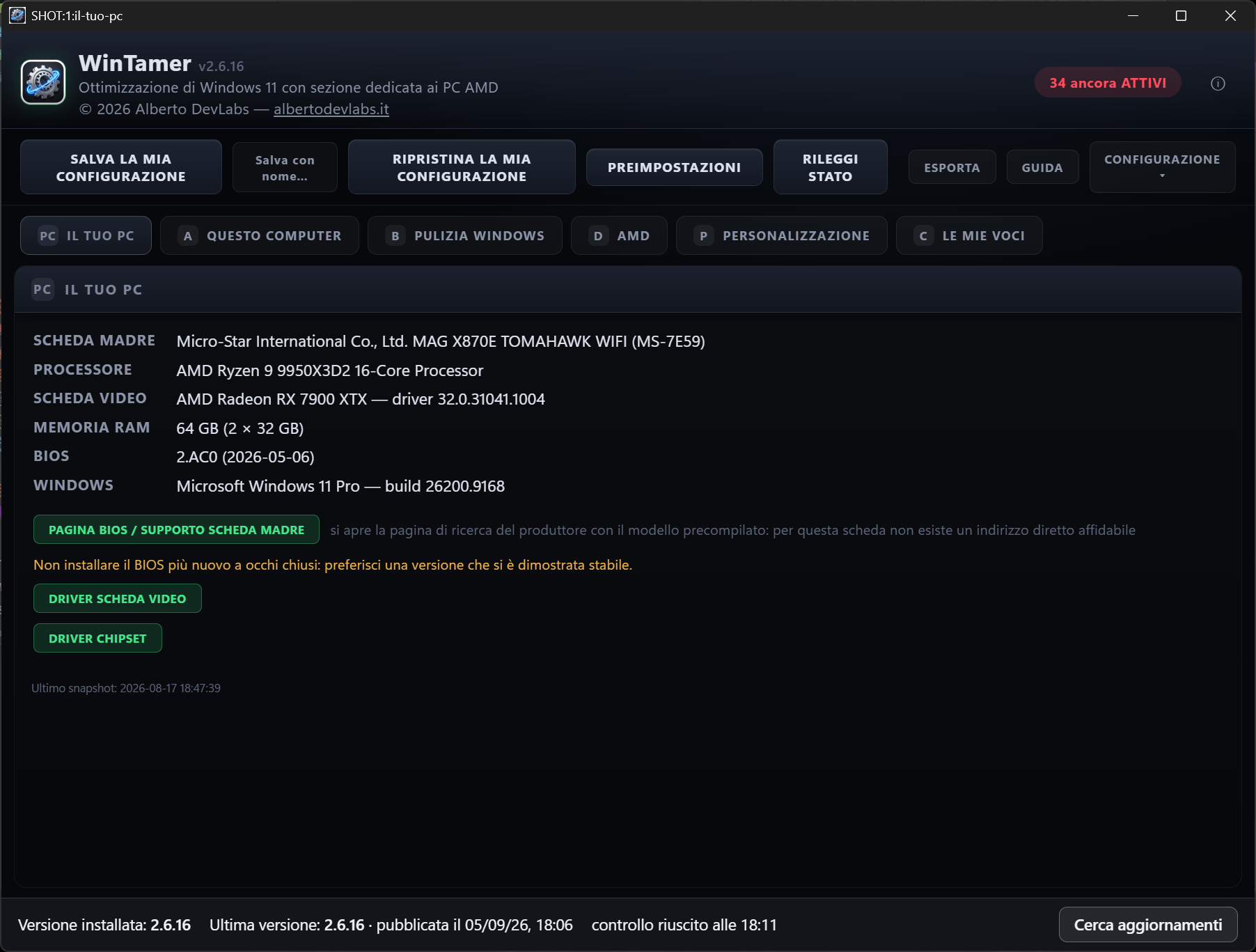
Motherboard, processor, graphics card with driver version (real cards only: the Windows basic display driver, Remote Desktop adapters and virtual drivers are not shown), installed RAM as the sum of the physical modules with the breakdown (e.g. 64 GB, 2 × 32 GB), BIOS with date, Windows edition and build. Links to the motherboard's BIOS/support page (manufacturer search pre-filled with the model for ASUS, ASRock, Gigabyte, MSI; support page for Lenovo, Dell, HP), to the graphics drivers (AMD, Nvidia, Intel) and to the chipset drivers (AMD, Intel), with a warning not to flash the newest BIOS blindly.
Screenshots and video
Features
THIS COMPUTER
Drivers searched for and installed from the internet, drivers inside updates, device manufacturers' apps, promotional apps for all users and for the profile, Smart App Control, SmartScreen on downloaded files, RGB lighting control, idle standby, USB selective suspend, network adapter power saving, hibernation and fast startup, maximum performance power plan.
WINDOWS CLEANUP
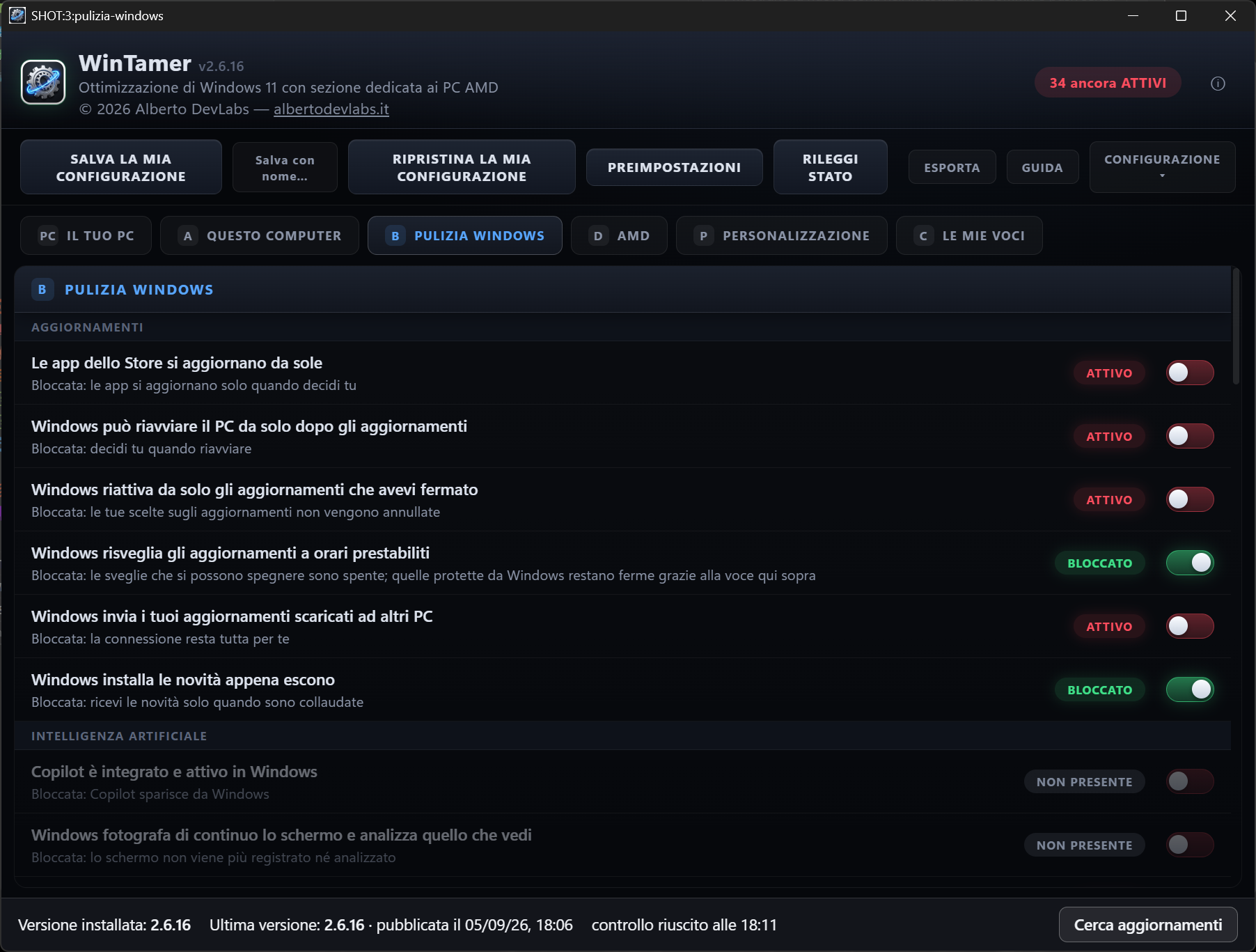
Automatic Store app updates, automatic restarts, resumption of paused updates, scheduled wake timers, update sharing with other PCs, newly released features; Copilot, Recall, AI service, AI features in Microsoft apps, cloud reinstall, re-enabling of the features that capture the screen; automatic disk cleanup, automatic BitLocker, reserved storage, nightly maintenance, reopening apps at sign-in, memory preloading; error reports, Remote Assistance, data collection and diagnostic services, mobile operator messages, inventory of installed programs, statistics program, feedback, activity history, input personalization, online speech recognition, location, Find my device, account sync, background apps, clipboard suggestions, advertising ID; tailored content, Spotlight, setup suggestions, Bing in the Start menu, content in the search box, widgets and news, recommendations in the Start menu, OneDrive at sign-in, game recording, fullscreen optimizations, Edge preloading, account type in use.
AMD section
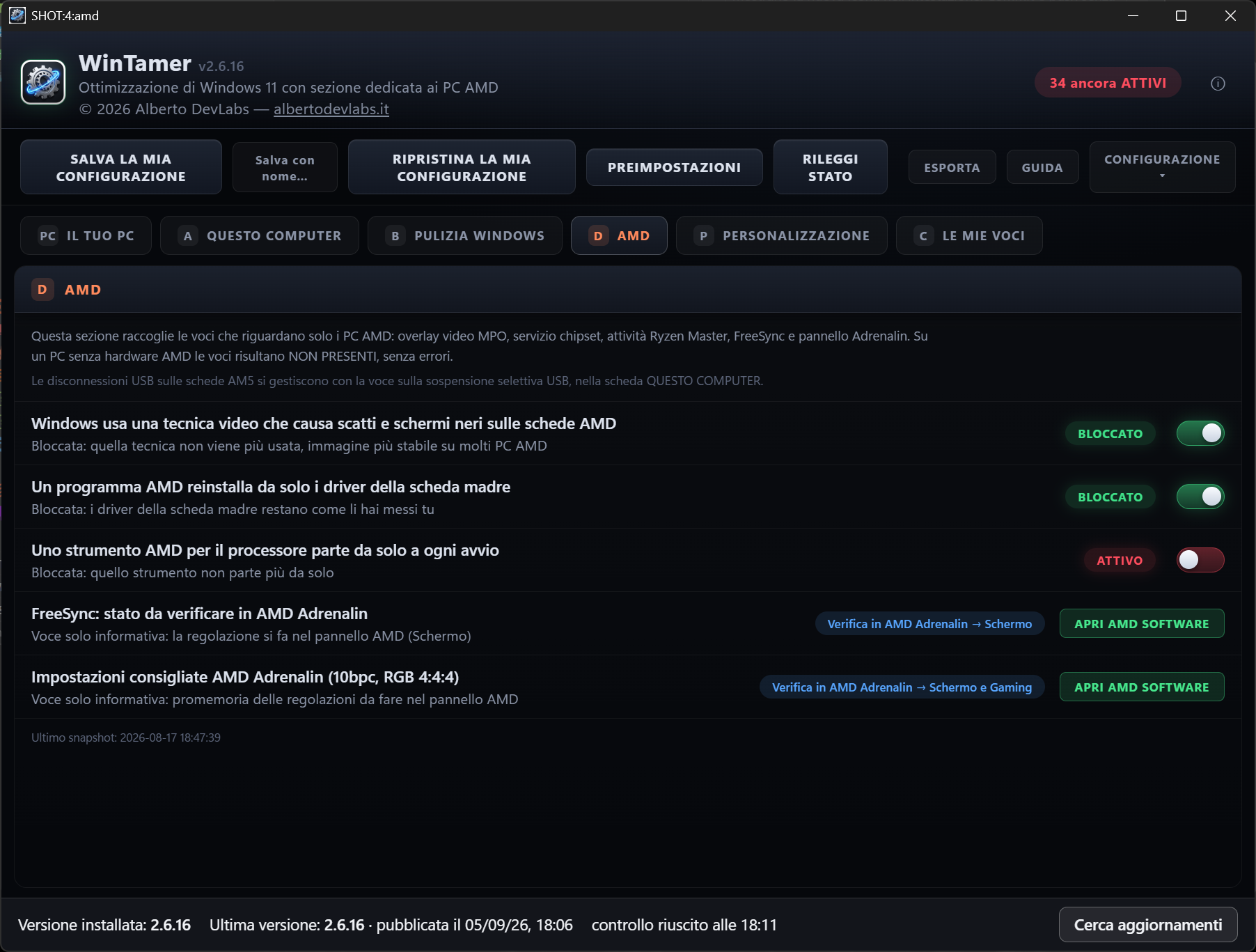
MPO video technique that causes stutter and black screens on AMD cards, chipset service that reinstalls the motherboard drivers, Ryzen Master task at startup, FreeSync reminder and recommended Adrenalin settings. If AMD Software is installed (path read from the registry, never hardcoded) the OPEN AMD SOFTWARE button launches it directly. On a PC without AMD hardware the entries show as NOT PRESENT, with no errors.
Reversible PERSONALIZATION
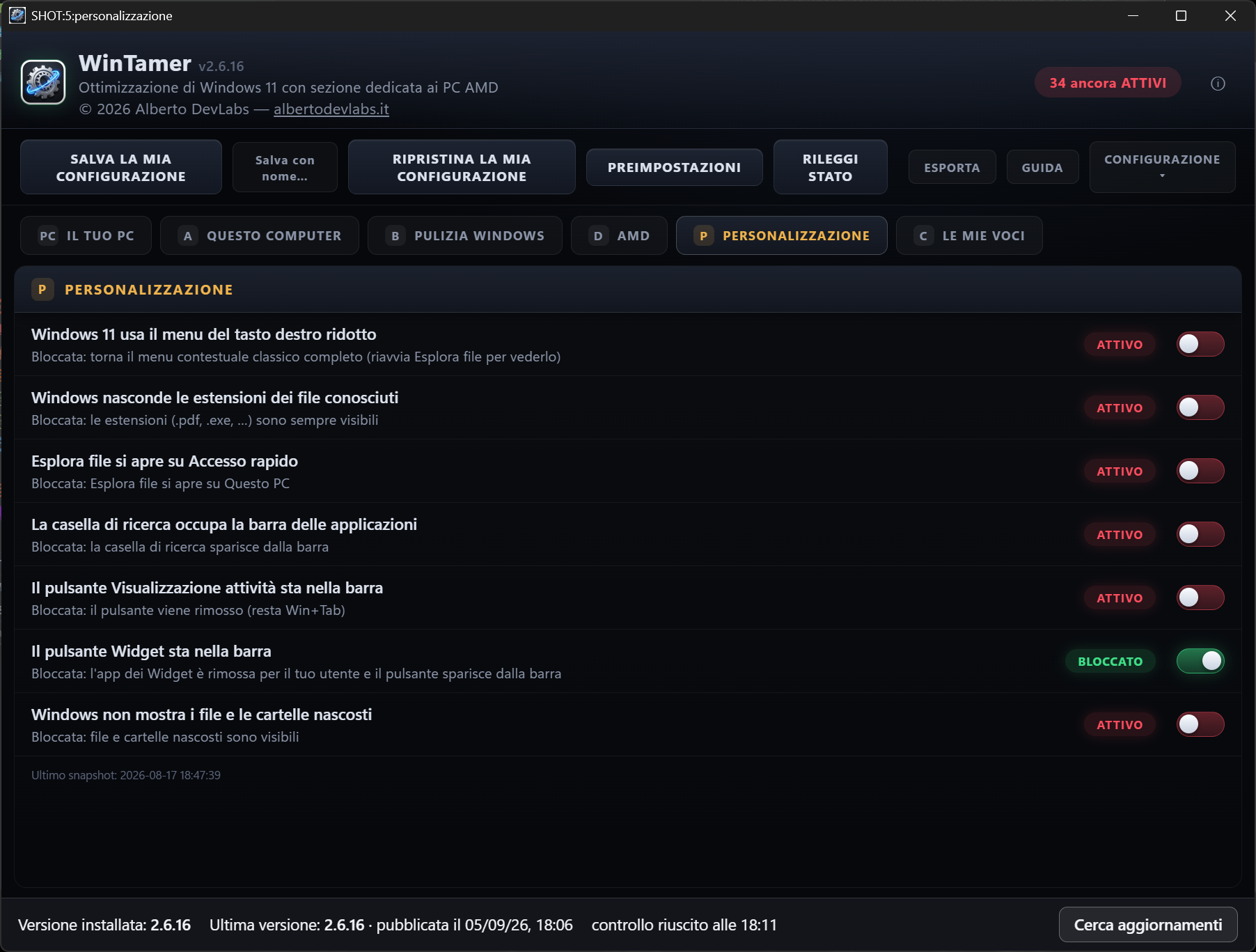
Classic right-click menu, file extensions always visible, File Explorer opening on This PC, search box on the taskbar, Task View button, Widgets button, hidden files and folders. For tweaks that only show after restarting File Explorer the message says so and offers the Restart File Explorer button.
Widgets removed as a package, reversibly
Windows protects the Widgets registry switches even from administrator and SYSTEM: the entry removes the app package for the current user, the files stay on disk and unblocking registers it again; if the files are missing, the program says so and offers the Microsoft Store page.
Verified writes, real errors
Every registry write is read back and confirmed. If Windows refuses an operation a clear message appears in the user's language with the names of what was rejected (scheduled tasks, network adapters); the full technical text goes into the log file. Never a fake success.
Irreversible entries declared
Smart App Control carries the IRREVERSIBLE warning, asks for explicit confirmation and, once turned off, the row states that the toggle stays off on purpose because it can only be turned back on by reinstalling Windows. It is never part of the presets.
MY ENTRIES
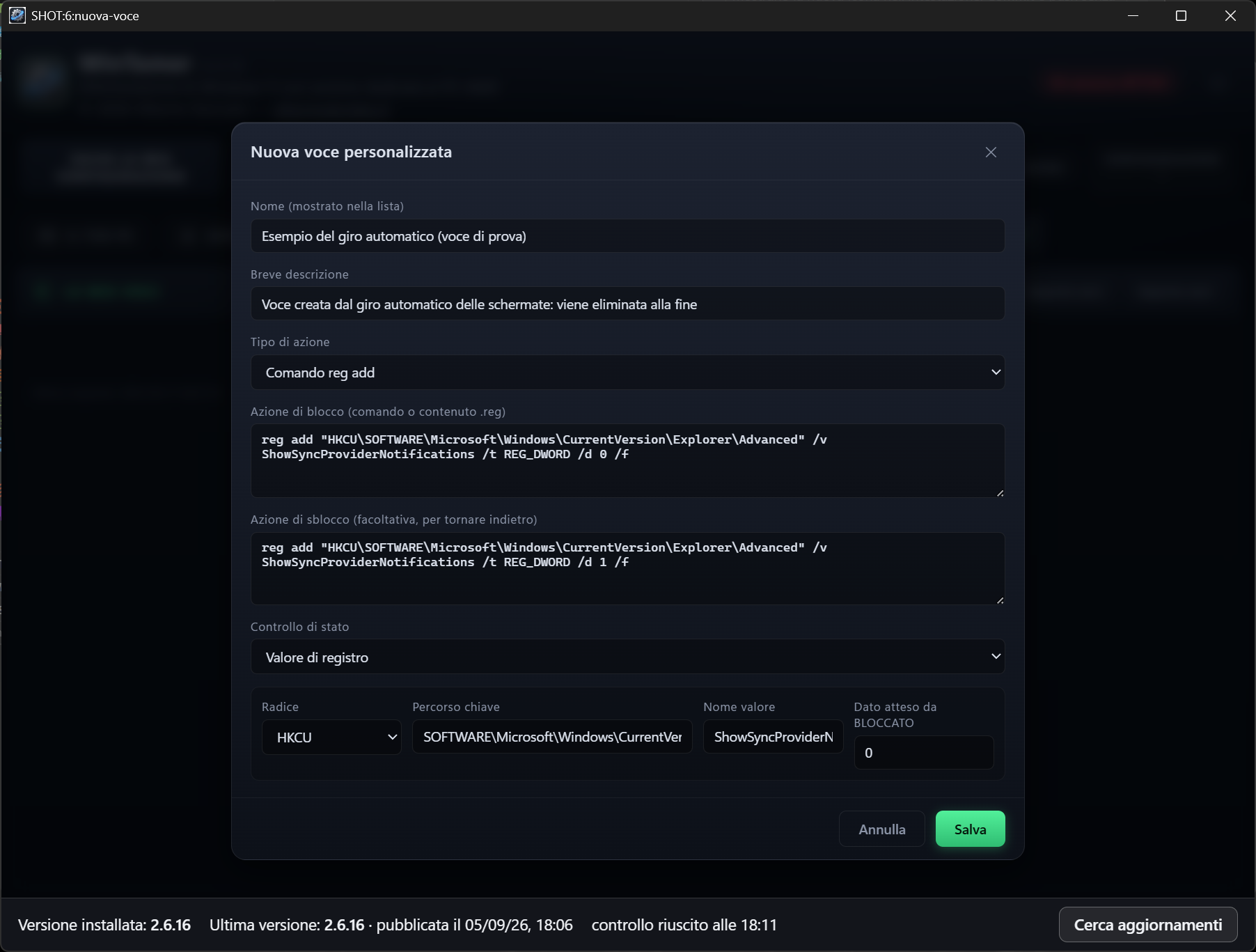
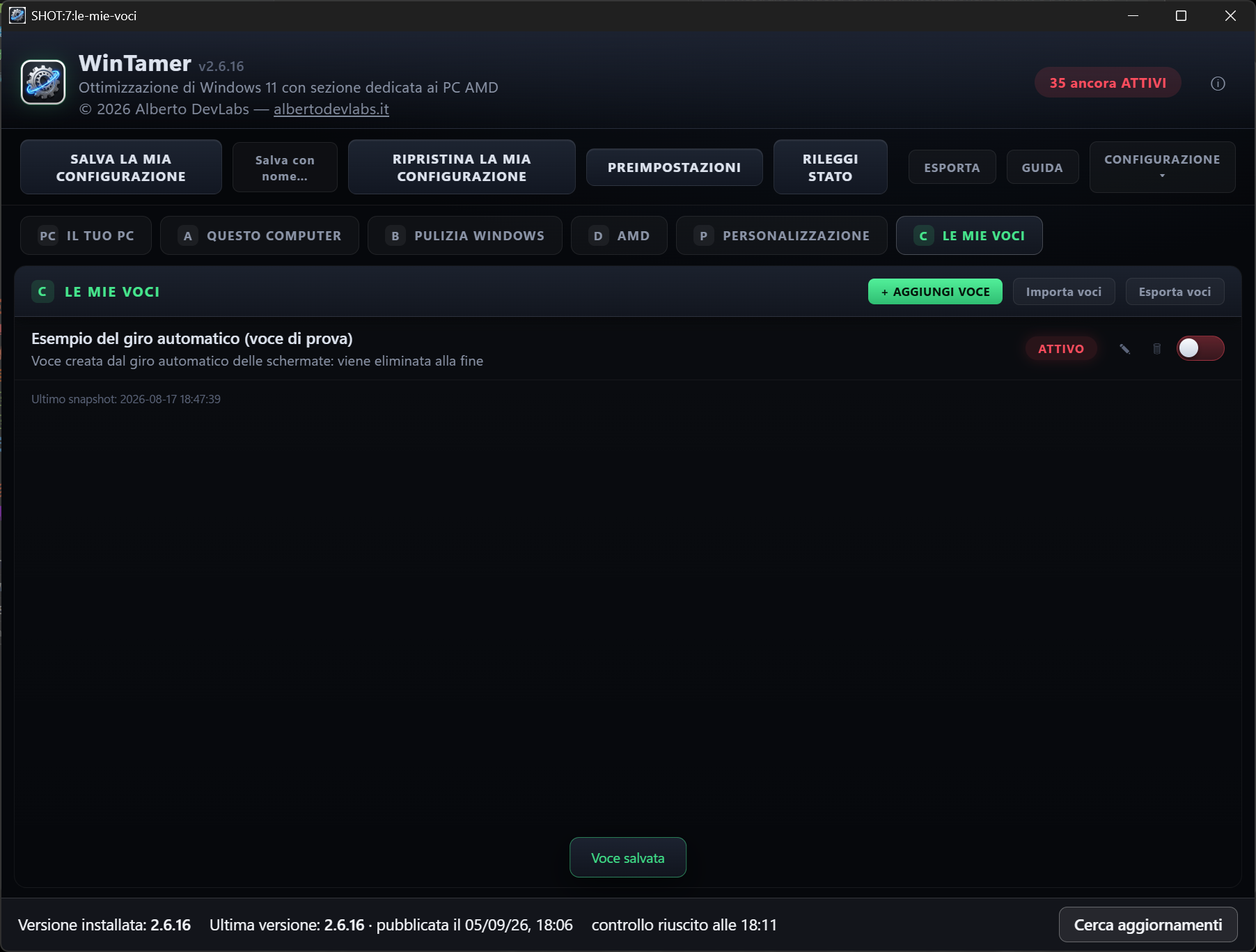
Custom entries with name, description, action type (PowerShell command, reg add command, .reg file also picked from disk), block action, optional unblock action and status check on a registry value (HKLM/HKCU, path, name, expected data) or on a service (name and expected startup type); with no check the entry is action-only with the RUN button. Entries can be edited, deleted, exported and imported as JSON.
Combinable PRESETS
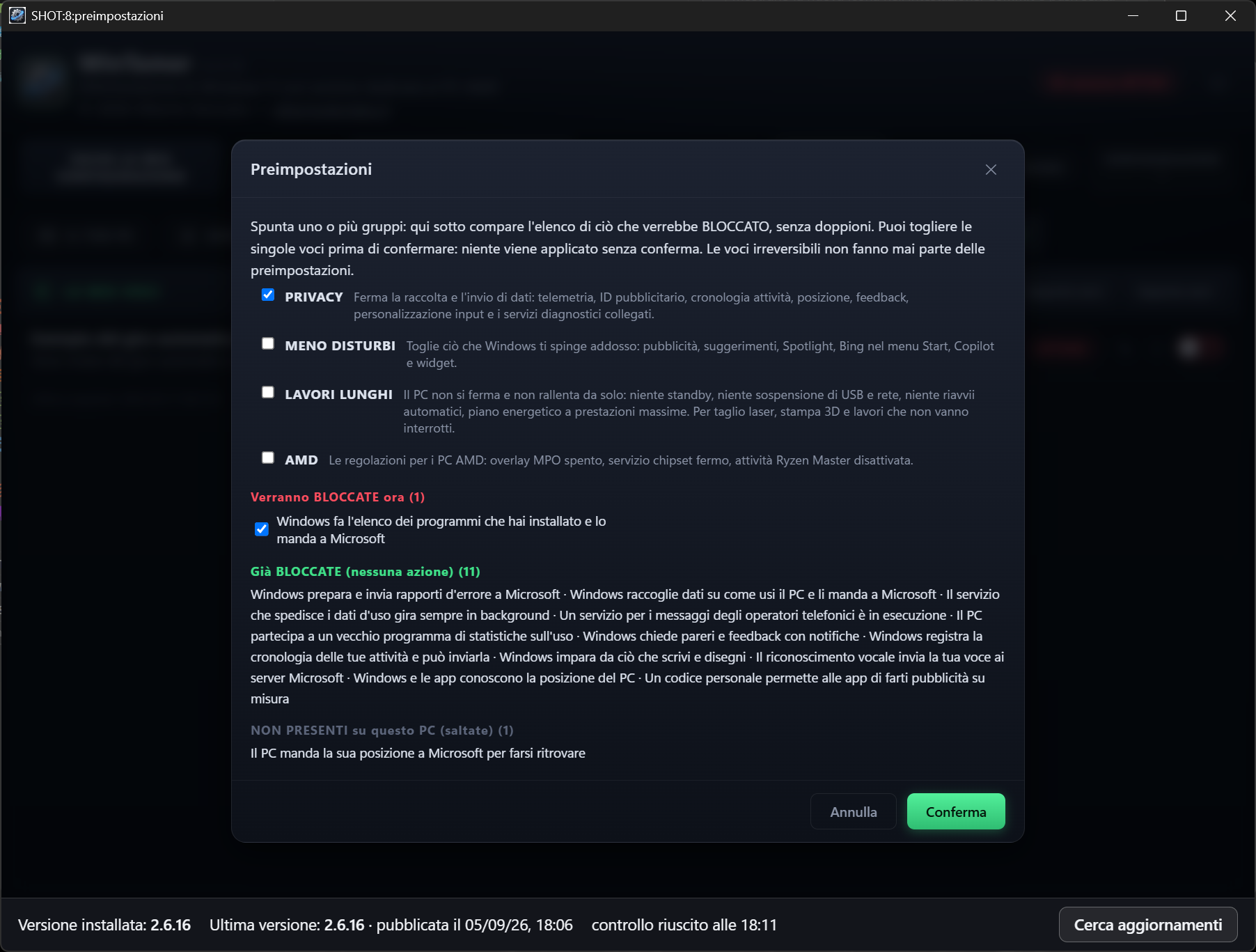
Four groups: PRIVACY, FEWER DISTRACTIONS, LONG JOBS, AMD. Ticking them shows the list of what would be blocked, with no duplicates, and entries already blocked or not present listed separately; individual entries can be unticked and nothing is applied without confirmation.
Saving and restoring the configuration
SAVE MY CONFIGURATION writes the BLOCKED entries and the custom entries with one click to a JSON file with date and time in %APPDATA%\WinTamer\configurazioni (Save as… to choose the destination). RESTORE MY CONFIGURATION opens the file picker on the most recent file, shows the preview (to be blocked, already blocked, not present, custom entries to be added) and applies only on confirmation, never unblocking anything; an error on one entry does not stop the others.
Snapshot and comparison after Windows updates
On first launch the system snapshot (monitored registry, services, scheduled tasks, drivers, packages) is taken automatically along with the full Windows build including the monthly patch. When the build changes the comparison starts in the background: a banner with the old and new builds, changed panel entries highlighted, a Windows notification and a DETAILS window with the AI/Copilot packages highlighted. After every configuration restore the reference snapshot is retaken automatically.
Watching for entries that came back on
At startup, every 2 minutes while the window is open and every 30 minutes from the notification area, WinTamer re-reads the states; entries that were BLOCKED and are ACTIVE again appear in a yellow banner and in a Windows notification. Clicking the banner, the notification or the "Windows changed N settings" line in the icon menu takes you to the right tab, scrolls to the entry and highlights it, with arrows if there is more than one. The highlight fades once the entry has been seen and as soon as an entry goes back to BLOCKED it drops out of the alert; the notification area icon gets a warning mark as long as there is something to look at.
Notification area and start with Windows
The X minimizes to the notification area instead of closing; clicking the icon reopens the window and the menu has Open WinTamer and Exit. Start with Windows is an elevated scheduled task at logon: the program starts minimized to the notification area with no UAC prompt.
Restore point and log file
Before the first change of the day a system restore point is created (Windows accepts one every 24 hours). Every change goes into %APPDATA%\WinTamer\wintamer.log with date, entry, previous value and new value.
EXPORT and REFRESH STATUS
EXPORT saves a text file with the status of every entry tab by tab plus the custom entries as re-importable JSON; REFRESH STATUS re-reads the real status from the system.
Plain-language GUIDE
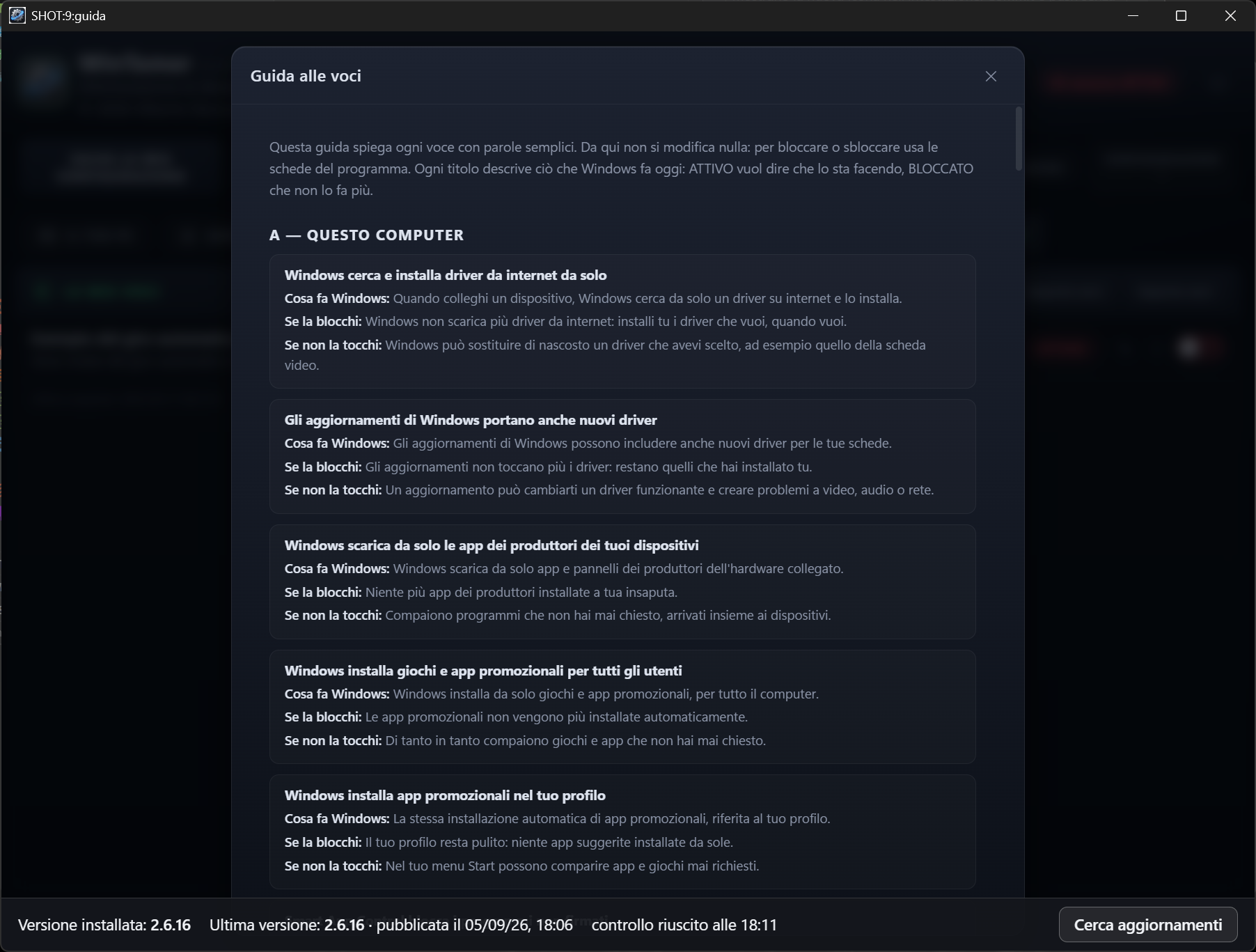
For each entry, in a dedicated window: what Windows does, what changes if you block it, what happens if you leave it alone.
Five languages and three themes
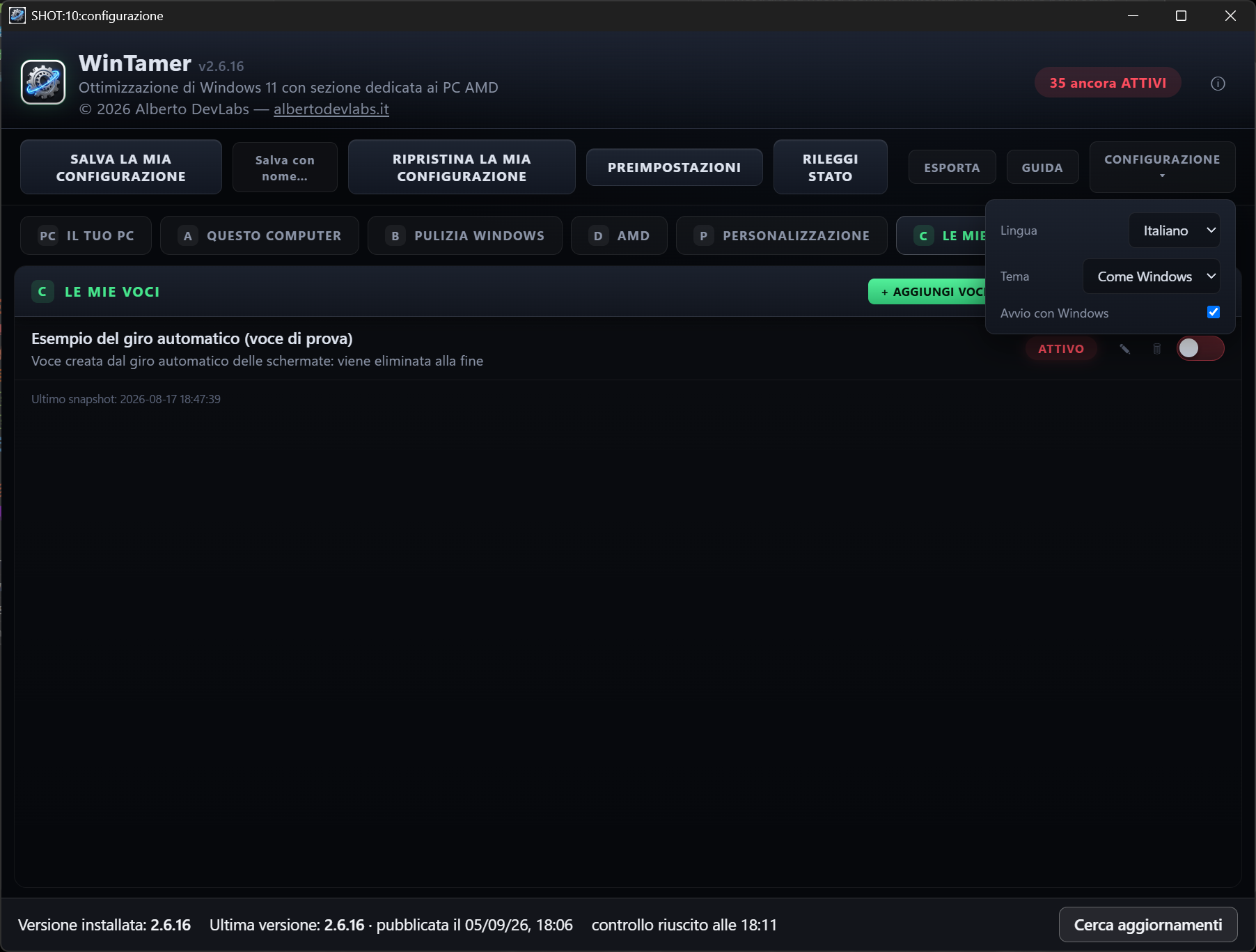
Interface, notification area menu and notifications in Italian, English, German, French and Spanish; Dark, Light or Follow Windows theme, which tracks the system theme even while the app is open. All from the SETTINGS menu.
Window fitted to the monitor
On opening, the window reads the work area of the monitor it is on (scaling factor included) and sizes itself so that everything is visible, centered and resizable.
Automatic elevation
The executable requests administrator rights from the manifest: the prompt appears by itself at startup, with no need to use Run as administrator.
System Requirements
- 64-bit Windows 11
- Administrator rights (automatic elevation at startup)
- Microsoft Edge WebView2 Runtime (included in Windows 11)
- Windows PowerShell 5.1 (included in Windows 11)
- PC with AMD hardware for the entries in the AMD tab (on other PCs they show as NOT PRESENT, with no errors)
Documentation
WinTamer — User Manual
1. What it is
WinTamer is a control panel for Windows 11 that gathers into a single window all the things Windows does on its own and turns them into entries with a toggle:
- reinstalled drivers
- promotional apps
- telemetry
- advertising
- artificial intelligence
- standby
- automatic restarts
- widgets
Each entry describes what Windows is doing today:
- ACTIVE (red): it is doing it.
- BLOCKED (green): it no longer does it.
- NOT PRESENT (grey): that component does not exist on this PC.
At the top right a counter shows how many entries are still ACTIVE; when everything is blocked "All blocked" appears.
2. Startup
The program requires administrator rights: the elevation prompt appears automatically at startup.
On first launch WinTamer takes a picture of the system (snapshot) and records the Windows build; then it reads the state of all entries. The window sizes itself automatically on the monitor where it opens.
3. The tabs
YOUR PC
Shows the machine's data:
- motherboard
- processor
- graphics card with driver version (real cards only: the Windows basic display driver, Remote Desktop adapters and virtual drivers are not shown)
- installed RAM as the sum of the physical modules (e.g. 64 GB, 2 × 32 GB)
- BIOS version and date
- Windows edition and build
Below there are the links:
- BIOS PAGE / MOTHERBOARD SUPPORT: for ASUS, ASRock, Gigabyte and MSI the manufacturer's search opens already filled in with the model; for Lenovo, Dell and HP the support page; otherwise a web search.
- GRAPHICS CARD DRIVER: AMD, Nvidia or Intel depending on the card.
- CHIPSET DRIVER: AMD or Intel depending on the processor.
An amber warning reminds you not to install the newest BIOS blindly.
THIS COMPUTER
13 entries about the PC in use:
- automatic driver search from the internet
- drivers inside updates
- device manufacturers' apps
- promotional apps (for all users and for the profile)
- Smart App Control
- SmartScreen on downloaded files
- RGB lighting control
- idle standby
- USB selective suspend
- network adapter power saving
- hibernation and fast startup
- ultimate performance power plan
WINDOWS CLEANUP
47 entries in five categories.
Updates:
- Store apps
- automatic restarts
- reactivation of paused updates
- scheduled wake timers
- update sharing with other PCs
- newly released features
Artificial intelligence:
- Copilot
- Recall
- AI service
- AI features in Microsoft apps
- cloud reinstall
- re-enabling of the features that capture the screen
System:
- automatic disk cleanup
- automatic BitLocker
- reserved storage
- nightly maintenance
- reopening apps at sign-in
- memory preloading
- error reports to Microsoft
- Remote Assistance
Telemetry and privacy:
- data collection
- diagnostic service
- carrier messages
- inventory of installed programs
- statistics program
- feedback requests
- activity history
- input personalization
- online speech recognition
- location
- Find my device
- account synchronization
- background apps
- clipboard suggestions
Advertising and clutter:
- advertising ID
- tailored content
- Spotlight lock screen
- "finish setting up" suggestions
- Bing in the Start menu
- content in the search box
- widgets and news
- recommendations in the Start menu
- OneDrive at sign-in
- game recording
- fullscreen optimizations
- Edge preloading
- account type in use
AMD
5 entries for AMD PCs:
- MPO video technique
- chipset service that reinstalls drivers
- Ryzen Master task at startup
- FreeSync reminder
- Adrenalin recommended settings
The last two are informational: if AMD Software is installed, the OPEN AMD SOFTWARE button opens it directly. On a PC without AMD hardware the entries show as NOT PRESENT, with no errors.
PERSONALIZATION
7 reversible entries about the look:
- classic right-click menu
- file extensions always visible
- File Explorer opening on This PC
- search box in the taskbar
- Task View button
- Widgets button
- hidden files and folders
For the tweaks that only take effect after restarting File Explorer, the message says so and offers the "Restart File Explorer" button.
MY ENTRIES
The entries created by the user (see point 7).
4. Blocking and unblocking
Each entry has a toggle: on = BLOCKED.
- Before the first change of the day WinTamer tries to create a system restore point (Windows accepts one every 24 hours).
- Every registry write is read back and confirmed: if Windows refuses an operation, a clear sentence appears in the user's language (for example which scheduled tasks or which network adapters refused the setting) and the full technical text goes into the log file.
- Entries marked IRREVERSIBLE (Smart App Control) require an explicit confirmation: once turned off it cannot be turned back on without reinstalling Windows, and the toggle stays off on purpose.
- The Widgets entry removes the app package for the current user: unblocking registers it again from the files left on the disk and, if they are missing, the program suggests the Microsoft Store page.
5. The command bar
SAVE MY CONFIGURATION
Immediately saves, with no questions asked, the list of entries BLOCKED at that moment plus the custom entries into a JSON file in %APPDATA%\WinTamer\configurazioni, with date and time in the name; the message offers "Open folder". "Save as…" asks where to save.
RESTORE MY CONFIGURATION
You pick a saved file (the dialog opens in the saves folder on the most recent file) and it shows a preview:
- entries that will be BLOCKED
- entries already BLOCKED
- entries NOT PRESENT on this PC
- custom entries that will be added
It is applied only on confirmation; it never unblocks anything; an error on one entry does not stop the others. After the restore the snapshot is retaken automatically and becomes the new reference.
PRESETS
Four combinable groups:
- PRIVACY
- FEWER DISTRACTIONS
- LONG JOBS
- AMD
Ticking the groups brings up the list of what would be blocked, with no duplicates, and the entries already blocked or not present marked separately; individual entries can be removed and nothing is applied without confirmation. Irreversible entries are never part of it.
REFRESH STATE
Re-reads the real state of all entries from the system.
EXPORT
Saves a text file with the state of all entries, tab by tab, plus the custom entries in re-importable JSON.
HELP
For each entry it explains in plain words what Windows does, what changes if you block it and what happens if you leave it alone.
SETTINGS
- language (Italian, English, German, French, Spanish)
- theme (Dark, Light, Follow Windows)
- Start with Windows
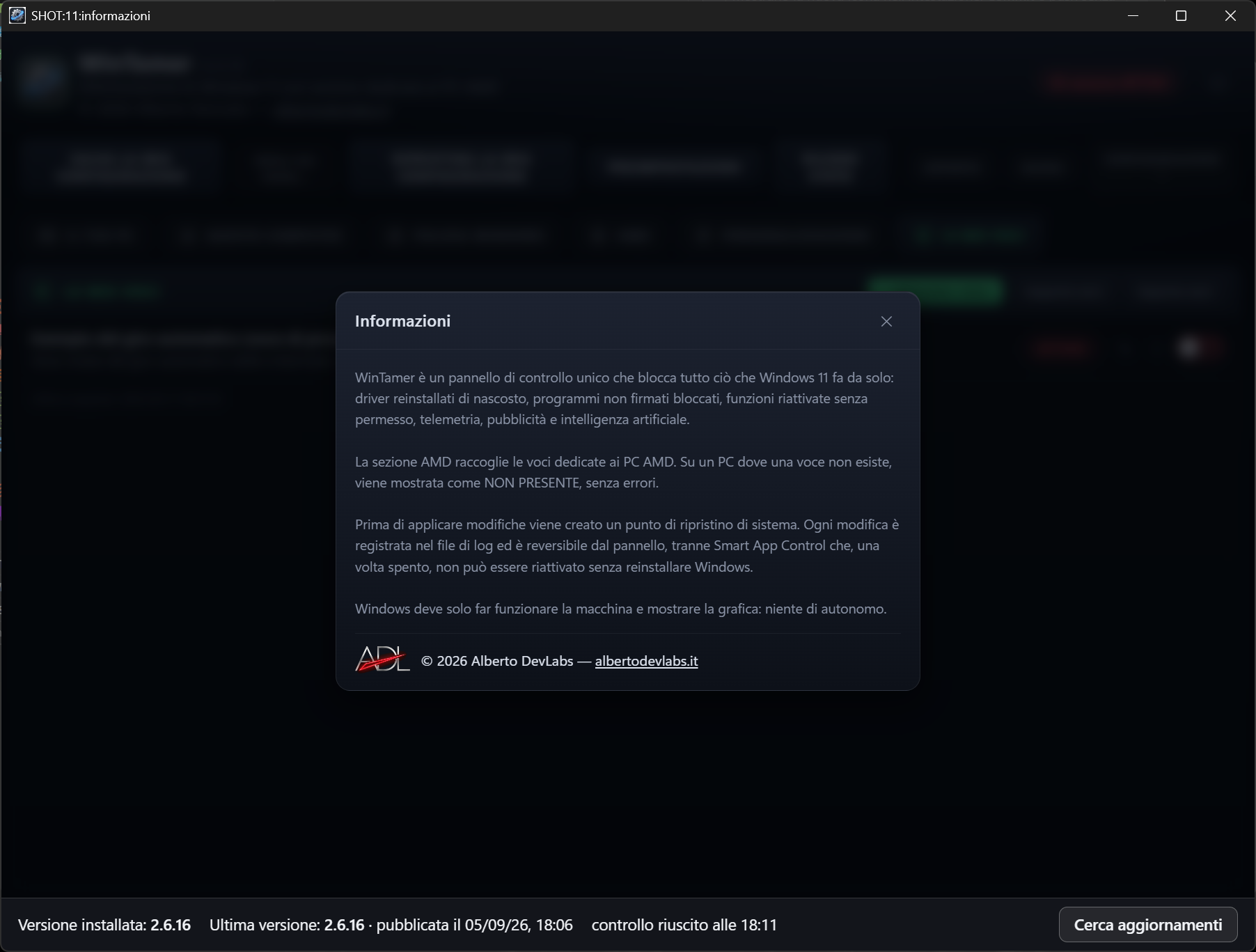
The ⓘ button opens the program information with the author's signature.
6. Monitoring and Windows updates
Entries that became active again
At every startup WinTamer compares the state of the entries with the last known state: entries that were BLOCKED and became ACTIVE again on their own appear in a yellow banner and in a Windows notification. The check is repeated every 2 minutes while the window is open and every 30 minutes while the app sits in the notification area.
Clicking the banner, the notification or the "Windows changed N settings" line in the icon menu takes you to the right tab, scrolls to the entry and highlights it; with several entries there are arrows to move from one to the next.
The highlight fades on its own once the entry has been seen, and as soon as an entry goes back to BLOCKED it leaves the alert.
Windows build change
If the Windows build has changed (even a monthly patch) the comparison with the snapshot starts: a banner shows the old and new builds and the panel entries that changed. DETAILS opens the full list of what changed:
- services
- scheduled tasks
- drivers
- packages (with AI/Copilot packages highlighted)
- registry values
7. My entries
With ADD ENTRY you create a personal entry with:
- name
- description
- action type (PowerShell command, reg add command or .reg file, which can also be picked from the disk)
- block action
- optional unblock action
- state check
The check can be:
- a registry value (HKLM/HKCU root, path, value name, data expected when BLOCKED);
- a service (name and expected start type, 4 = disabled);
- none: in that case the entry is "action only" and has the RUN button instead of the toggle.
Without an unblock action the entry is declared non-reversible by the panel. Every entry can be edited or deleted; "Export entries" and "Import entries" exchange a JSON file with all the custom entries, the same one included in the configuration save.
8. Notification area
The window's X does not close the program: it minimizes it to the notification area, where it keeps monitoring. Clicking the icon reopens the window; the menu has "Open WinTamer" and "Exit".
With Start with Windows enabled, an elevated scheduled task is registered at logon and the program starts minimized in the notification area, with no UAC prompt. When Windows has changed something that was blocked, the icon gets a warning mark.
9. Program files
Everything is in %APPDATA%\WinTamer:
- settings.json (language, theme)
- custom_entries.json (custom entries)
- snapshot.json
- last_states.json
- wintamer.log (log file with date, entry, previous and new value)
- the configurazioni folder with the saves
Get it WinTamer
Free
Control panel that blocks everything Windows 11 does on its own, with a section dedicated to AMD PCs.
DownloadYour browser or Windows may show a warning because the file is new and not yet recognized: choose Keep / Run anyway. The file is safe and published directly by Alberto DevLabs.