OrcaGen
Prepare and compare profiles for OrcaSlicer without retyping filament data by hand
What you get
Prepare profiles for OrcaSlicer
It gathers data from local libraries, the official archive and configured online sources to prepare editable filaments and processes. It is useful when switching material and you want to avoid copying parameters from different pages; it reports baseline values and does not replace calibration.
Gather data and show its sources
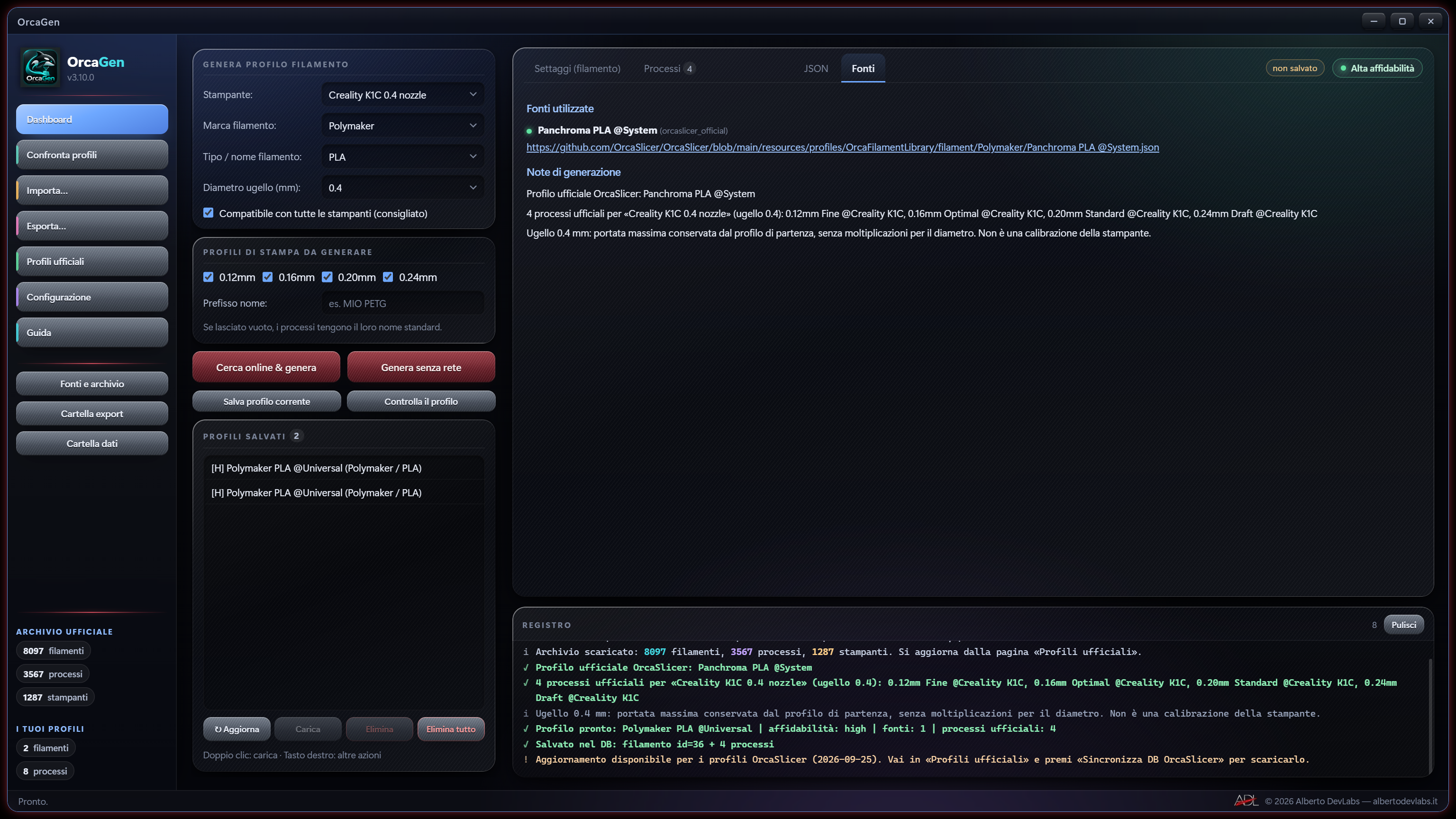
It selects information by brand and material, distinguishes reinforced variants and shows activity, provenance, reliability and conflicts. The search can be cancelled; an interrupted result may be partial and the sources do not guarantee data for every product.
Check and edit before exporting
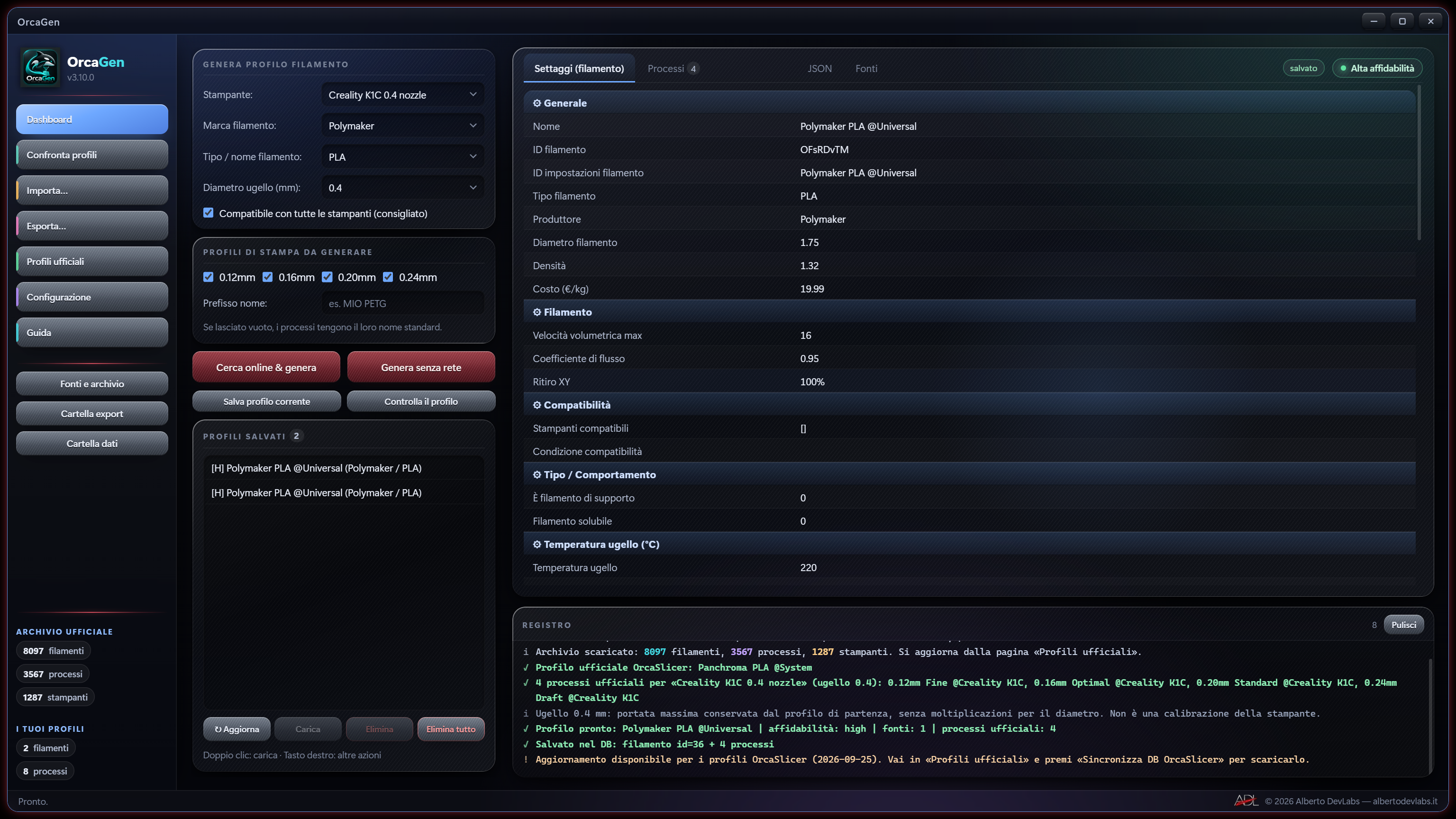
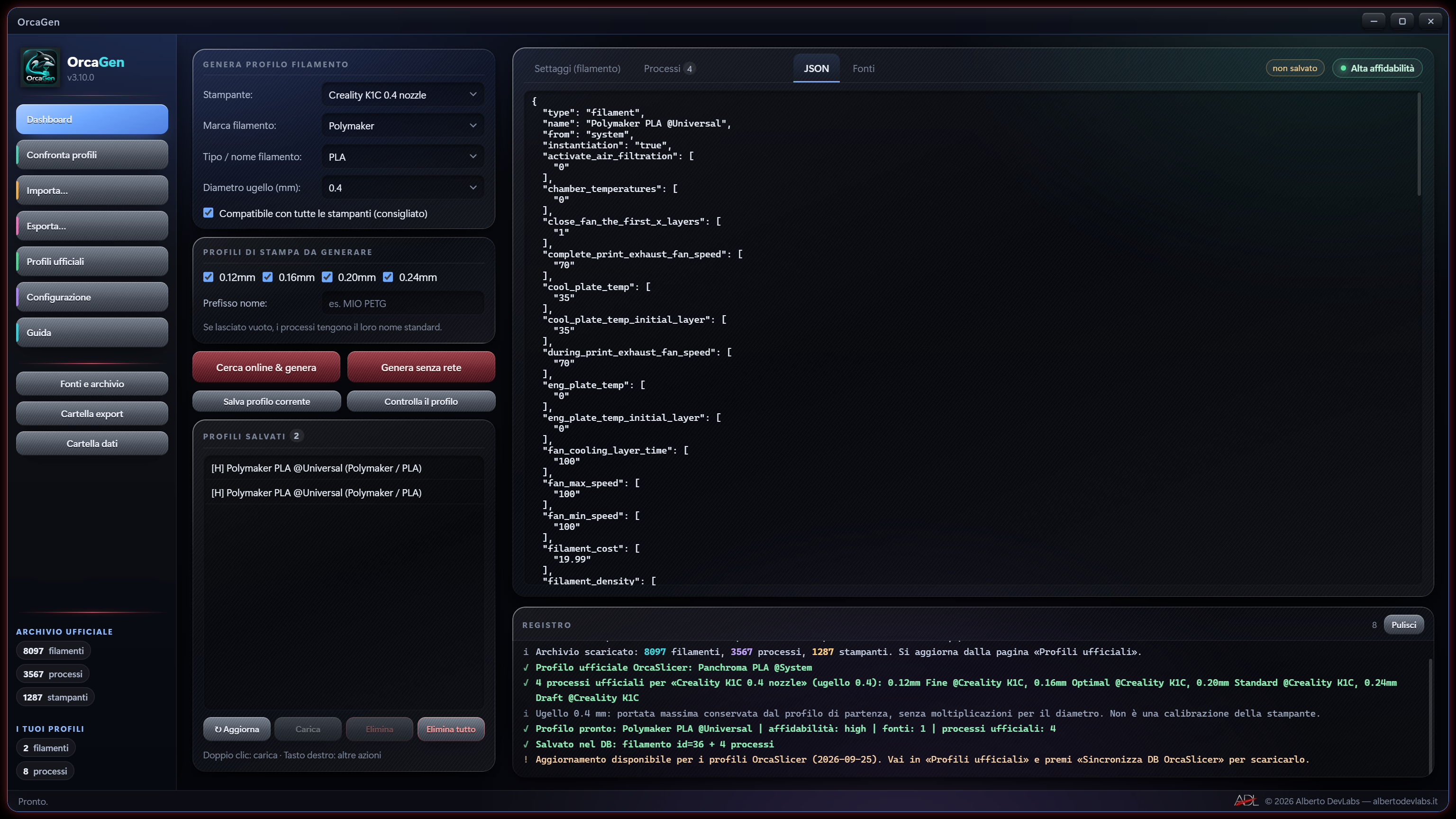
Filament and process tables, a JSON editor and a check command let you correct the parameters before saving or exporting them. Invalid values stay visible so they can be corrected. Validation does not certify that the print will succeed.
Screenshots and video
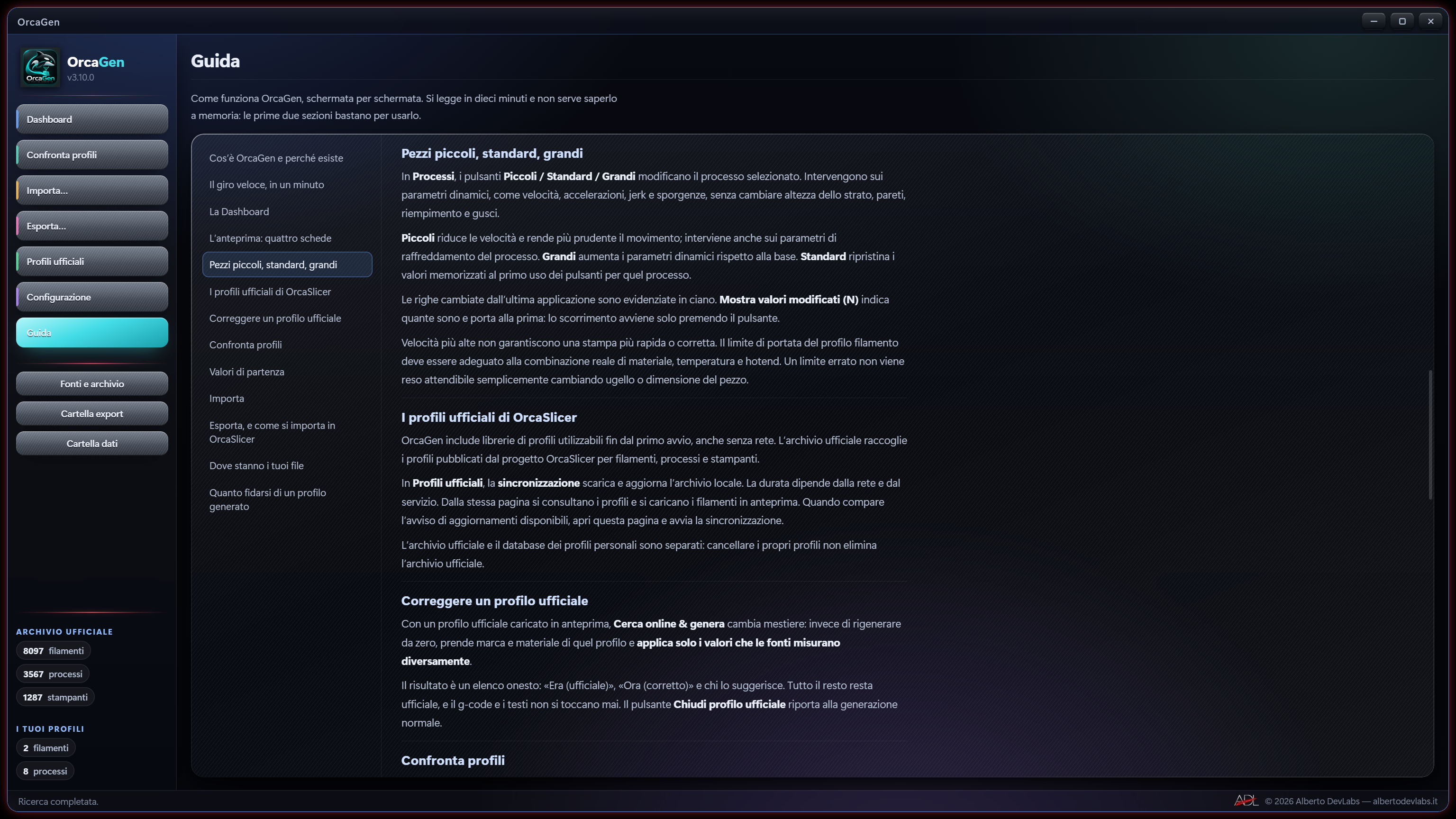
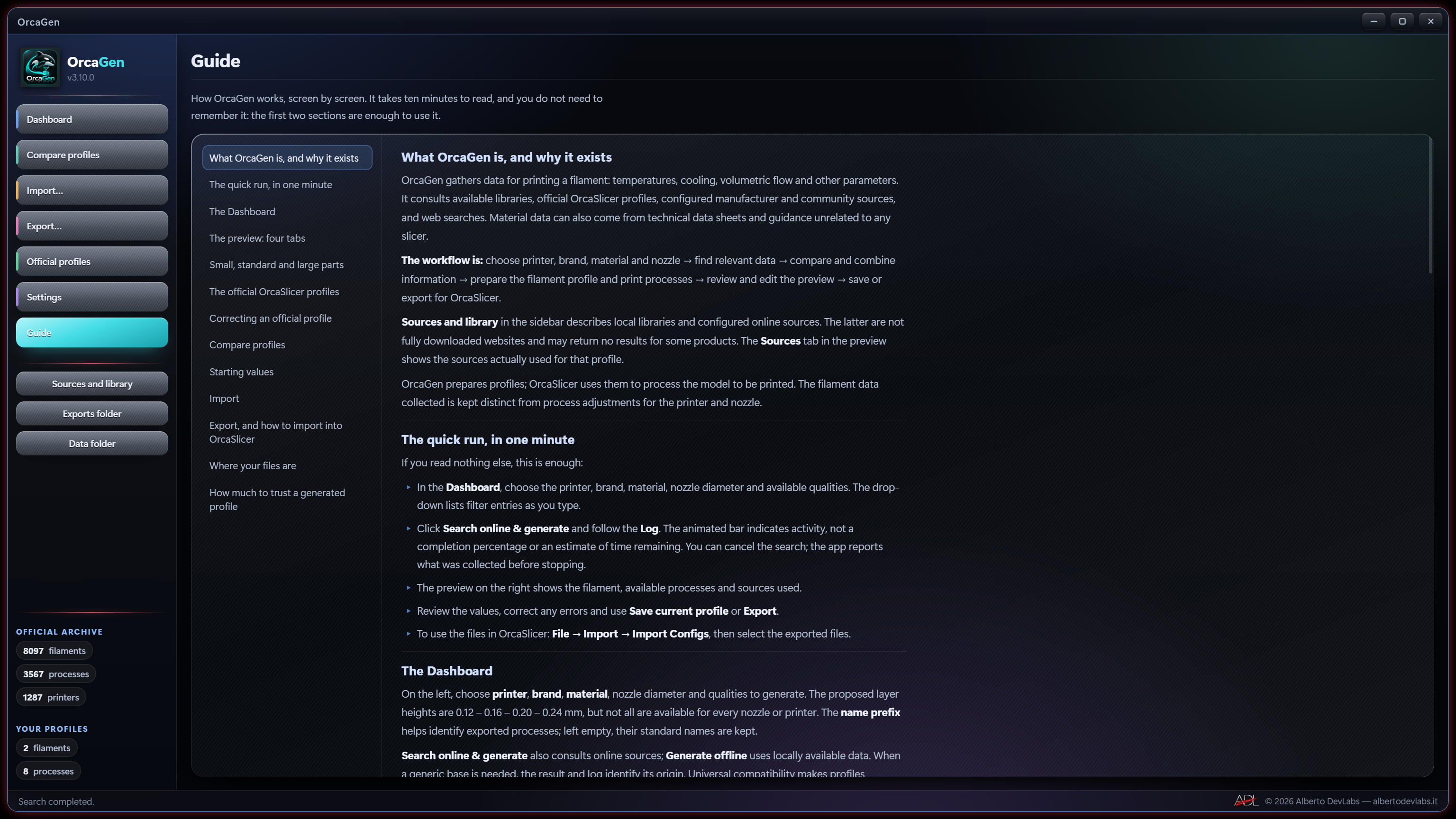
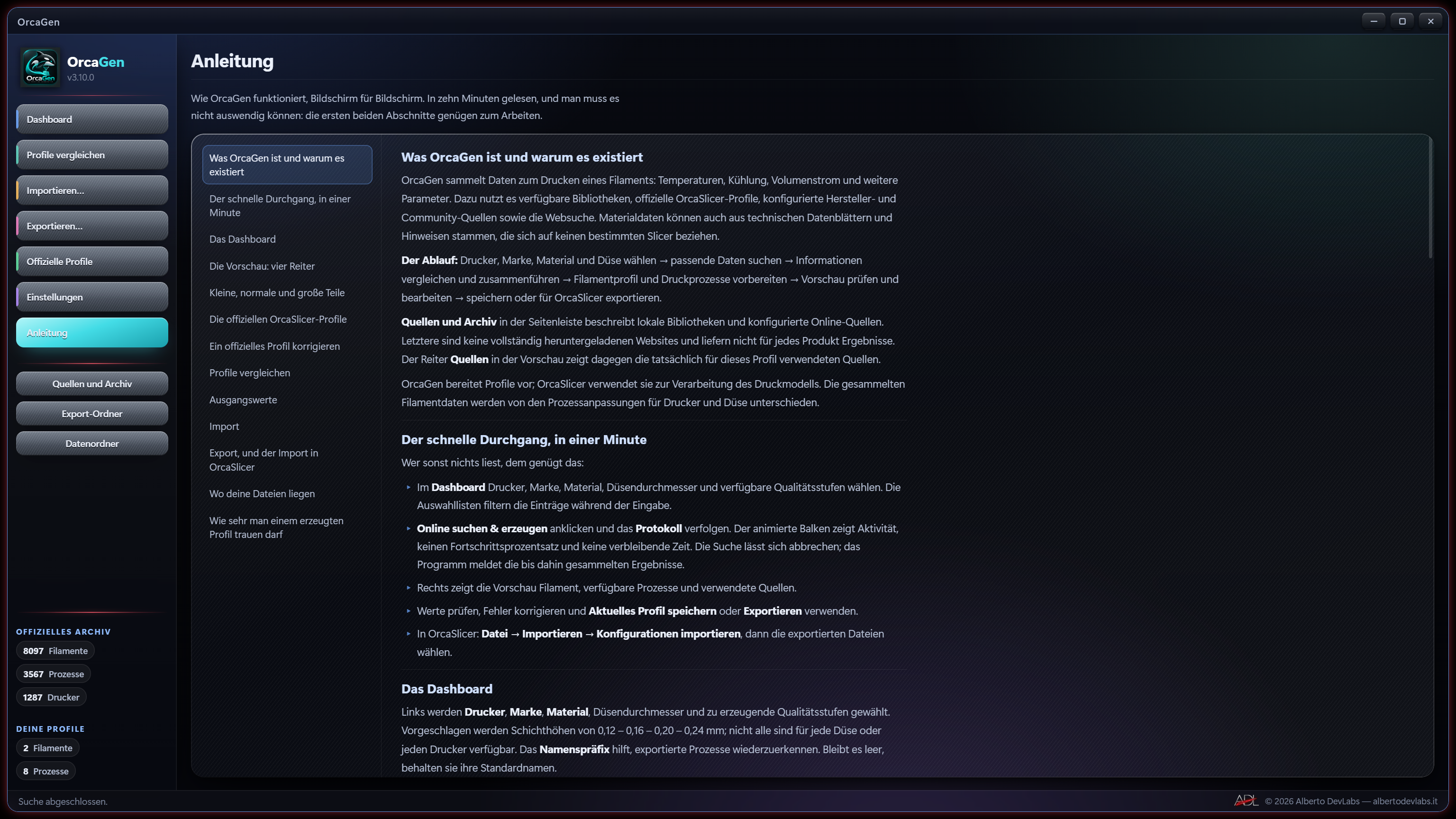
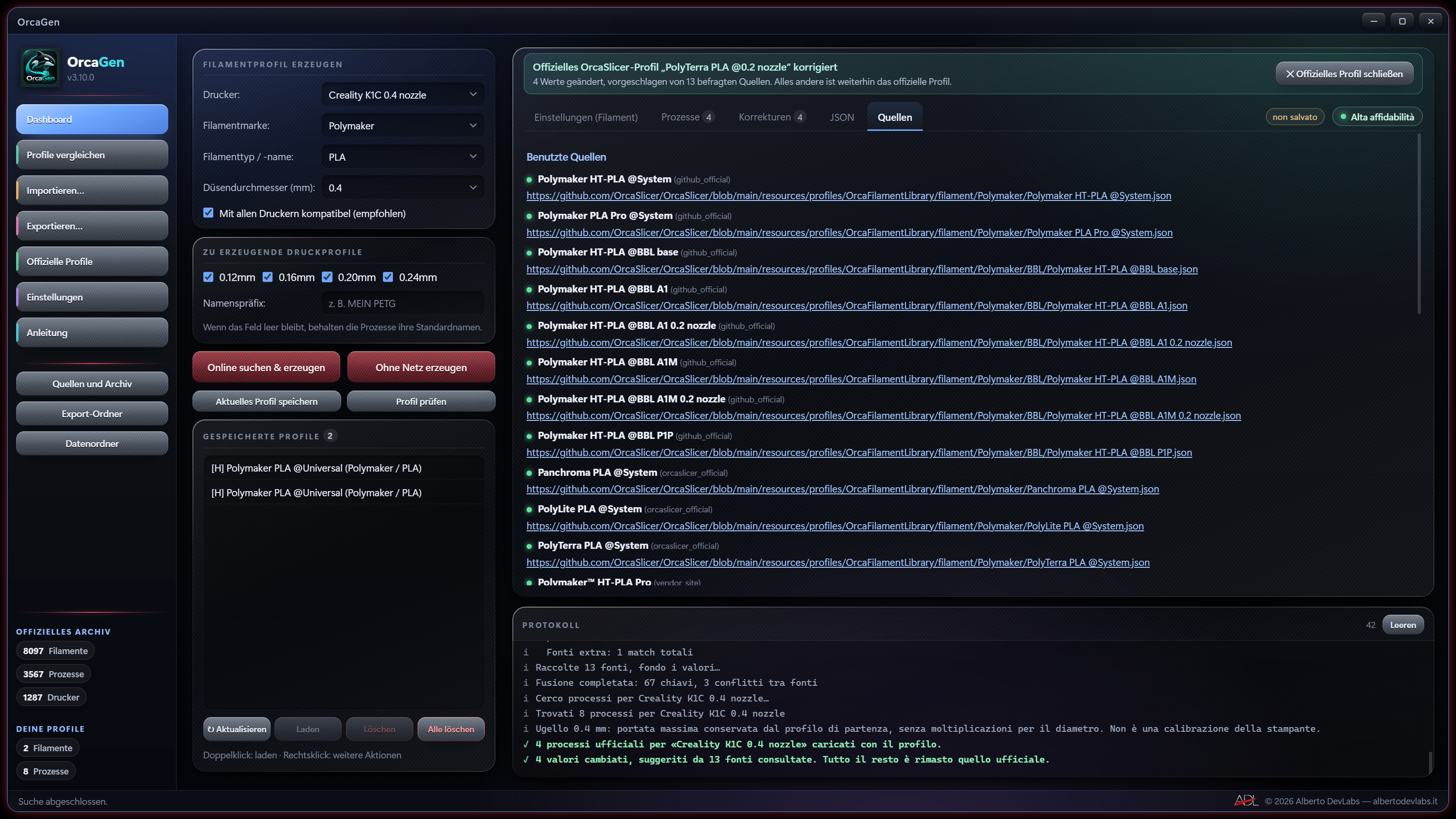
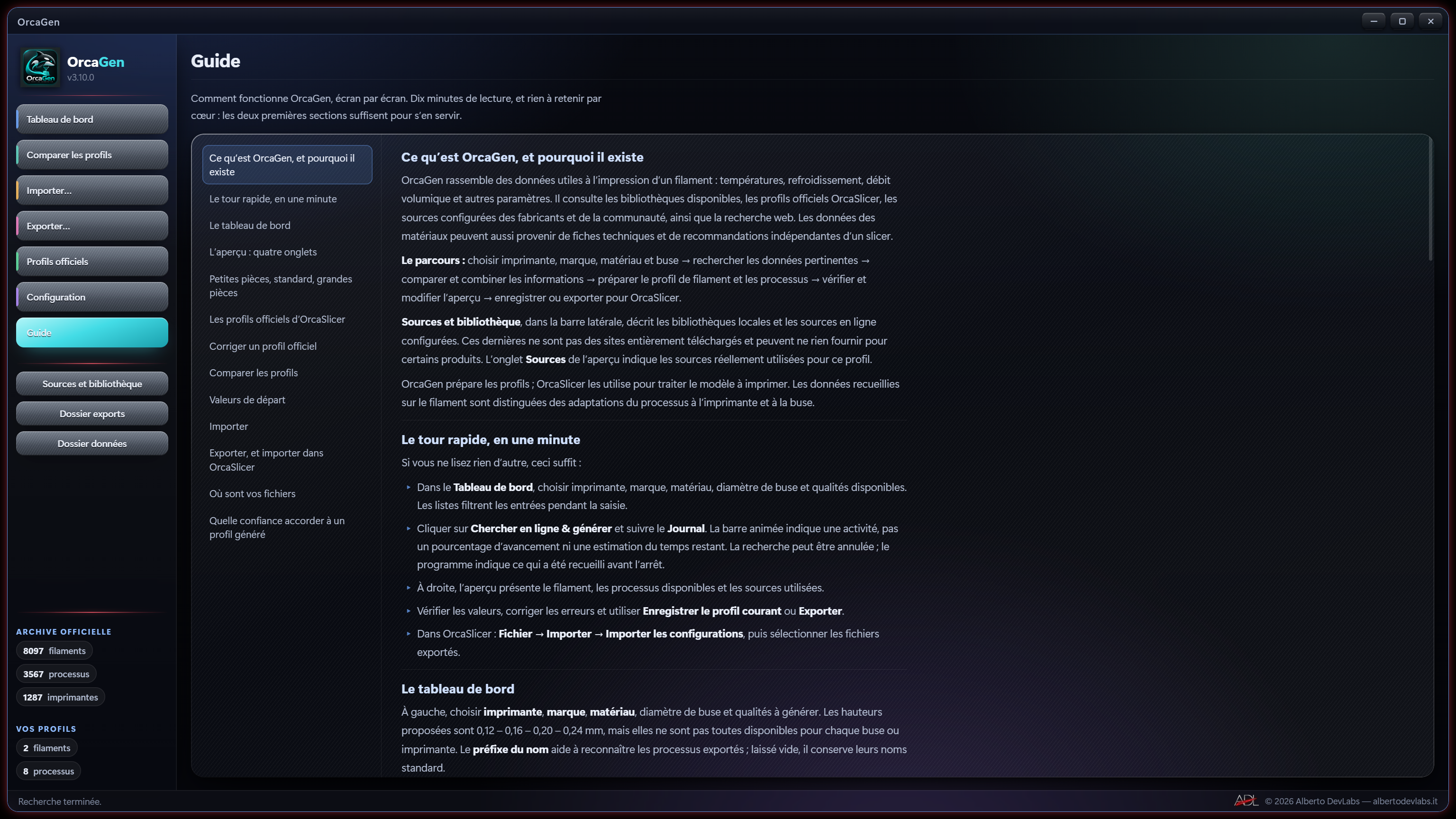
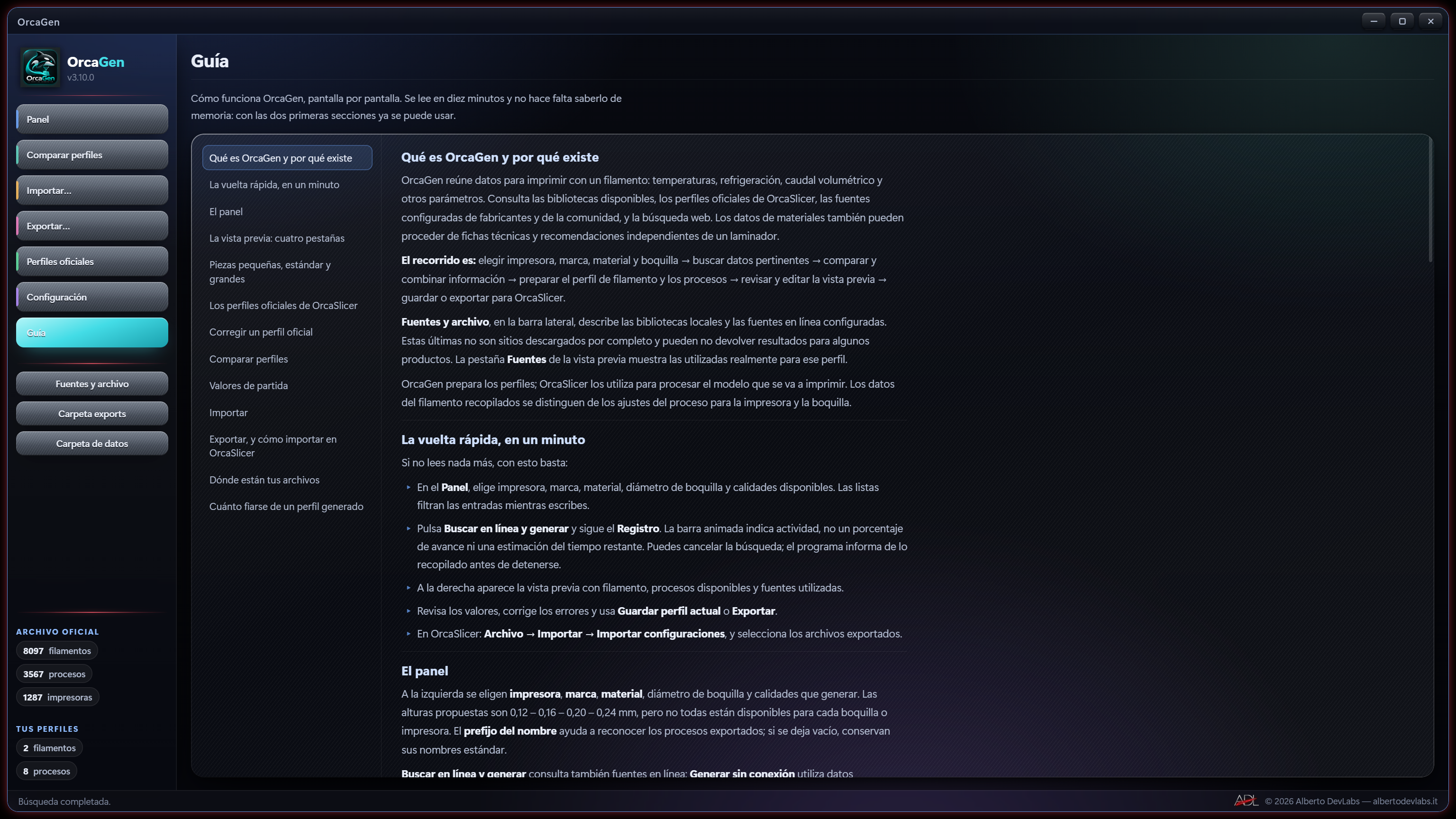
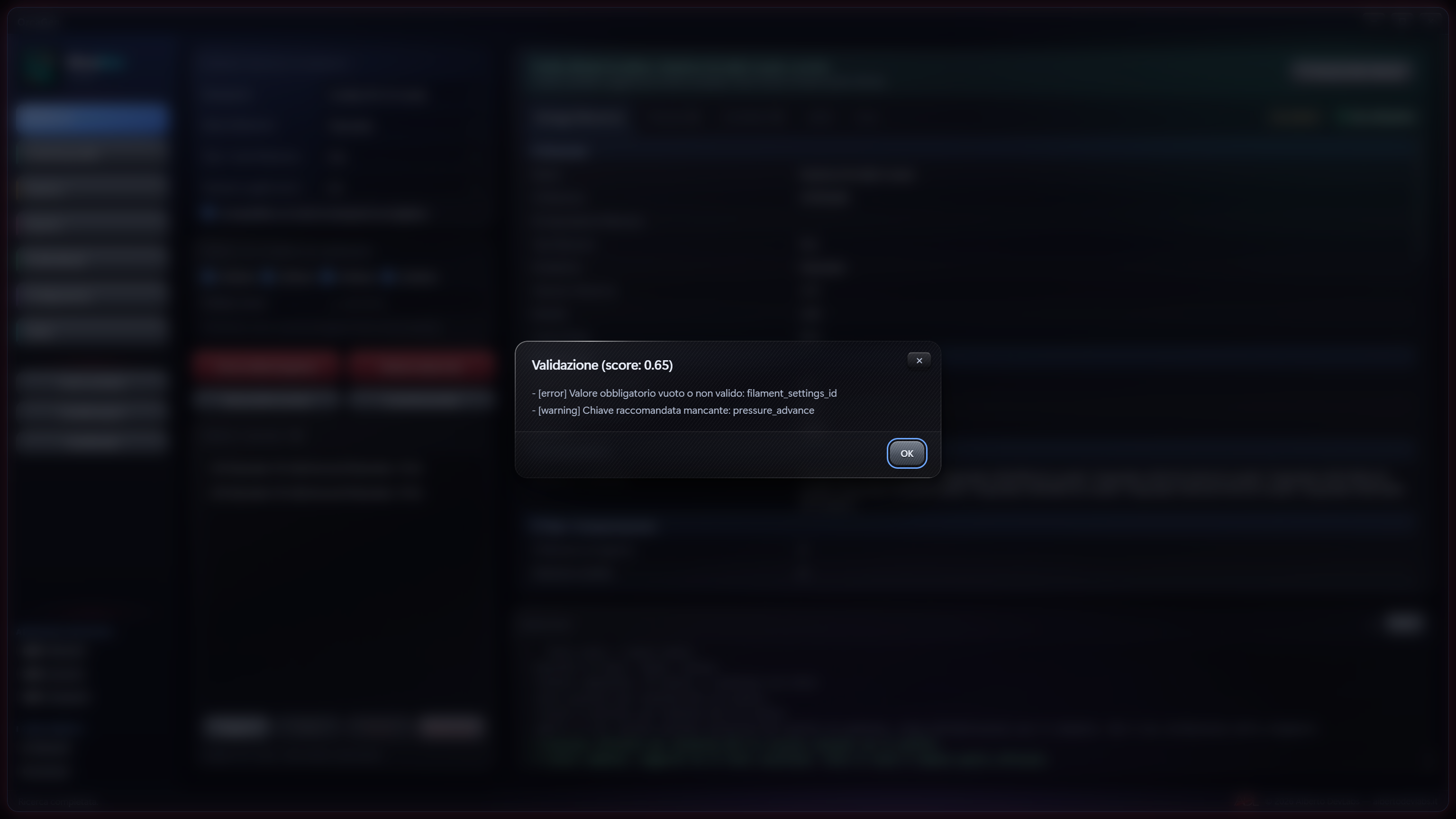
Features
Move filaments and processes into the slicer
It exports .orca_filament filaments, processes in ZIP and .orca_printer bundles with the selected items. It can include a complete printer held in the personal database. Actions to copy the file, show it and open OrcaSlicer support the transfer; the import is done in the slicer.
Choose processes by machine and nozzle
It searches for processes for the chosen machine and nozzle and offers qualities at 0.12, 0.16, 0.20 and 0.24 mm according to availability. On internal baselines it adapts geometry and speeds to the available data, without deriving flow rate from nozzle diameter alone.
Work with local data
Generate offline searches the local official archive and uses the material baseline when a specific filament is missing. It is useful without a connection; if processes for the printer and nozzle are missing, it may return the filament only.
Keep reusable configurations
The personal database keeps filaments, associated processes and context so they can be retrieved later. Deletions require confirmation and are separate from managing the official archive and files already exported.
Compare profiles parameter by parameter
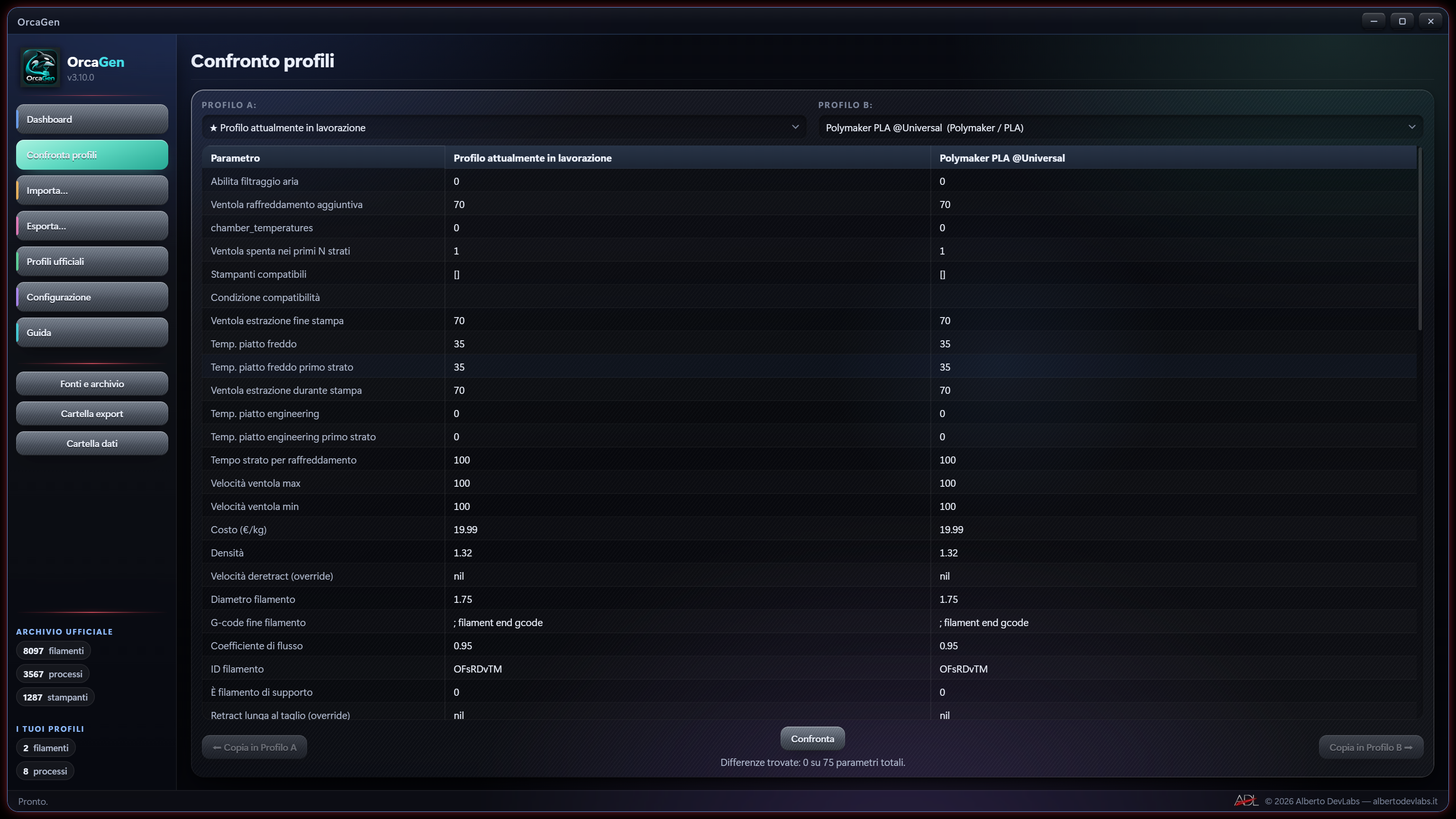
It puts two profiles side by side, highlights differing values and parameters present on one side only and lets you edit or copy values. It helps you understand the differences and transfer a correction; accepted changes to saved profiles update the database.
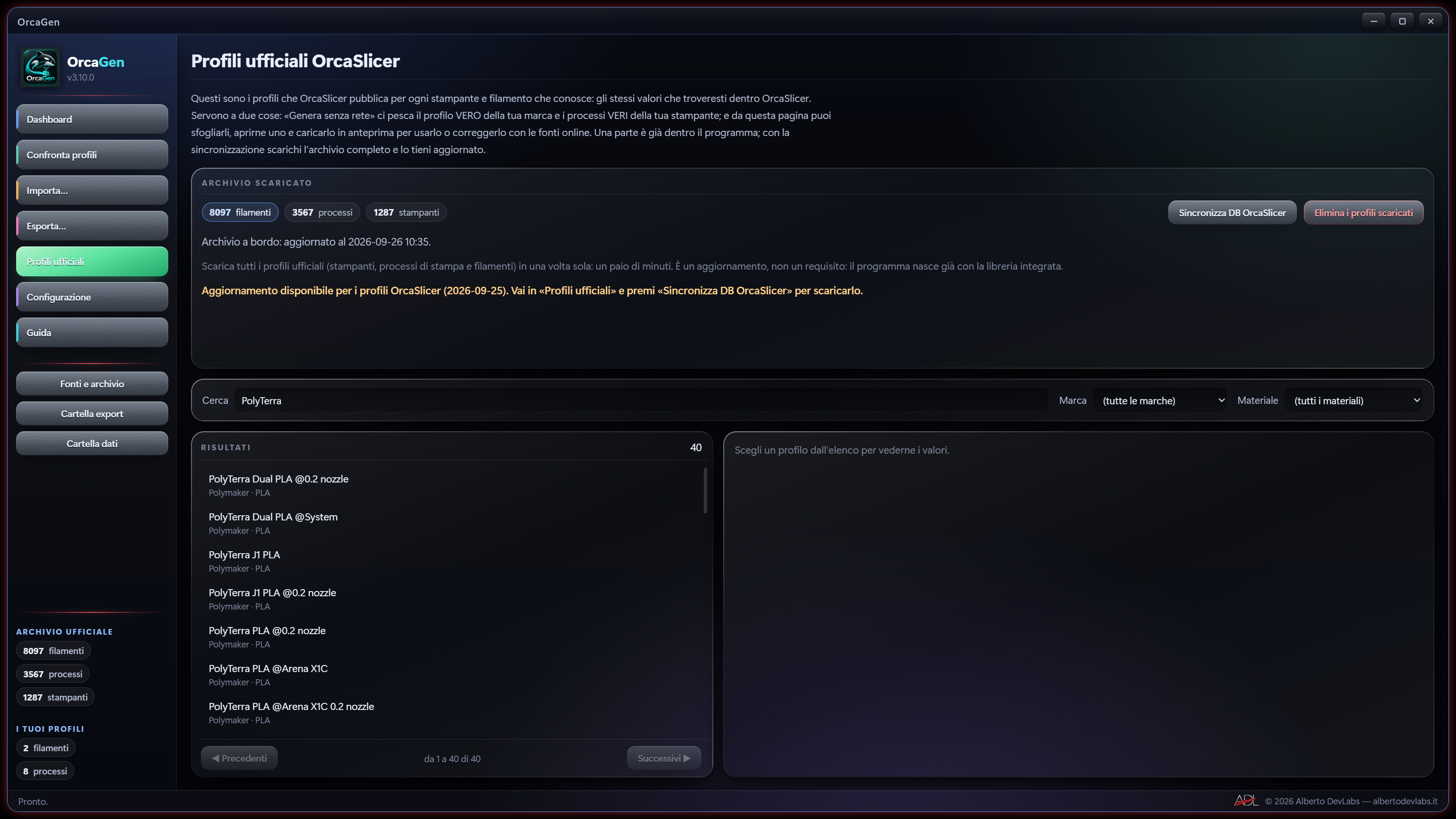
Browse and update the official archive
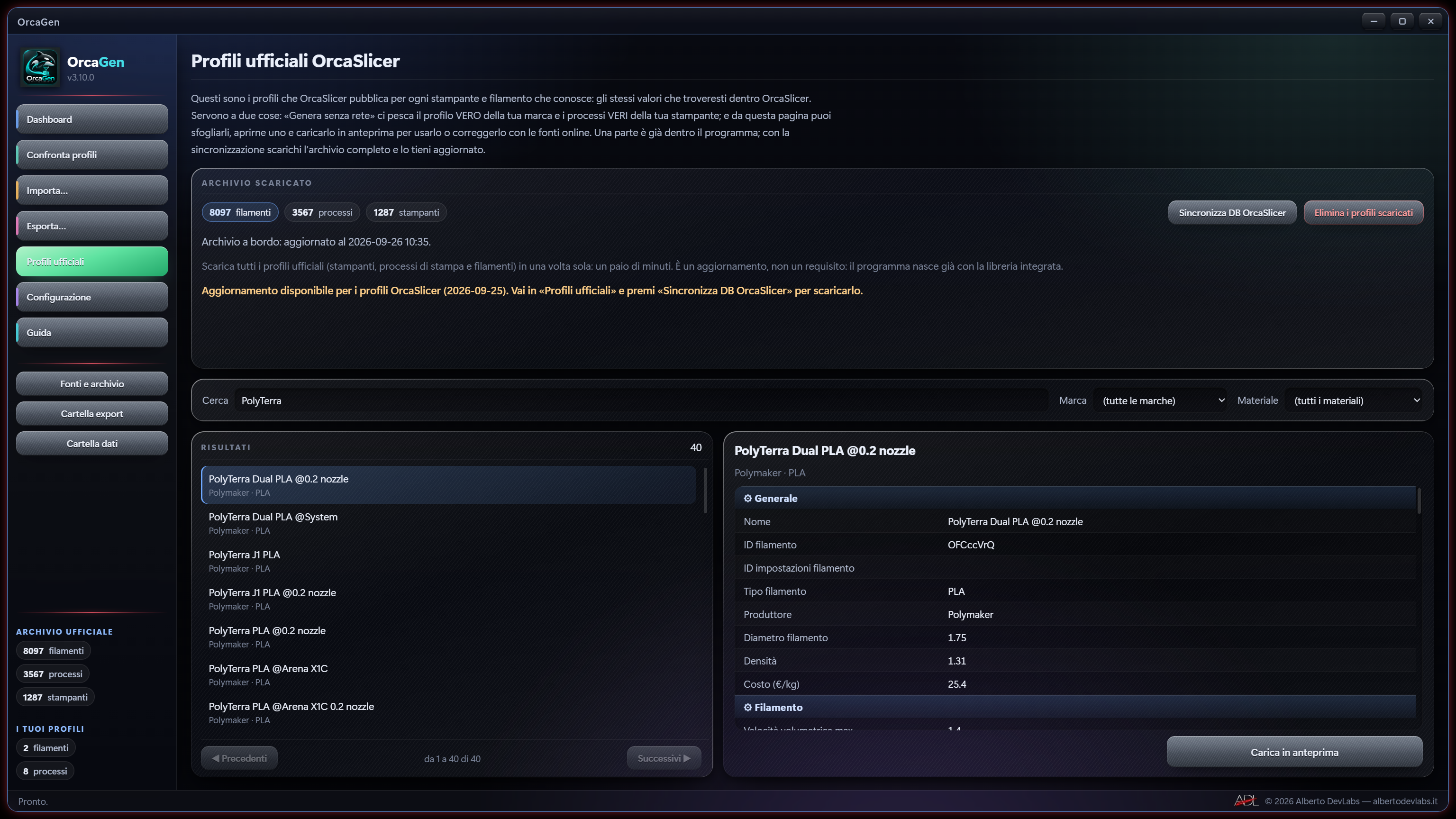
It lets you browse filaments, processes and printers in OrcaSlicer's separate archive and load filaments into the preview. Synchronisation prepares the update separately and keeps the previous archive in case of an error or cancellation before the final apply.
Assess corrections to official filaments
With an official filament loaded, the search updates the supported numeric values, showing before, after and the sources of the change. Text fields and G-code are not subject to the automatic correction; the result should be reviewed before saving and assessed on your own machine.
Import bundles with a summary
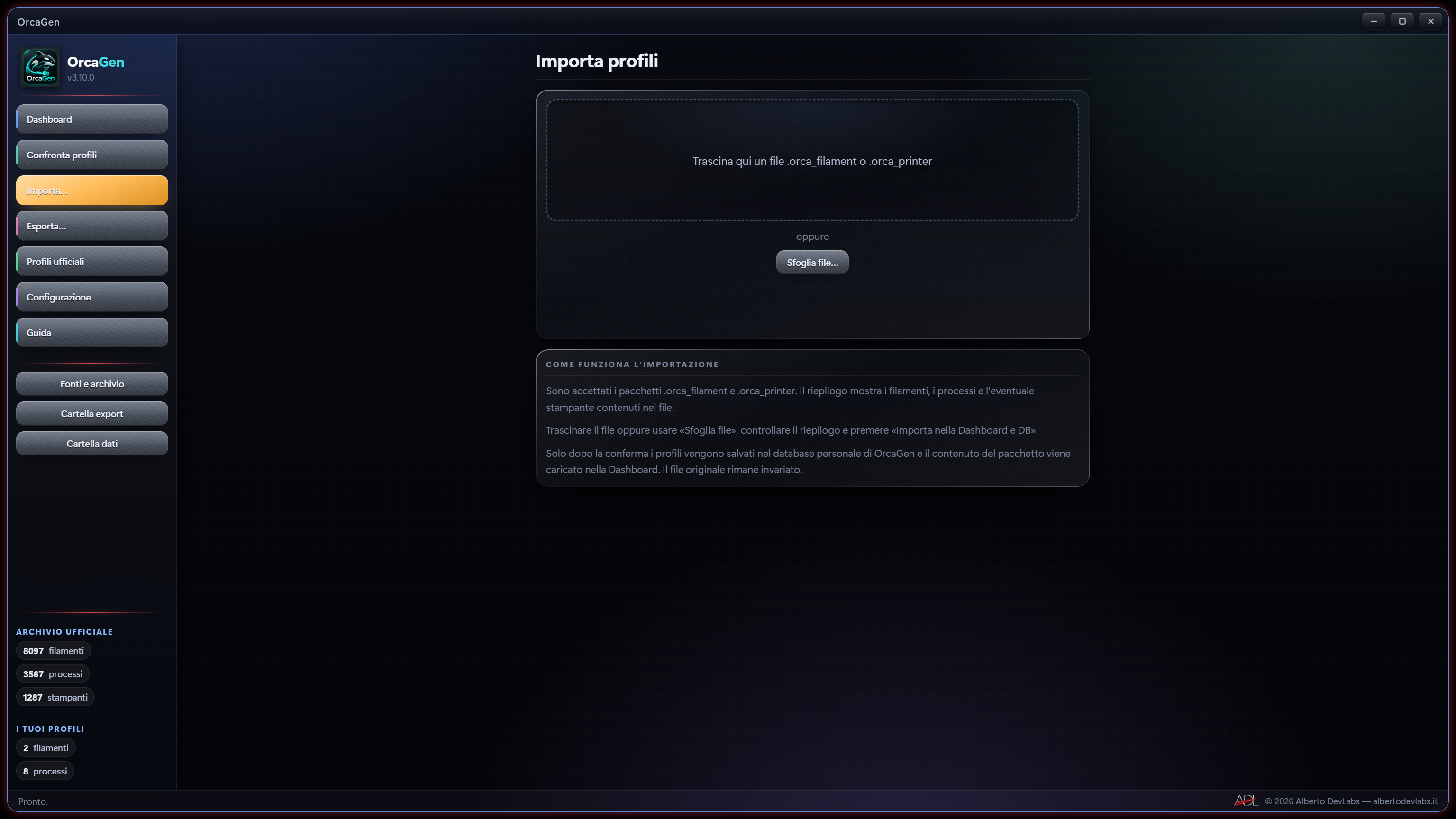
It accepts .orca_filament and .orca_printer via selection or drag and drop. It shows the contents before confirmation, keeps the bundle's links in the database and makes any printer available, leaving the original file untouched.
Adapt the process to part size
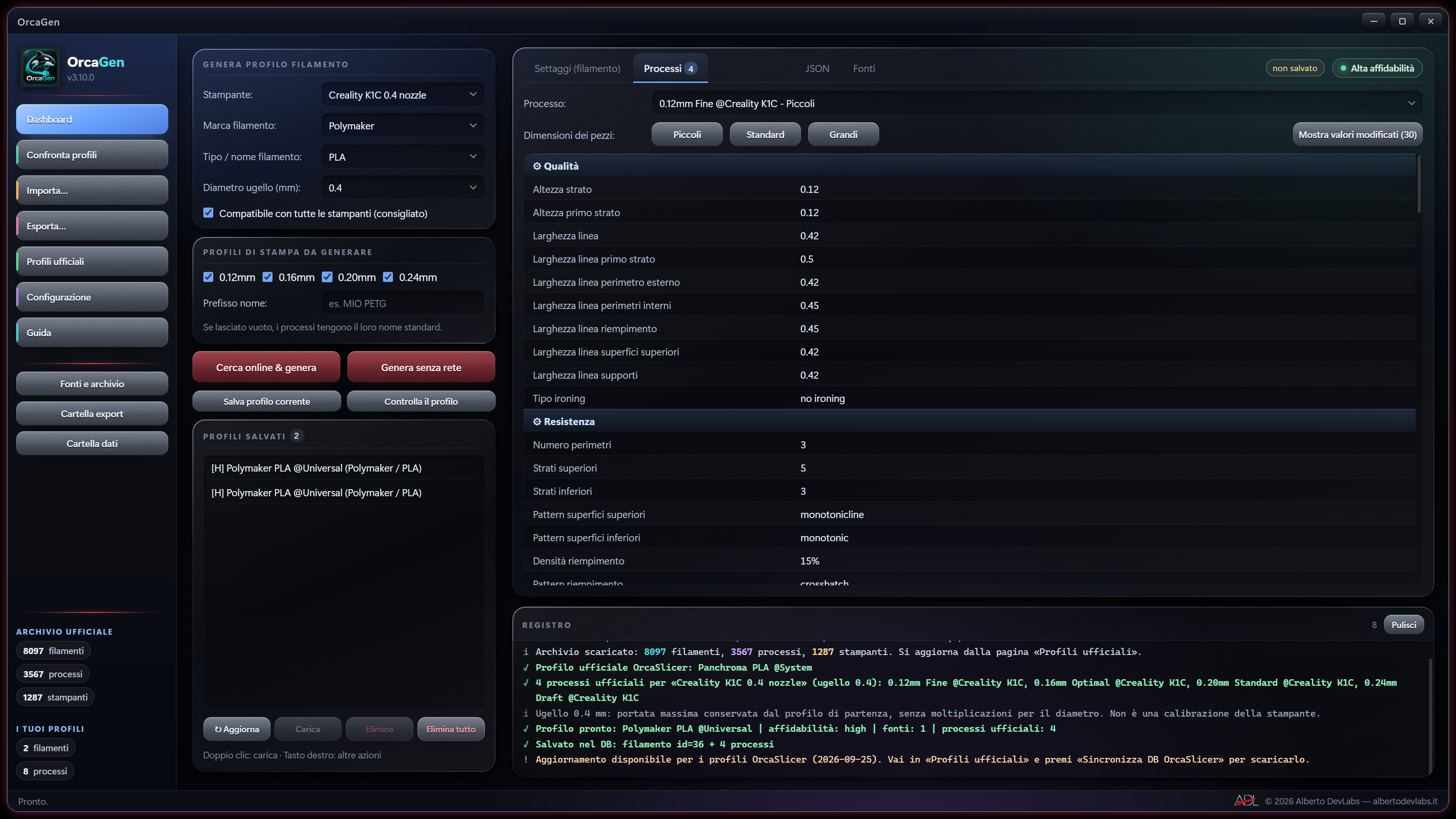
Small and Large change the dynamic parameters of the selected process; Small also acts on cooling. Standard restores the stored baseline. Changed rows are highlighted and can be reached with Show modified values; the presets do not guarantee print speed or quality.
Export collections and multi-nozzle copies
Bulk export collects your personal filaments into filamenti_export.zip, excluding processes, printers and the official archive. Multi-nozzle variants create copies named for 0.2, 0.4, 0.6 and 0.8 mm nozzles while keeping the flow rate unchanged: they are not dedicated calibrations.
Customise the baselines for new generations
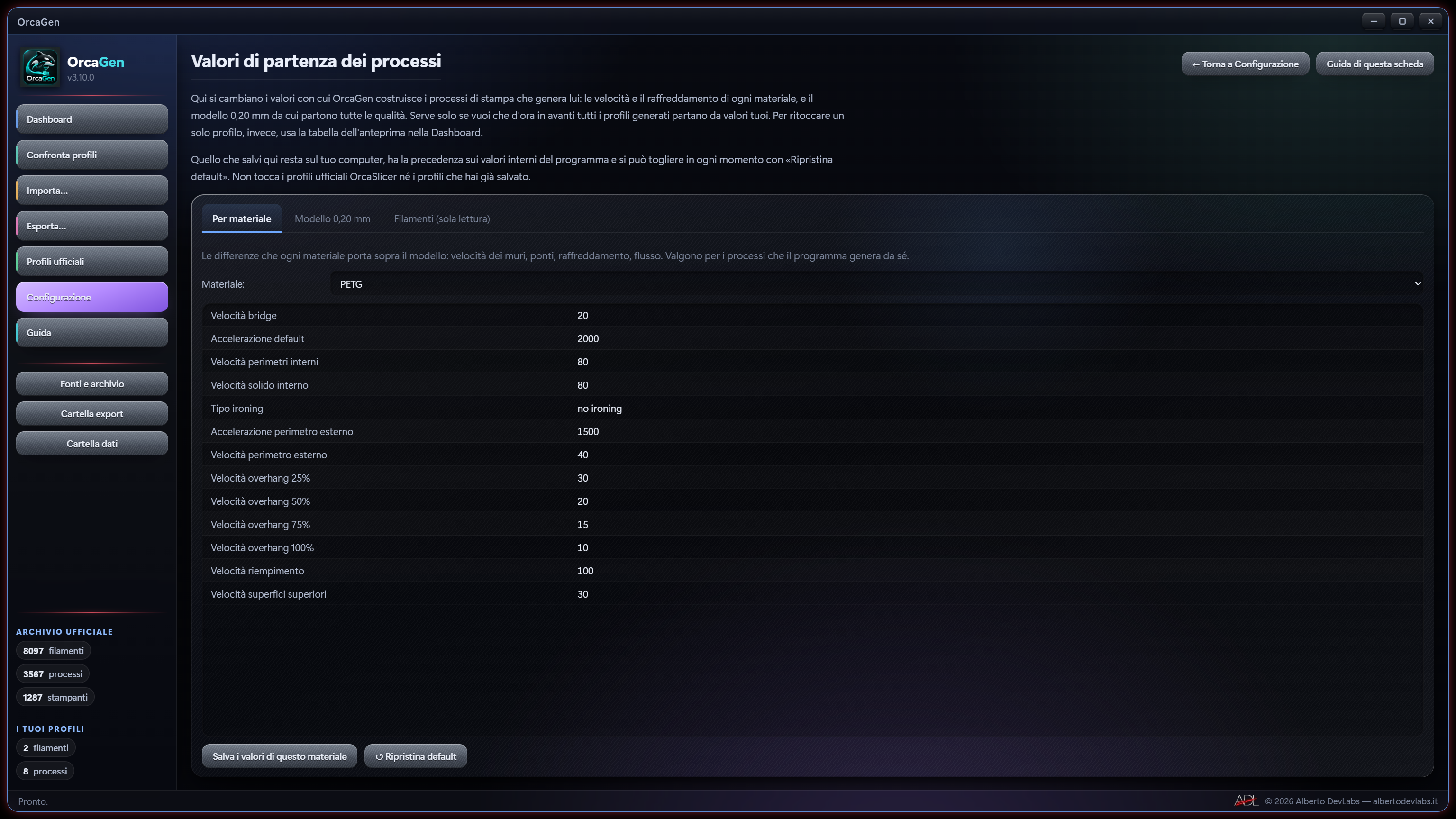
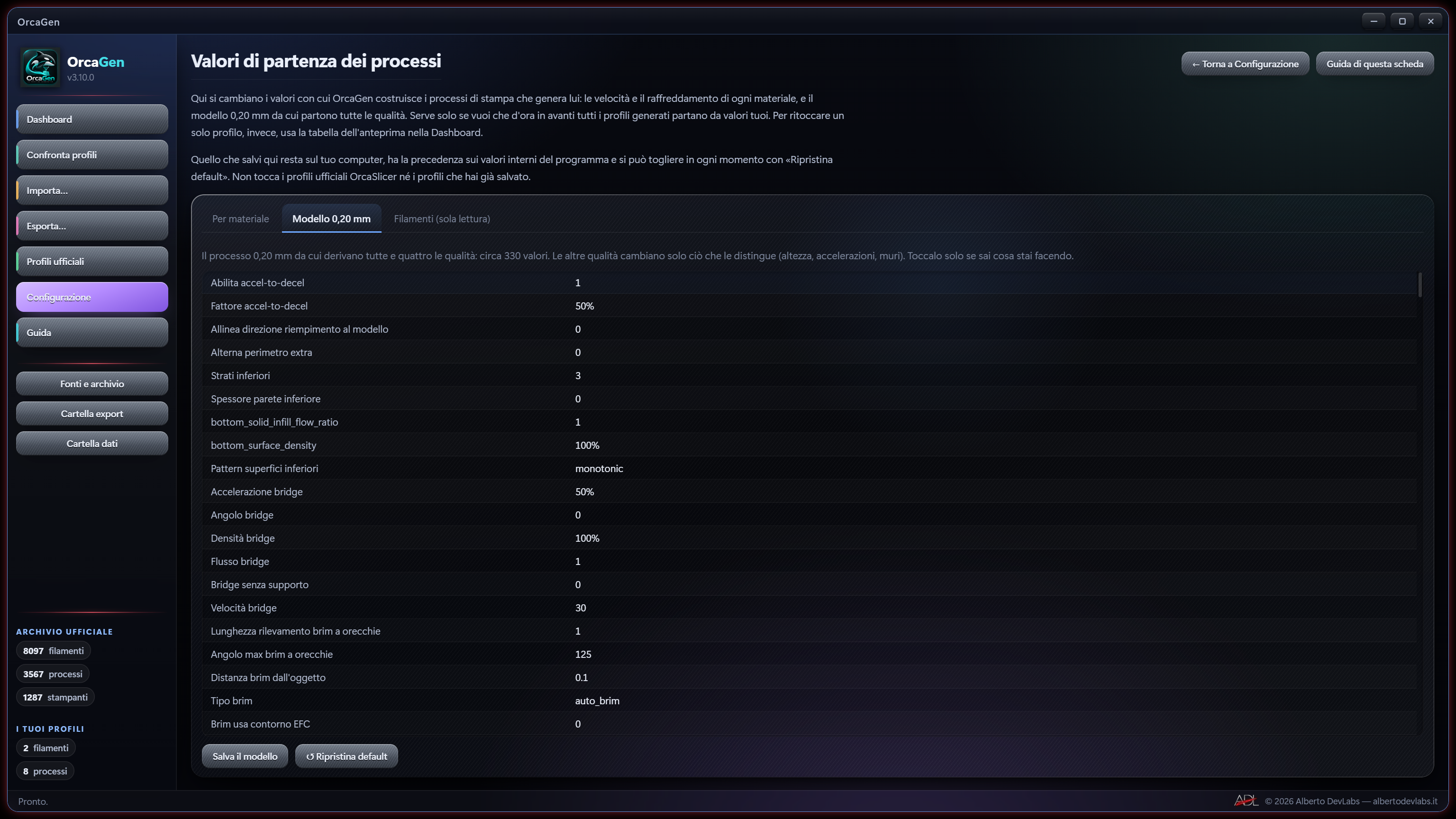
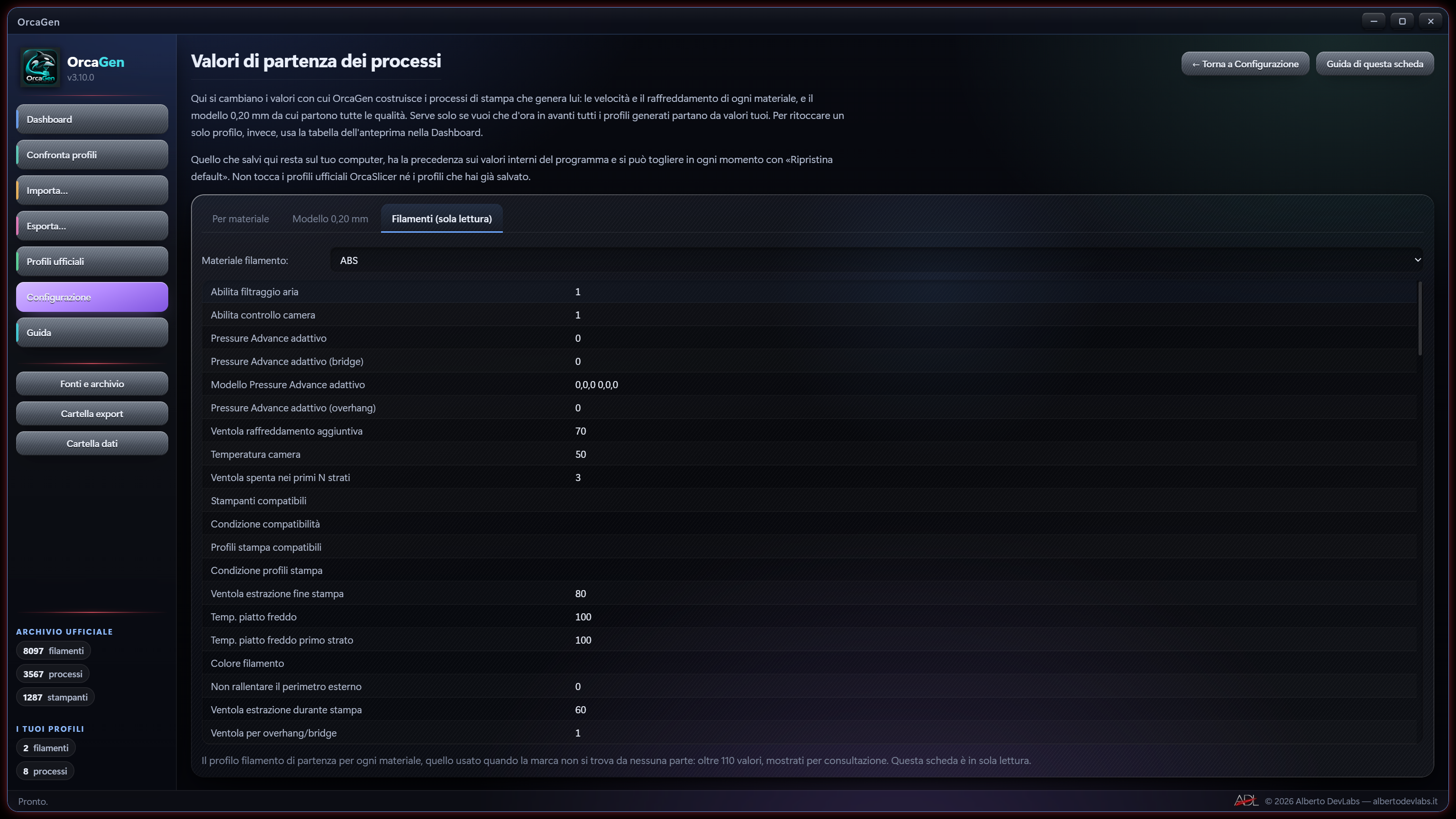
From Settings you can edit the 0.20 mm process template and the per-material differences, with local saving and restore of the defaults. The changes apply to subsequent generations based on that data and do not rewrite the preview, saved profiles or the official archive.
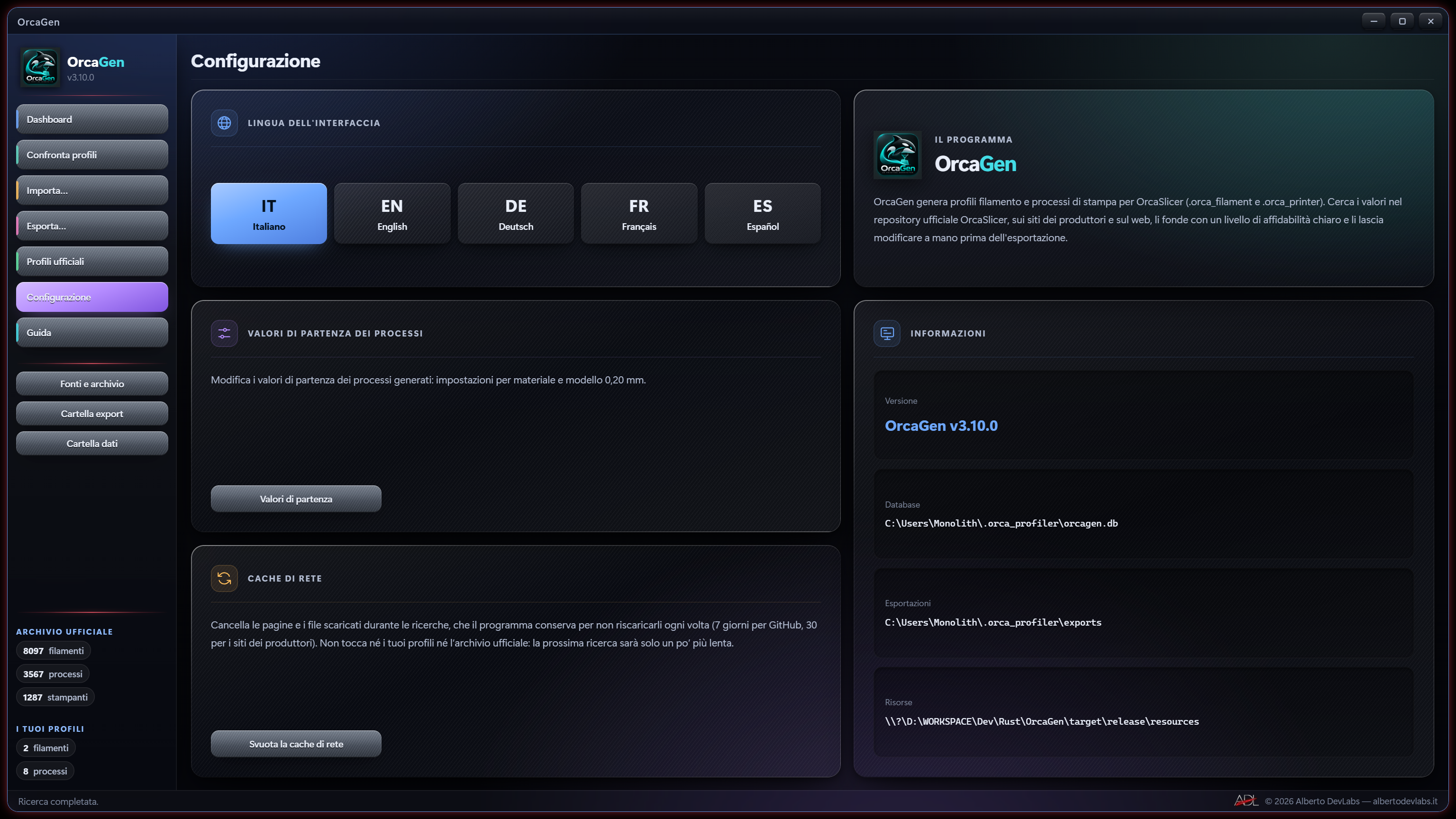
Find and manage the files produced
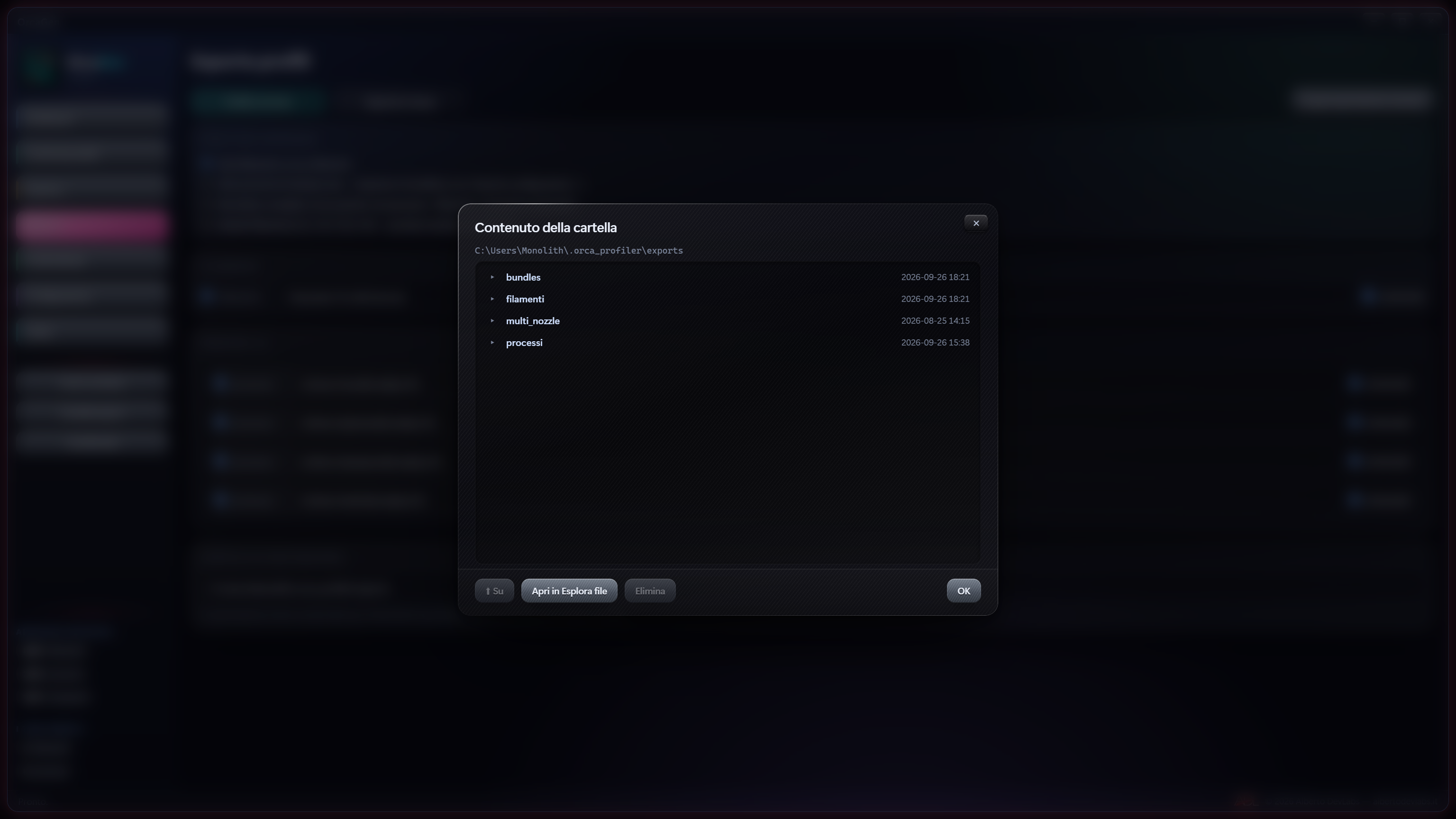
Data folder and Export folder allow browsing, copying the path, opening in File Explorer and confirmed deletion of individual exports. Settings shows the paths and lets you manage the cache; exported files and profiles in the database remain independent.
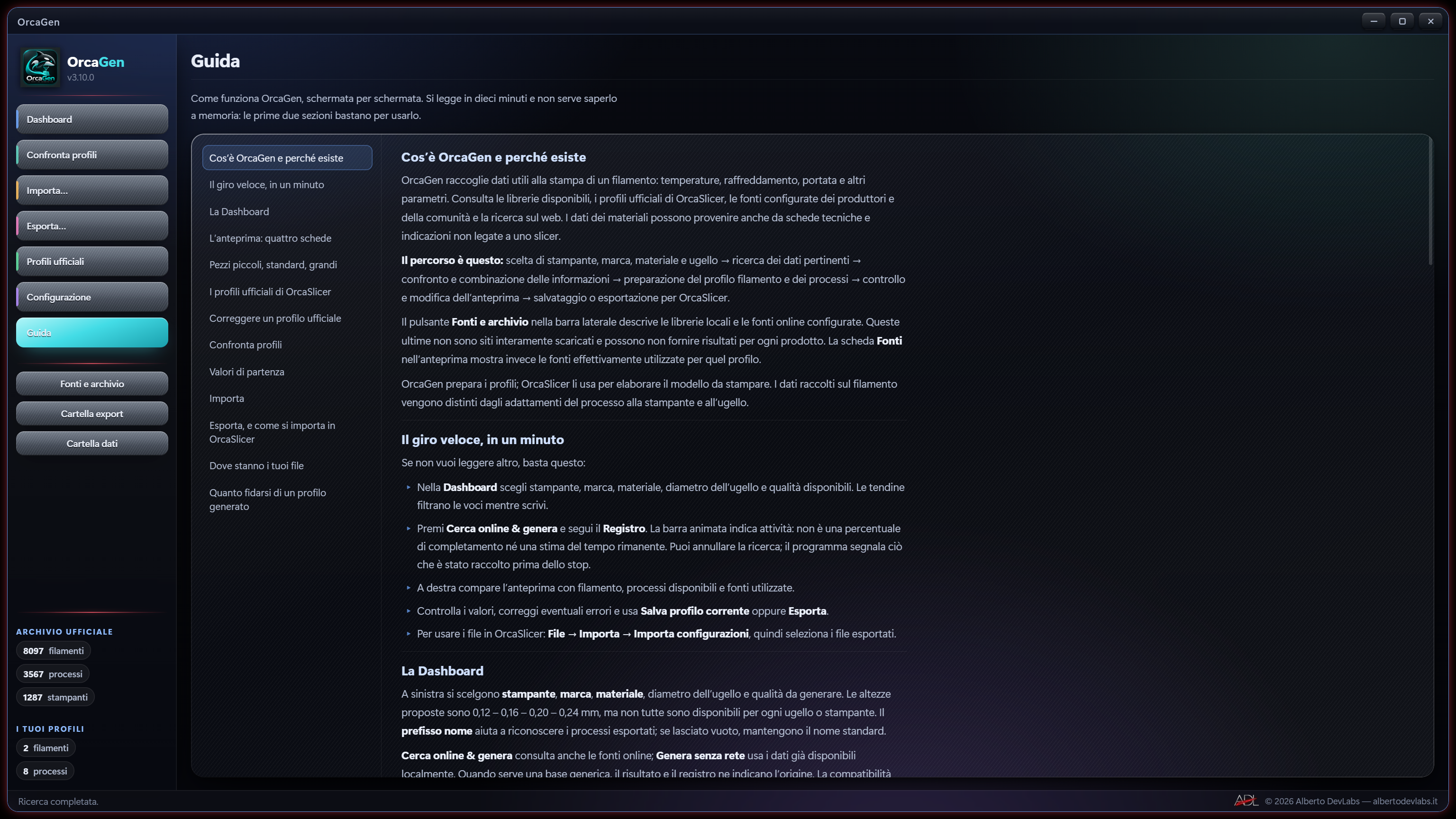
Consult resources and help in your language
Sources and archive distinguishes local libraries, material baselines and configured remote sources from the provenance of the individual result. The interface, the general guide and the Starting values help are available in Italian, English, German, French and Spanish.
System Requirements
- 64-bit Windows 10/11.
- Microsoft WebView2 Runtime; if missing, installation may require downloading the runtime.
- OrcaSlicer installed separately in order to use the exported configurations.
- Internet connection for online search, checking and synchronising the official archive; offline generation limited to local data.
- Printer and nozzle data available in order to obtain relevant processes; including the printer in a bundle requires a complete profile for it in the personal database.
- Paid Only distribution according to the author's listing; the licence module present in the sources requires internet for activation and verifies the saved licence locally.
Documentation
What OrcaGen is for
OrcaGen 3.10.2 prepares filament profiles and print processes for OrcaSlicer. It is aimed at anyone who has to set up a new material, compare existing settings or keep configurations to reuse on different printers and nozzles.
It gathers data from local libraries, the official OrcaSlicer archive and the configured online sources, combines it and presents an editable result. Compared with searching for and retyping parameters from web pages and separate profiles, it brings search, provenance, comparison, editing and export together in the same environment.
It is useful when changing filament, when you want to understand what distinguishes two profiles or when you have to transfer configurations into the slicer. It does not process 3D models and does not run the print: those tasks remain with OrcaSlicer and the printer.
The generated profile is a starting point. Source reliability and value validation are not the same as calibrating the spool or the machine.
Installation, distribution and requirements
Installing the Windows distribution
- Obtain the OrcaGen installer from the distribution channel indicated by the author.
- Run the
.exefile. The project configures an NSIS installer for the current user. - Make sure Microsoft WebView2 Runtime is available. If it is missing, installing it may require a download over the internet.
- Start OrcaGen.
- Install OrcaSlicer separately in order to use the exported configurations.
64-bit Windows 10/11 and Microsoft WebView2 Runtime are required. The distribution includes local libraries and an official archive prepared for the release. The personal database starts empty; updates keep the personal data already present.
The version declared by the workspace and by the desktop configuration is 3.10.2. The previous documentation indicated https://github.com/AlbertoTrento/OrcaGen/releases and the name OrcaGen_3.10.0_x64-setup.exe for version 3.10.0. The current update module instead configures the AlbRelic/OrcaGen repository and the OrcaGen-setup.exe asset. These references do not prove that a release is available online, which was not verified during the editorial review.
Distribution and licence
The distribution indicated by the author is Paid Only. Prices, licence duration and number of seats are not specified here.
The sources contain a module that activates a key online, saves a signed licence and verifies its signature, product and machine binding locally. In the interface files consulted, a complete activation path is not documented; this manual therefore does not assign names to activation screens or buttons that were not found. Follow the instructions provided by the author with the distribution.
The module keeps licenza.json and guid-macchina.txt in the application's configuration folder, which is separate from the profiles folder described further on. Local verification of a valid licence does not require a network; activation does.
Connection and compatibility
Internet is needed for online search, for checking updates to the official archive and for synchronisation. Generate offline uses local data. The availability of remote sources is not guaranteed.
The working formats are intended for OrcaSlicer. No general compatibility with other slicers or with all printer models is declared. The selectable nozzles are 0.2 / 0.4 / 0.6 / 0.8 mm; the qualities and processes available depend on machine, nozzle and archives.
First use
- Open the Dashboard and choose printer, brand, material, nozzle diameter and quality.
- Press Search online & generate or Generate offline.
- Read the Log and check filament, processes and sources in the preview.
- Edit the parameters as needed and use Check profile.
- Fix the blocking errors, then use Save current profile or open Export.
- Import the files into OrcaSlicer via File → Import → Import Configs.
Saving to the database and exporting to disk are separate operations: the first keeps the work in OrcaGen, the second produces the files for the slicer.
Dashboard and generation
Data to enter
The printer, brand and material drop-downs filter the entries as you type. Select the actual nozzle diameter and the desired qualities among 0.12 / 0.16 / 0.20 / 0.24 mm. Not all layer heights are available for every combination.
The name prefix helps to distinguish the exported processes; leaving it empty keeps the standard names. Entering the printer correctly is necessary in order to search for the relevant processes.
The universal compatibility options remove the printer selection constraints from the profiles. They do not prove that the parameters are suitable for any machine.
Search online & generate
The search consults local libraries, the official archive and the configured remote sources, including manufacturer sources, community sources and web search. It selects the information by brand and material, also distinguishing reinforced variants, and combines the data taking provenance into account. Divergences may produce conflict warnings.
The Log shows the activity and the notes on the result. The animated search bar indicates activity, not percentage of completion or time remaining. The cancel command stops subsequent requests; a request already in progress may have to finish. An interrupted result may be partial and should be assessed as such.
The result includes the filament profile, the available processes, the sources and the notes. When usable specific data is missing, the fallback to internal baselines is reported.
Generate offline
Offline mode looks for the filament in the local official archive. If there is no match, it uses the material baseline and reports it.
For processes it uses those available in the archive for the printer and nozzle. If the requested qualities are missing, it may offer other available processes for the same combination, explaining this in the log. Missing qualities should not be considered generated.
If the printer is not specified or has no processes in the archive, the result may contain the filament only. Check the exact machine and nozzle name; update the archive when a network is available.
Importing an .orca_printer lets you keep and load your printer's bundle, but it does not automatically add a match to the official archive used by this mode.
Processes and flow rate
The process search uses libraries, profiles available online and internal baselines. In processes generated from the baselines, OrcaGen adapts the geometry to the nozzle and limits the speeds in relation to the available flow rate. Diameter alone does not determine the hotend's melting capacity and does not multiply the filament's flow rate.
Distinguish processes found for the machine from internal baselines. Missing qualities and generic data require assessment before use.
Preview, editing and validation
The four tabs
- Settings (filament): parameters editable directly in the table.
- Processes: process selection and editing of its parameters.
- JSON: editable representation of the filament profile as a JSON object.
- Sources: provenance of the data used and its reliability.
The reliability badge summarises the information gathered. Check profile shows errors and warnings on recognised values; it does not measure the printer's performance.
Correcting the data
An invalid cell is highlighted and keeps the text to be corrected. A JSON that is empty, malformed or not an object is reported. Blocking errors must be resolved before saving or exporting; warnings require assessment.
In text fields, commas and line breaks remain part of the text. Fields shown as JSON lists must keep that structure: ["Nome, completo","Altro nome"] represents two items and [] an empty list. Pay attention to notes, compatibility lists and G-code during manual editing.
Small, Standard and Large
In the Processes tab, the three buttons act on the selected process:
- Small: reduces the dynamic parameters and also acts on the process cooling.
- Large: increases the dynamic parameters relative to the stored baseline.
- Standard: restores the values stored when the buttons were first used for that process.
They act on speeds, accelerations, jerk and overhangs; they do not change layer height, walls, infill and shells. Rows changed since the last application are highlighted in cyan. Show modified values (N) jumps to the first modified row.
Higher speeds do not guarantee a faster or correct print. The filament flow rate must be appropriate for the material, temperature and hotend.
Personal profiles and comparison
Saving and retrieving
Save current profile stores the filament and the associated processes with their context in the personal database. In the Saved profiles pane, use Refresh, Load or a double click to retrieve the work. The context menu offers other actions on the selected profile.
Delete and Delete all require confirmation. They act on the database's personal data; they do not delete the official archive or the files already exported.
Comparing two profiles
Open Compare profiles, choose profile A and profile B and start the comparison. Light blue highlights differing values, purple highlights parameters present on one side only. The difference count helps you gauge the scope of the comparison.
You can edit the cells or copy the selected value to A or B. If the destination is a saved profile, the accepted change updates the database; if it is the current profile, it updates the preview. Invalid values are reported and must be corrected before the update.
Official OrcaSlicer archive
Browsing and loading
Open Official profiles, search the profiles and use the available filters. The counters let you browse filaments, processes and printers. Filaments can be loaded into the preview; processes and printers have informational views.
The official archive is separate from the personal database. Loading a filament lets you examine it and work on it without rewriting the original archive. If the printer field is empty, the program may suggest the printers declared by the profile.
Synchronisation
Use Sync OrcaSlicer DB from the official profiles page. The check may report that the archive is already up to date; otherwise synchronisation downloads and prepares a new local version. The duration depends on the network and the service.
The new version is prepared separately and applied at the end. An error or cancellation before the final apply keeps the previous archive. A cancellation arriving after completion does not undo the update already applied.
The command to clear the official archive, with confirmation, concerns this separate archive. To repopulate it you have to synchronise it; it should not be confused with Delete all in the personal profiles.
Synchronisation updates the profile data: it is distinct from updating the program.
Correcting an official filament
With an official filament active, Search online & generate runs a search for corrections to that profile. It updates the supported numeric values for which the sources provide different data and shows the previous value, the applied one and the sources. Text fields and G-code are not subject to this automatic correction.
Review the list of changes and the available processes before saving or exporting the result. Close official profile returns to normal generation. The corrections are not measurements taken on your own machine.
Importing
Formats and confirmation
On the Import page, use Browse files or drag in an .orca_filament or .orca_printer. A bundle can contain several filaments, processes and, where present, a printer.
The selection shows a summary of the contents and does not save anything yet. Check it and press Import into Dashboard and DB. Invalid data may prevent the import from completing.
After confirmation, the profiles are saved in the personal database keeping the bundle's pairings. The first filament and the processes are loaded into the preview; any printer becomes available in the drop-downs. The original file remains untouched.
Exporting
Preparing the content
Open Export → Current profile, choose the format, check the names and select the items to include. The universal compatibility options remove the printer selection constraints: they do not prove that the parameters are suitable for any machine.
| Mode | Result | Limits and use |
|---|---|---|
| Filament only | .orca_filament | Exports the selected filament |
| Print processes only | .zip | Contains the selected processes, to be imported as configurations |
| Complete bundle | .orca_printer | Brings together the selected items and, if requested and available, the printer |
| Multi-nozzle variants | Four .orca_filament | Copies named for 0.2 / 0.4 / 0.6 / 0.8 mm, with unchanged flow rate |
To include the printer in the complete bundle you need a complete profile for it in the personal database, obtainable by importing its .orca_printer. Just typing the name is not enough; missing data or an ambiguous selection prevent inclusion.
The multi-nozzle variants keep the filament parameters and only distinguish the name: they are not four dedicated calibrations.
Bulk export
On the same page, Bulk export creates filamenti_export.zip with all the filaments in the personal database. A new export updates that file. It does not include processes, printers or the official archive and it does not replace a complete copy of the personal data.
Files produced and opening the slicer
The exports stay in the application folder, with subfolders such as filamenti, processi, bundles and multi_nozzle. The summary shows the actual paths.
- Save a copy: copies the file to another location, keeping the original.
- Show the file: makes the file reachable in File Explorer.
- Open OrcaSlicer: starts the installed slicer. If it is not found, select
orca-slicer.exein the installation folder.
Opening the slicer does not import the files automatically. In OrcaSlicer use File → Import → Import Configs, go to the export folder, pasting the copied path if needed, and select the files.
Settings and starting values
Language, cache and paths
Settings contains the language selector, the information on paths, the network cache management and access to the starting values. The interface and the guide are available in Italian, English, German, French and Spanish. Cache management is distinct from deleting profiles.
Customising the process baselines
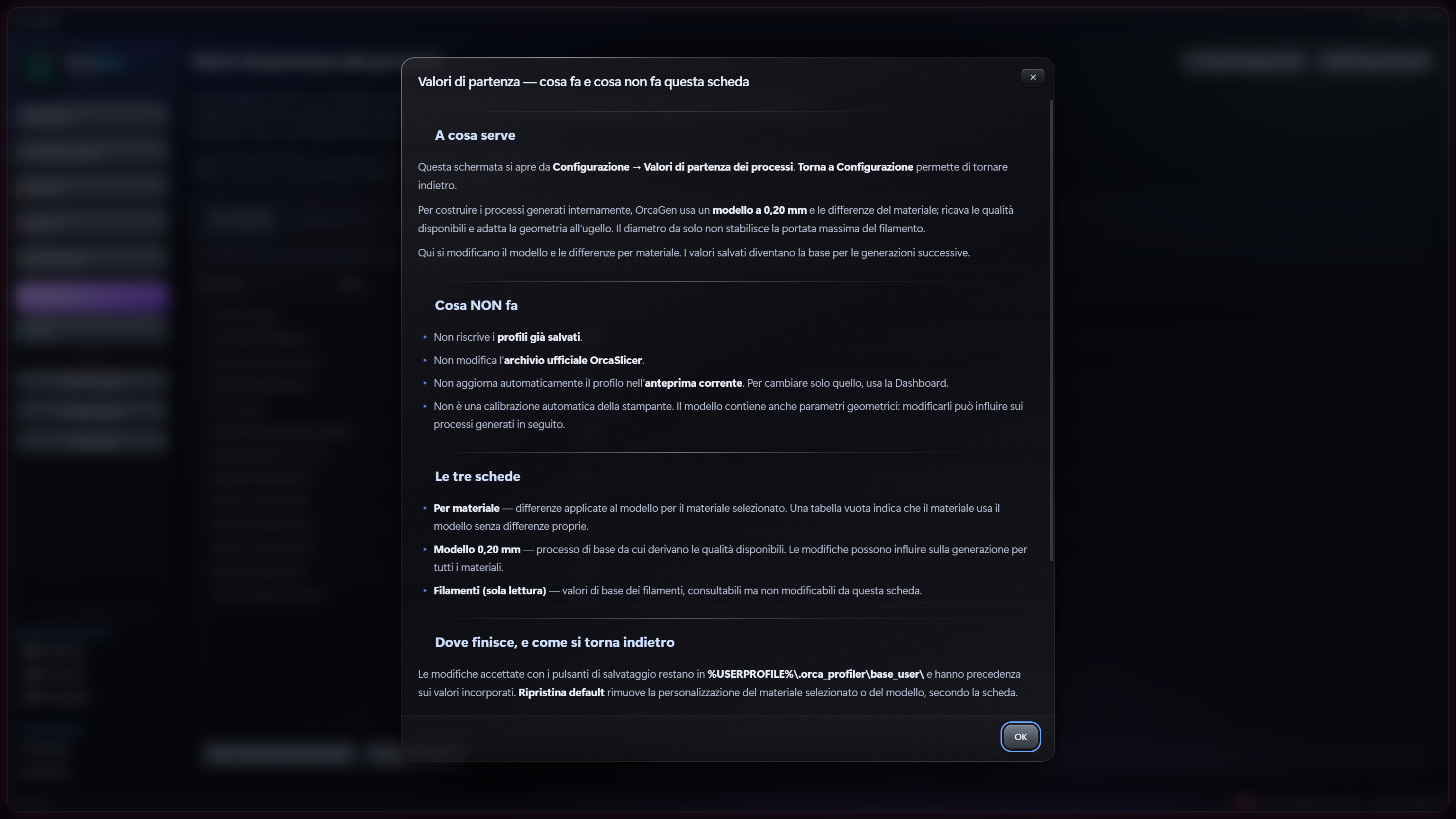
Open Settings → Process starting values. Three tabs are available:
- By material: differences applied to the template for the chosen material. An empty table indicates that there are no specific differences.
- 0.20 mm template: the baseline from which the qualities of internally generated processes derive; a change may affect several materials.
- Filaments (read only): consultation of the filament baseline values.
Edit the values and use the save buttons. Customisations take precedence over the built-in baselines and are kept in %USERPROFILE%\.orca_profiler\base_user\process\: _template.json for the template and material_*.json files for the materials.
Restore defaults removes the customisation of the material or of the template, depending on the tab. Help for this tab explains the editor; Back to Settings returns to the settings.
The changes apply to subsequent generations that use these baselines. They do not rewrite saved profiles, the official archive or the current preview. To correct a single result, use the Dashboard. Here too, blocking errors prevent saving and lists must keep the JSON format.
Data, folders and deletion
The actual paths are shown in Settings. The ordinary profiles folder is %USERPROFILE%\.orca_profiler\.
| Item | Content |
|---|---|
orcagen.db | Personal profiles and associations |
orcaslicer.db | Local official archive |
exports\ | Exported files |
base_user\process\ | Customisations of the process baselines |
cache\ | Files used by network tasks |
app.log | Application log |
Data folder and Export folder open an internal panel. Click a subfolder to enter it; Up goes back. Copy path copies the path and Open in File Explorer opens the displayed folder in Windows.
Deletion from the panel is limited to individual export files and requires confirmation; it does not delete folders or database files. Deleting an export does not remove the saved profile. Deleting the personal profiles does not remove the exports already present on disk.
Sources, reliability and troubleshooting
Interpreting the sources
Sources and archive describes the local resources, the base materials and the configured online sources. The Sources tab of the result instead indicates the sources actually used. Also consult the Log to understand fallbacks, conflicts and missing qualities.
A configured site is not an entirely downloaded site. It may be unreachable, change structure or contain no relevant data. The reliability badge concerns the information gathered and does not certify that a print will succeed.
Frequent problems
- Processes are missing: check the printer name, nozzle, quality and available archive. In offline mode, the absence of machine data may produce the filament only.
- Generic values appear: usable specific data is missing; read the provenance and adapt the profile with a proper calibration.
- Saving or export blocked: correct highlighted cells and malformed JSON. A JSON object and a JSON list are not interchangeable.
- Cannot include the printer: import its complete bundle and select a unique personal profile with the necessary data.
- OrcaSlicer does not open: specify the path of its executable. You can open it separately and import the configurations manually.
- The profile stays on disk after Delete: the command removed the personal record, while the exported file is independent; manage it from Export folder.
- Search interrupted or source unavailable: read the Log and check whether the result contains partial data or baseline values before using it.
Limits of use
Temperature, flow and flow rate must be assessed on the real combination of material, hotend and printer. Validation checks structure and recognised values, not the spool. Universal compatibility, size presets and multi-nozzle copies do not replace this assessment. No results, performance or compatibility with all printers are guaranteed.
Sources and building
This section concerns those working on the sources; it is not needed to use the installer. You need Rust with the MSVC toolchain, the Visual Studio C++ tools and Node.js with npm. The workspace declares Rust 1.80 as the minimum version.
From the project root, the documented path to build and start debugging is:
cargo build -p orcagen --bin orcagen --locked
.\target\debug\orcagen.exe
The --locked option requires an available and consistent Cargo.lock. To prepare the official archive, if missing or to be updated, and to build the installer:
cargo run --release -p orcagen-archivio
npx.cmd @tauri-apps/cli@^2 build
The archive tool prepares resources/orca_archive/orcaslicer.db, included in the distribution; it does not prepare the personal database. The installer is produced in target/release/bundle/nsis/. The commands are reported as instructions, without being executed in this review.
The Cargo manifest declares the MIT licence; the author's listing indicates Paid Only commercial distribution. This metadata is kept without inferring any further commercial conditions.
The sources also include commands for checking the published version and for downloading and installing the program update. In the interface files consulted, the corresponding complete user path is not documented: it is not presented as an available and verified sequence of buttons. This mechanism is distinct from the synchronisation of the OrcaSlicer archive.
Documentation status
Manual updated by reading the existing materials and the relevant sources of version 3.10.2. The operating instructions, formats, paths and reliable limits have been kept; the version reference and the information on distribution, installation and the licence and update modules have been updated.
The review is exclusively editorial: no files were written and no tests, builds, interface trials, imports into the slicer or physical prints were carried out. No images were inspected and no online resources were verified. The changelog and the project report keep the history of previous checks and their limits.
Get it OrcaGen
Premium Version
Prepare and compare profiles for OrcaSlicer without retyping filament data by hand
Buy – €24License for 3 computers · How buying works