MonolithDash
Windows dashboard that gathers programs, scripts, folders, links and backups in a single window: every entry is a card, one click launches it.
What you get
Areas and entries
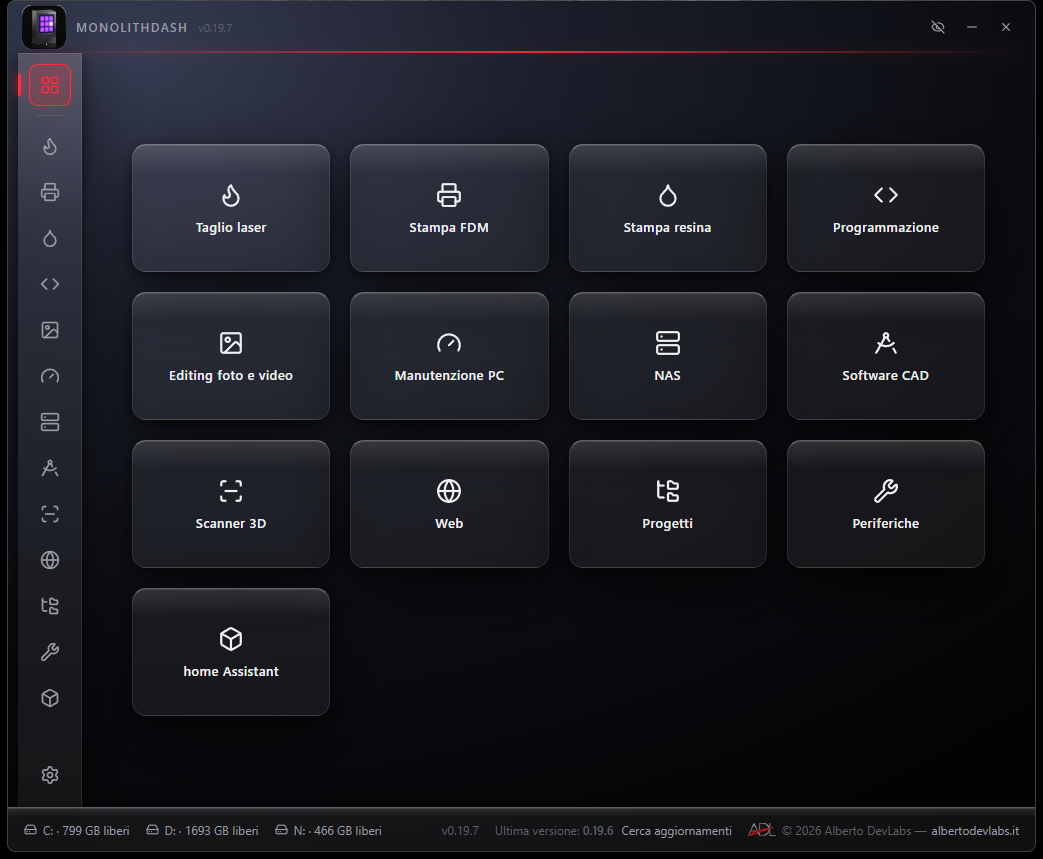
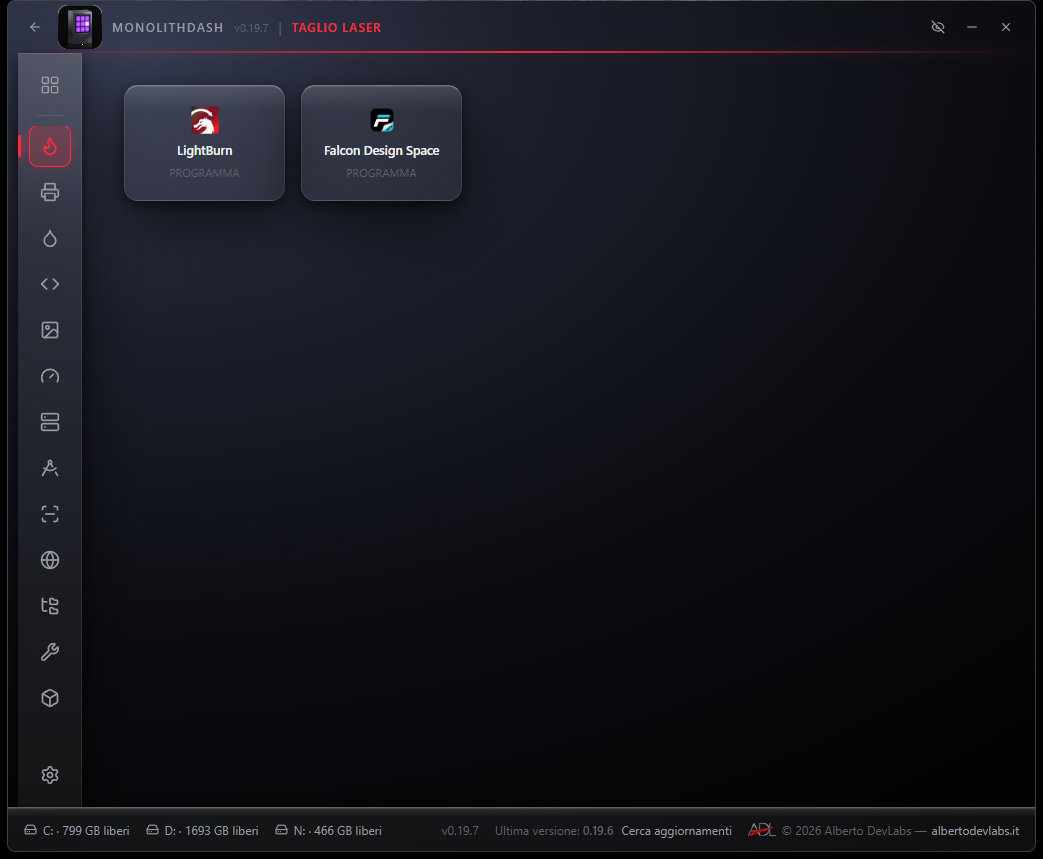
Entries are grouped into areas, each with its own icon in the sidebar; the Home shows all the entries from all areas together. From the configuration panel you can create, rename, reorder and delete areas and entries, with the area icon chosen from a drop-down menu.
Five entry types
Program (an executable or a shortcut), Script (with the interpreter inferred from the extension or forced: pythonw, powershell, node…), Folder (opened in File Explorer, network paths included), URL (opened in the default browser) and Backup.
Elevated startup without UAC
MonolithDash starts with administrator rights through a Windows Task Scheduler task registered on first run: the UAC prompt appears only once. Launched programs start at the user's normal level, in their session; the «Run as administrator» checkbox, entry by entry, makes them start elevated.
Screenshots and video
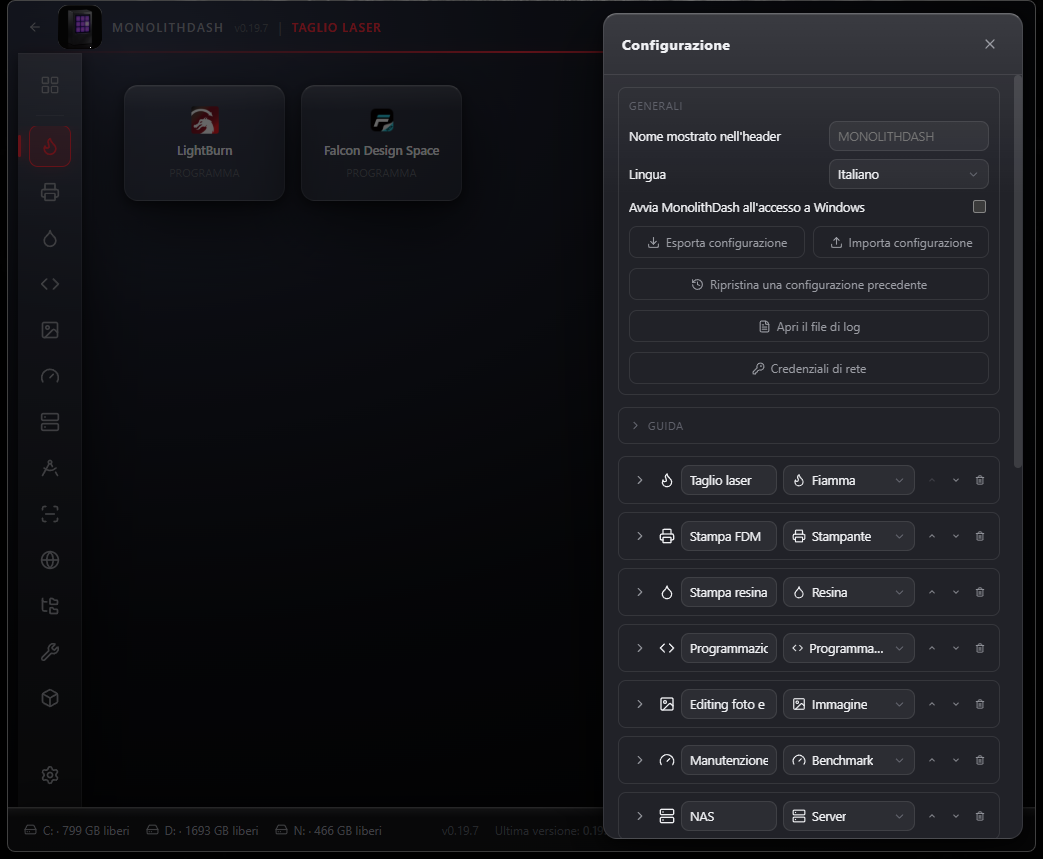
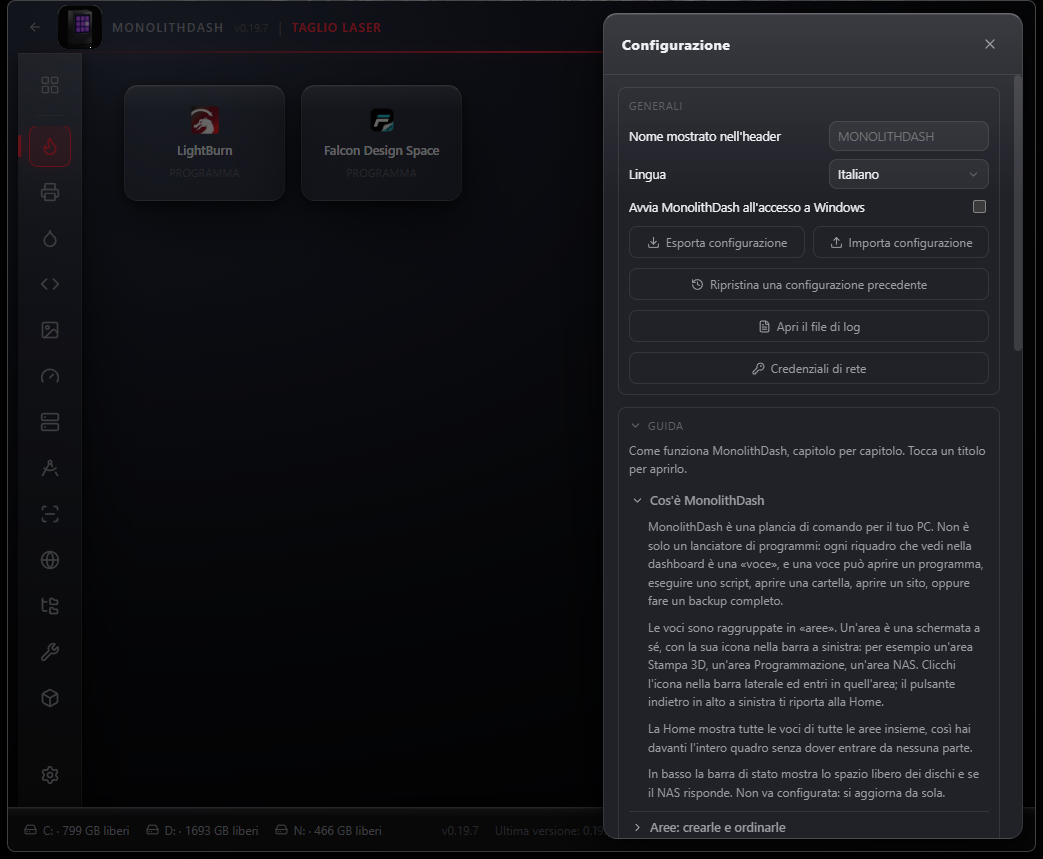
Features
Backup with robocopy
Every Backup entry copies a source folder to a destination, with a checkbox for each subfolder and default exclusions for folders that regenerate themselves (.venv, node_modules, target, __pycache__, dist, build, .git…). Progress bars per block and overall, file summary, log of every run, date of the last complete backup on the card; the PC does not go to sleep while the copy is running, and «Cancel the backup» stops robocopy on the block in progress.
Automatic Mirror/Accumulate mode
How each folder is copied is decided by the source tree: a folder containing a Git repository goes to Mirror (exact copy), the rest to Accumulate (nothing is ever deleted). A per-folder selector lets you force the mode; «(auto)» appears in the progress window and in the log when the program decided it.
Discrepancies: no silent deletions
Once the copy is done, a check reads the destination and looks for what no longer exists in the source. The list appears in a dedicated window, grouped by folder with the space it takes up; deletion happens only by explicit choice, after a confirmation stating exactly what and from where, with progress always visible during the search and the deletion.
Destination with a wizard
A backup destination is not typed in by hand: the wizard lets you choose between internal drive, external/USB drive and NAS. For the NAS it finds the devices on the network by itself, asks only for username and password, lists the shared folders and always saves the full UNC path. If the credentials for that server are already saved and working, the step is skipped.
Encrypted network credentials
The app keeps the NAS credentials, encrypted with Windows DPAPI, in a file separate from the configuration. It reuses them by itself for backups and for Folder entries on network paths: the SMB session is opened in the user's logon session by relaunching the executable with --connect-share, and if the credentials are missing or no longer valid it asks for them with the same wizard window.
Automatic icons
If an entry's path is an executable, the icon automatically becomes the program's own, extracted at the largest size it contains. The Icon field also accepts an image (PNG, SVG, JPG, ICO) or another executable to extract it from; the file is copied into the app data, so the icon stays even if the original disappears. An icon chosen by hand is never overwritten.
Notification area
The crossed-out eye button hides the window leaving the program running, with the icon next to the clock: one click reopens it where it was, right click for Show, Hide and Exit. The X really closes it and, if a backup is copying, it warns first with two explicit choices.
Essential telemetry
The status bar shows the free space on each drive (in the accent colour below 10%), whether the NAS is responding and the version number, which also appears next to the program name in the title bar.
Configuration with automatic copies
Everything is saved immediately in %APPDATA%, outside the program folder: updating loses nothing. Export and Import write and read back a JSON file; at every save a dated copy is set aside (the last ten) and «Restore a previous configuration» puts the chosen one back in service. The «Open the log file» button opens the app log.
Update check
A bar at the bottom of the window shows the installed version, the latest version available on GitHub with date and time in local time, and the result of the last check. The «Check for updates» button explicitly says whether the software is up to date; a newer version opens a popup with the setup link and the bar flashes until you click it. No download starts on its own.
Interface in five languages
Italian, English, German, French and Spanish, with a selector in the panel. The complete user guide, in eight chapters, is inside the program in the Guide section of the Configuration, with the same content in all five languages.
Window that sizes itself
On first run the window is proportioned to the resolution of the monitor it opens on; after that it remembers size, position and monitor. If on restart the saved position falls on a screen that is not switched on yet, the window is re-centred on the primary monitor instead of staying invisible.
System Requirements
- Windows 10 or 11, 64 bit
- WebView2 Runtime (already present on updated Windows 10/11)
- Administrator account for the installation and for the UAC consent on first run
- robocopy for the backups (included in Windows)
- Local network with the SMB protocol for NAS and shared folders (optional)
Documentation
What MonolithDash is
MonolithDash is a control panel for your PC. Every tile on the dashboard is an item, and an item can launch a program, run a script, open a folder, open a website, or perform a full backup.
Items are grouped into areas, each with its own icon in the left-hand bar. Home shows all the items from all the areas together. At the bottom, the status bar shows free disk space, whether the NAS is responding and the version in use.
Areas and items
Everything is configured from the panel that opens with the gear icon at the bottom of the sidebar.
- Creating an area: type the name in the field at the bottom of the panel and press Add area.
- Renaming, reordering, deleting: done from the area's row; the trash icon deletes the area along with all its items.
- Adding an item: expand the area with the arrow, press Add item, fill in label and type, then the fields that appear.
- Editing an item: the pencil opens the editor, the arrows move it, the trash icon deletes it.
The five item types
- Program: launches an executable (a
.lnkshortcut works too). - Script: runs a
.py,.ps1,.vbs,.bat,.js… file; the interpreter is inferred from the extension, the field is only there to force a specific one (for examplepythonw). - Folder: opens a folder in File Explorer, including a network path; for the NAS it reuses the saved credentials.
- URL: opens an address in the default browser.
- Backup: copies a folder to another destination, configured in a dedicated window.
Program and Script items have the Run as administrator checkbox: on the first click Windows asks for UAC consent just once, in order to register a dedicated Task Scheduler task for that item, and from then on the item starts elevated without asking anything. Turn it on only where it is really needed: the other items start with normal rights and with the clean environment of the user profile.
Icons
The Icon field usually doesn't need filling in: if the path points to an .exe, the icon automatically becomes the program's own. For a different icon, pick an image (PNG, SVG, JPG, ICO) or another executable to extract it from; the file is copied into the app's data. An icon chosen by hand is never overwritten.
Backup
A Backup item is configured in the "Configure backup…" window: source folder, destination, a checkbox for each subfolder to copy and the list of what to skip.
- What to copy: no checkboxes ticked in the configuration means "the whole source"; in the window shown at launch, however, at least one tick is required.
- What to skip: folders that regenerate themselves (
.venv,node_modules,target,__pycache__,dist,build,.git) are excluded from the start, at any depth. - Ask what to copy at every run: if enabled, clicking reopens the window already filled in, and the changes apply only to that run.
Mirror and Accumulate
How each folder is copied is decided by the source tree, level by level:
- a folder containing a Git repository goes into Mirror: the destination becomes an exact copy of the source;
- everything else goes into Accumulate: nothing is ever deleted at the destination.
Next to each ticked folder, a selector lets you force Mirror or Accumulate for that folder; the default stays Automatic. In the progress window and in the log, "(auto)" means the mode was decided by the program.
The destination
The destination isn't typed by hand: the wizard lets you choose between internal drive, external drive or USB stick, and NAS. For the NAS the app searches for network devices on its own, asks only for username and password, lists the shared folders and saves the full network path.
The credentials are kept by the app, encrypted, and reused automatically at every backup: there's no need to map network drives or touch Windows credentials. If credentials for that server are already saved and working, the wizard skips that step and goes straight to the shared folders.
Discrepancies
Once the copy is finished, a check runs that reads the destination and looks for anything that no longer exists in the source: the leftovers of folders and files that were moved or renamed.
- If there's nothing, a line in the summary says so.
- If there is something, a window opens with the list grouped by folder and the space taken up.
Nothing is ever deleted on its own: you tick what to remove, press the button, and before anything is deleted a confirmation appears listing exactly what and from where. The source is never touched under any circumstances.
During and after the copy
The progress window has a bar for each block, with the mode next to the name, and the overall bar. The PC doesn't go to sleep while the backup is running; "Cancel backup" stops robocopy and whatever had already been copied stays where it is.
The date of the last backup appears on the tile only if the copy really made it to the end: an interrupted backup, or one with failed blocks, doesn't update it, and the window reports "Backup NOT complete".
Startup and notification area
The Start at Windows sign-in switch makes MonolithDash start on its own, with the user's normal rights, like any ordinary startup entry: no scheduled task and no UAC prompt. Administrator rights are requested only by the items with the "Run as administrator" checkbox, each on its own.
- The X closes the program; if a backup is copying, it warns first with two explicit choices.
- The crossed-out eye button hides the window: the icon stays in the notification area, one click reopens it where it was.
- Right-click on the icon: Show, Hide, Exit.
Configuration and automatic copies
Everything is saved immediately, on its own, in %APPDATA%\dev.monolith.monolithdash: updating or reinstalling doesn't lose anything.
- Export configuration writes everything into a JSON file; Import configuration reads it back.
- At every save, a dated copy of the previous state is set aside; ten are kept, and Restore a previous configuration puts the chosen one back into service. The restore itself can also be undone.
- Open the log file opens the app's log, where every item launch (item, path, outcome and Windows message, even when it succeeds) and every backup record what was attempted and what Windows replied. A failed launch also appears on screen, in a window with item, path and error: never a silent click.
License activation
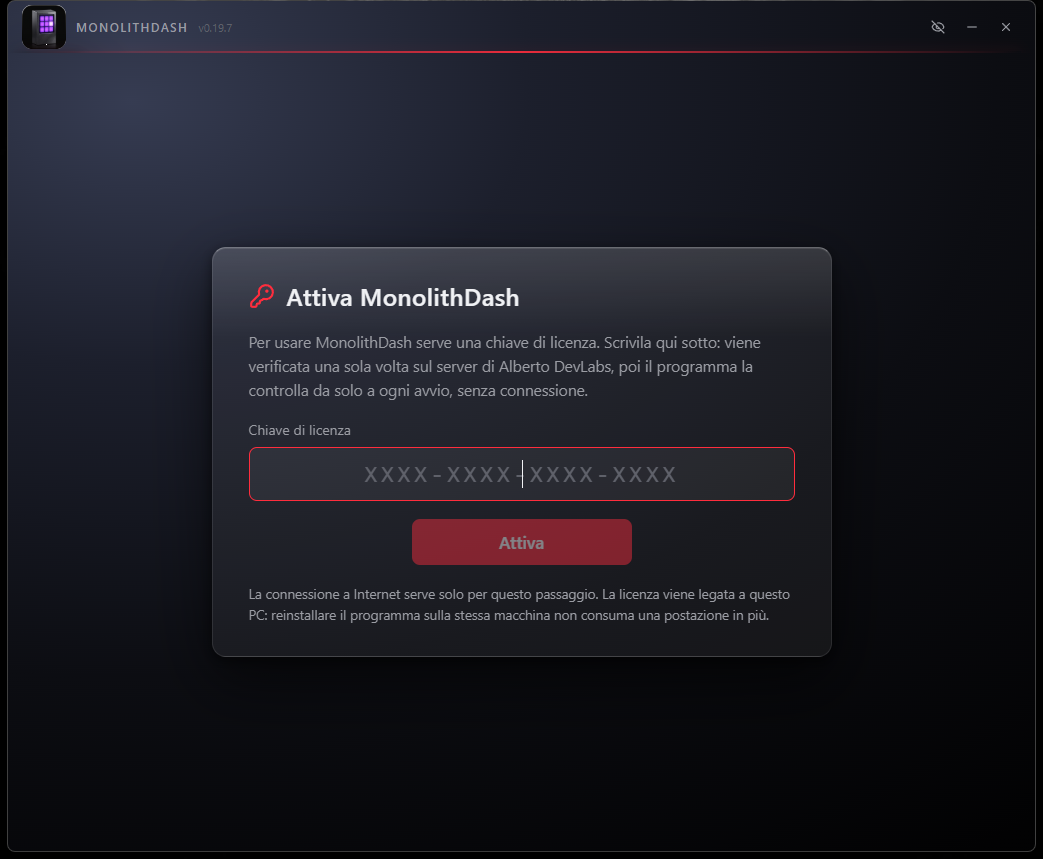
On first launch MonolithDash shows a window asking for the license key, in the format XXXX-XXXX-XXXX-XXXX. Without a valid license the program goes no further than that window.
How it works
Type or paste the key and press Activate. The program sends it once to the albertodevlabs.it server together with a random identifier for this PC, generated the first time and kept in the data folder. The server replies with a signed license file, saved alongside the configuration.
Subsequent launches
From then on, at every launch, the program checks only that file: it verifies the signature with the embedded public key and that the identifier written inside is the one of this PC. No call to the server: it starts even with no network. If the file is missing, has been modified or belongs to another PC, the activation window comes back. Reactivating on the same machine doesn't use up an extra seat.
Error messages
- Key not found: the key isn't in the list, check it character by character.
- Key revoked: it has been deactivated and can no longer activate the program.
- No seats left: all the PCs it entitles you to are already active.
- No connection: the server isn't responding; check the network and try again, the key hasn't been used up.
Updates
The bar at the bottom of the window shows the installed version, the latest version published on GitHub with date and time, and the outcome of the last check. "Check for updates" runs the check again and states explicitly how it went; a newer version opens a popup with the link to the setup. No download starts on its own.
Languages and guide
The interface is available in Italian, English, German, French and Spanish, with the selector in the panel. The complete guide, in nine chapters, is in the Guide section of the Configuration, in the chosen language, with the same content in all five.
Get it MonolithDash
Premium Version
Windows dashboard that gathers programs, scripts, folders, links and backups in a single window: every entry is a card, one click launches it.
Buy – €15License for 3 computers · How buying works