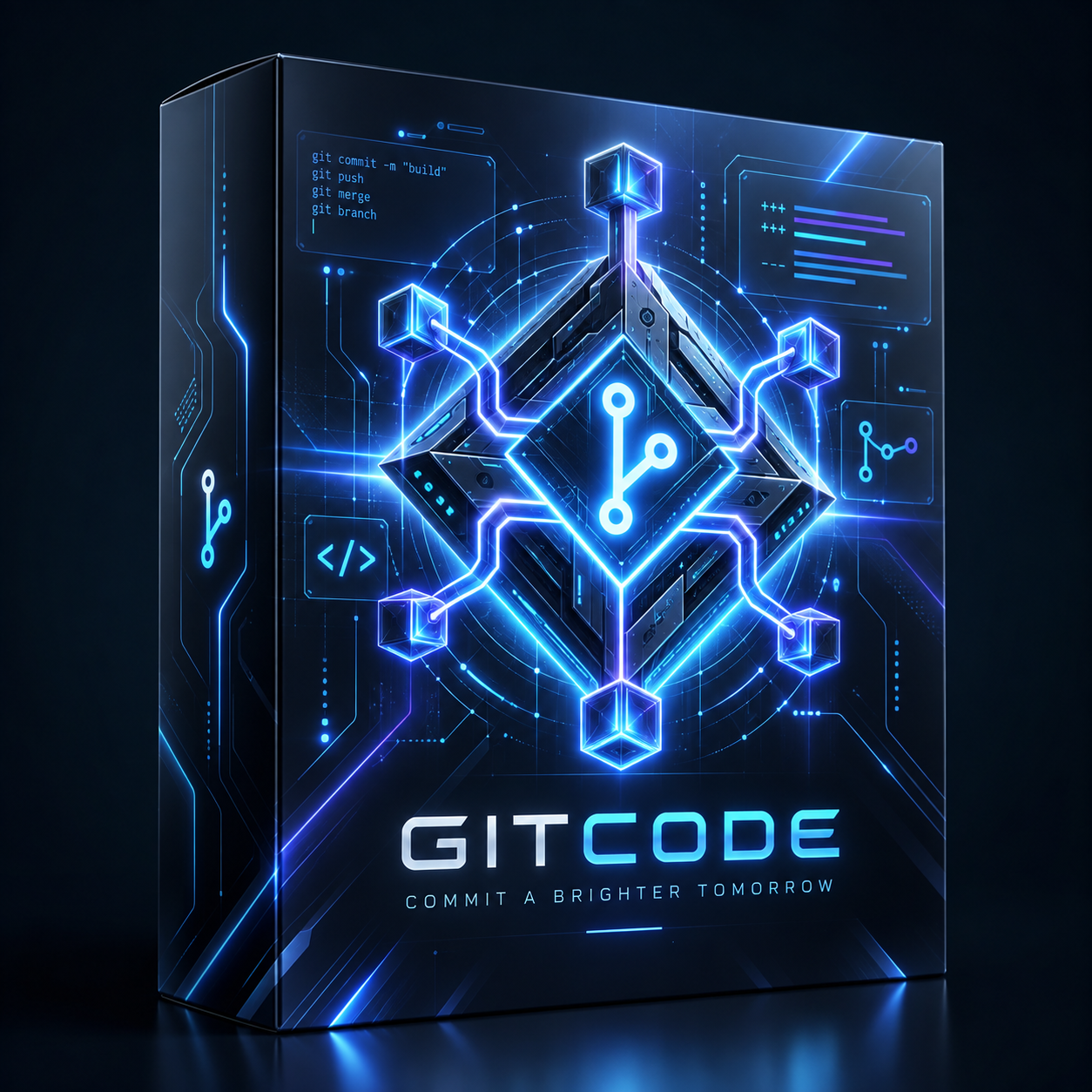
GitCode
The entire git and GitHub cycle in six buttons, without ever typing a command
What you get
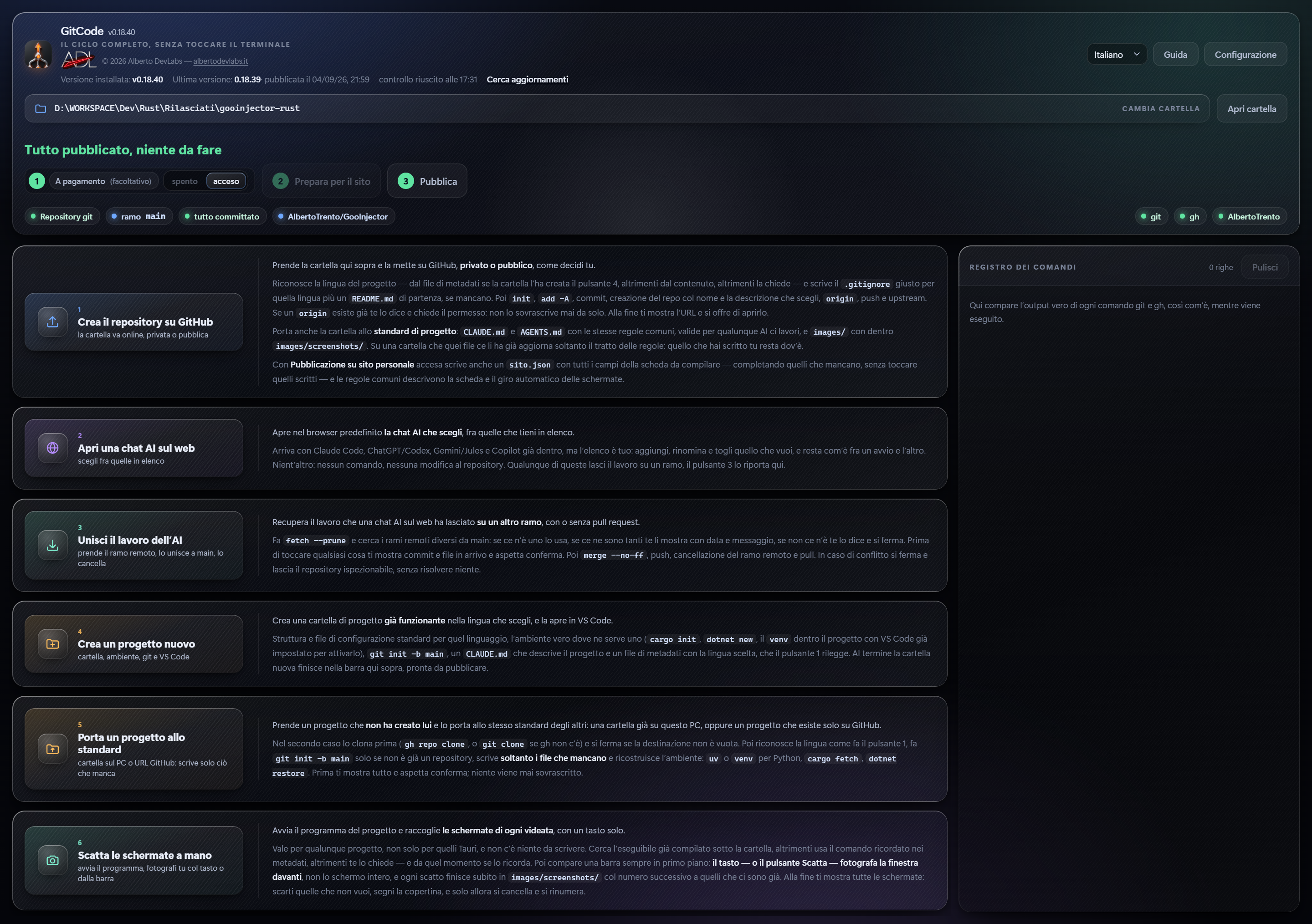
Six buttons for the entire workflow
Publish a folder to GitHub, open AI chats on the web, bring back to the PC the work left on a branch, create a new project, adopt an existing one, capture its screenshots. Each button works on its own, with no mandatory sequence.
Update on GitHub
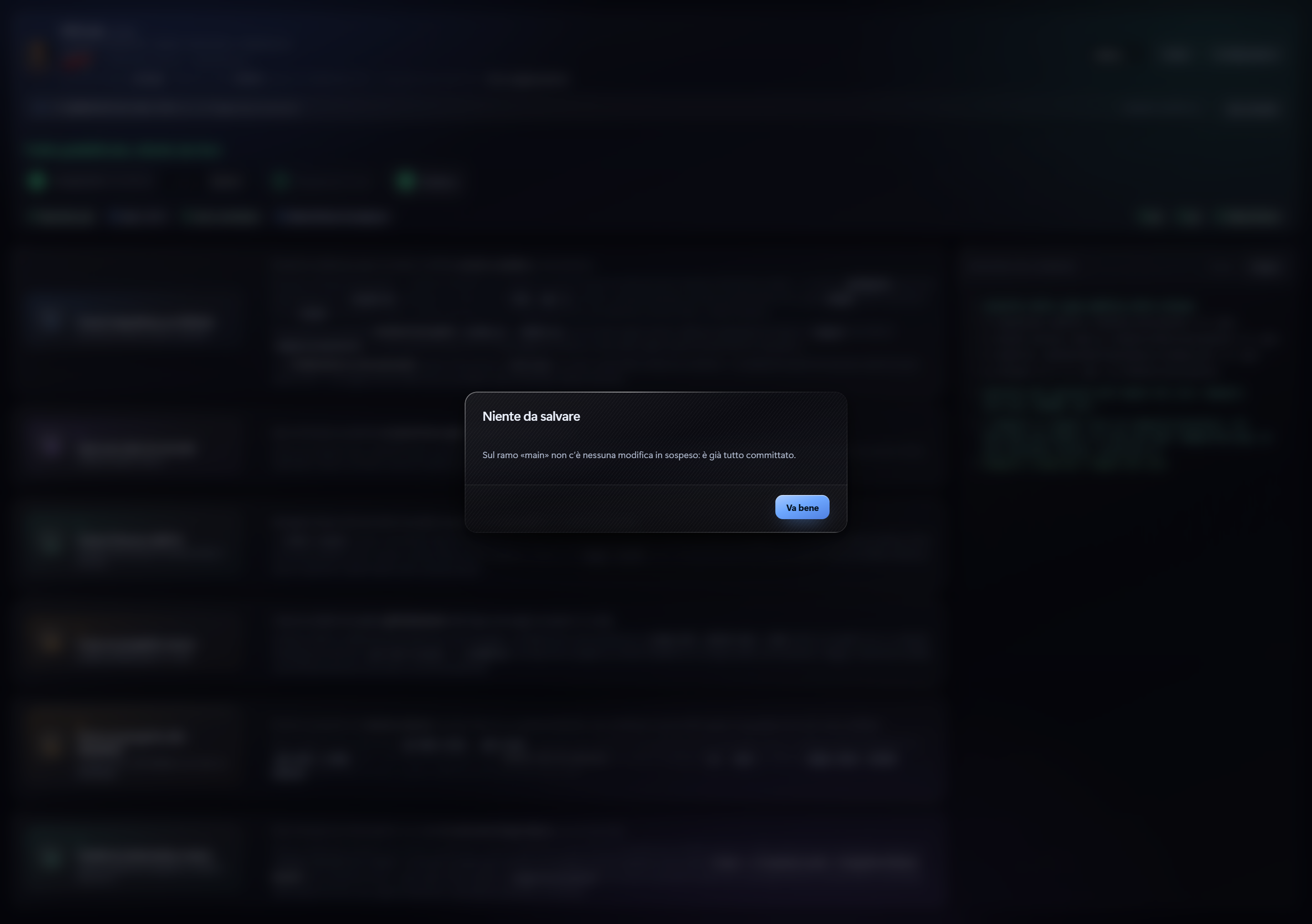
In the folder bar: add, commit and push in one click, with the message already filled in with date and time. After a successful push it offers the release with the installer attached.
Automatic release
If a published project has no release on GitHub, version bump, build, tag and publishing start on their own with the installer attached and the notes derived from the commits. The repository is touched only once the build succeeds.
Screenshots and video
Features
Public copy of the releases
With the name and token of a second, public GitHub account entered in Configuration, the installer of every release ends up on its own in a public ACCOUNT/NAME repository holding releases only, from which the website always downloads the latest version at a fixed address. At the first release of each piece of software GitCode creates the public repository, writes the RELEASE_TOKEN secret in the private one and adds the GitHub Actions workflow that makes the copy; software already configured by hand is recognised and left alone. Without a name or without a token the copy does not start and the log says so. Before every push the folder is synced with GitHub.
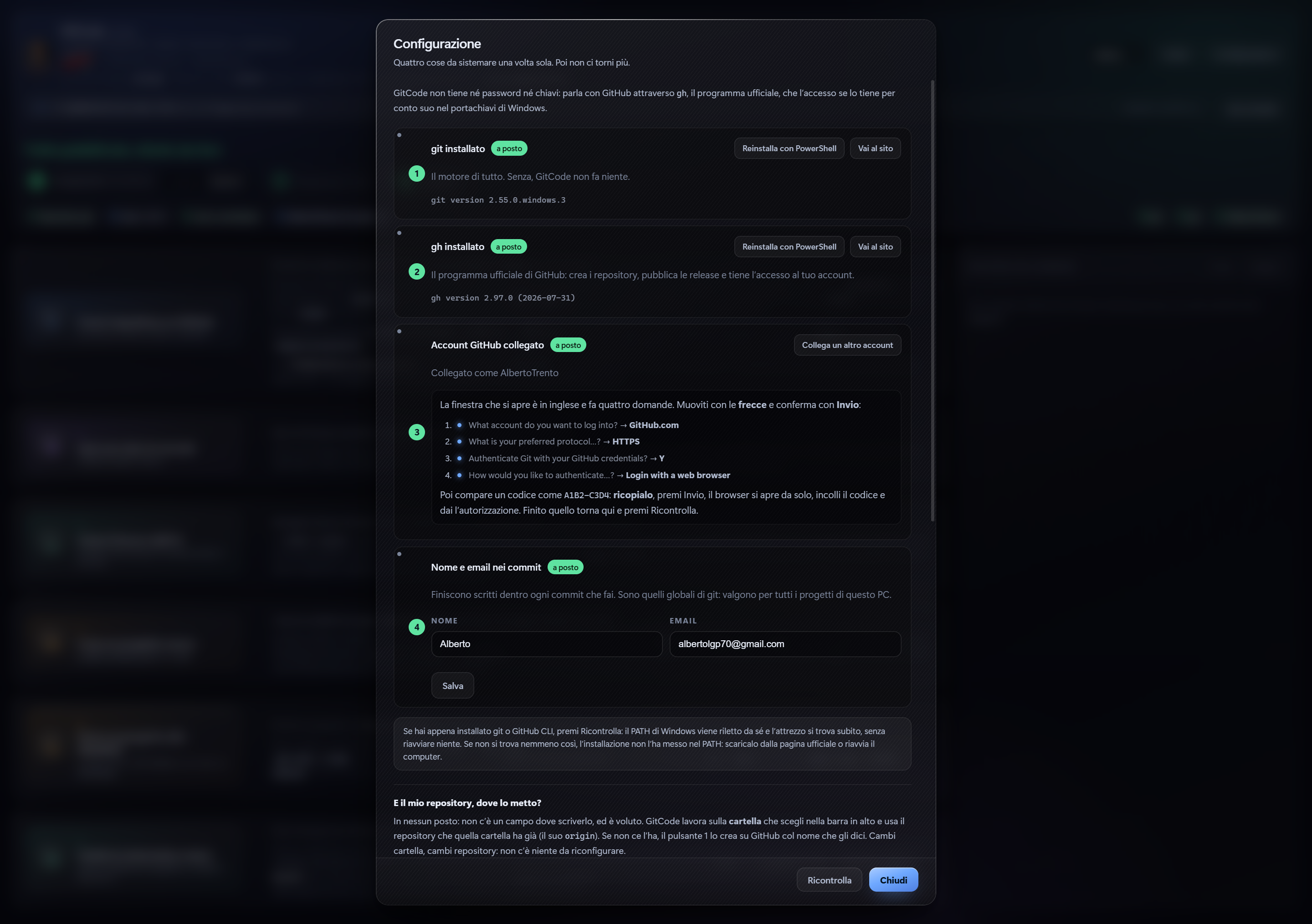
Configuration panel
The four requirements (git, gh, GitHub account, commit identity) with two installation paths — PowerShell with the command already written or the official page — and the PATH re-read from the Windows registry without restarting.
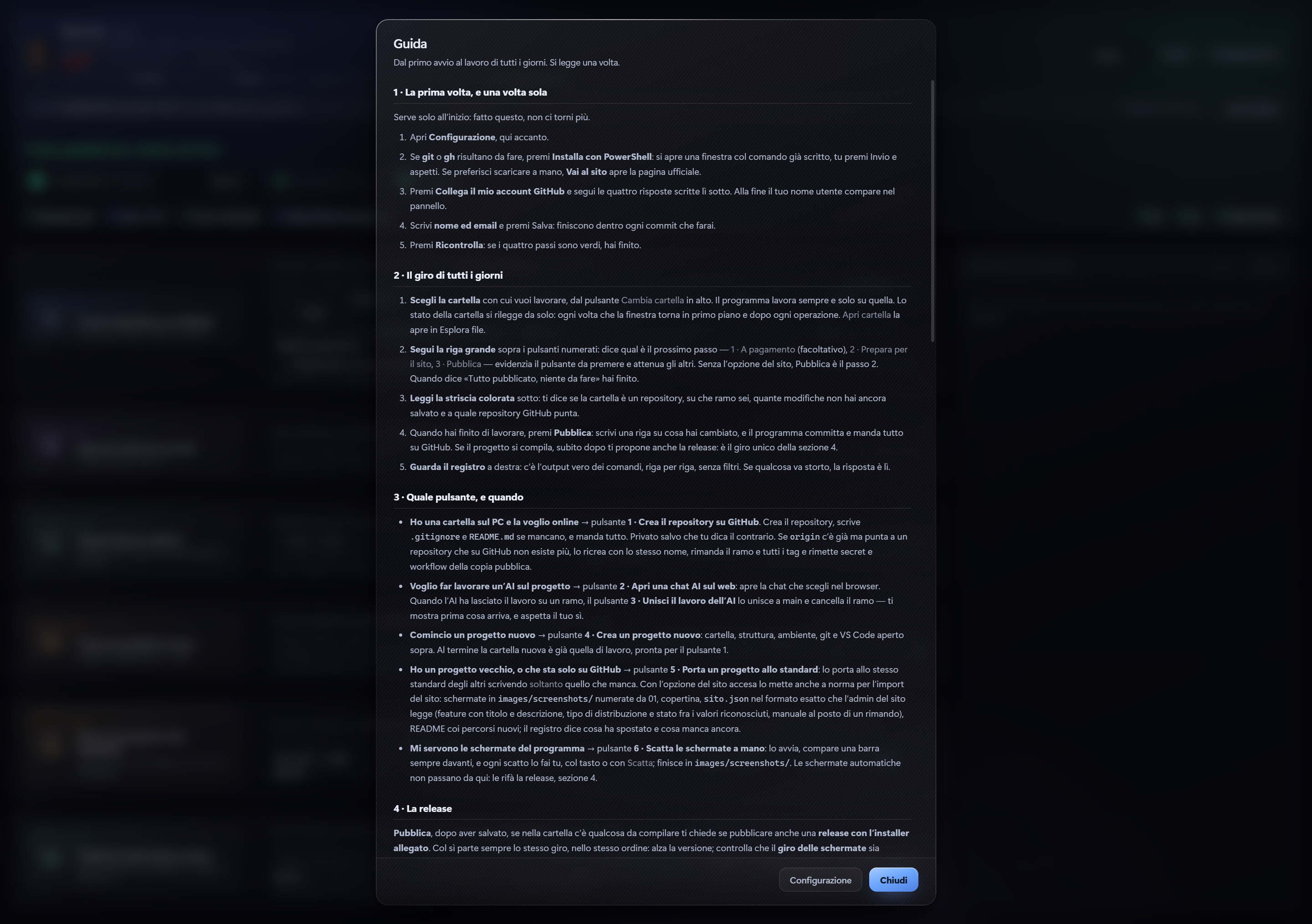
Step-by-step guide
From the first launch to everyday work, in five languages: which button and when, the release, what to do if something goes wrong.
Interface in five languages
Italian, English, German, French and Spanish, with the selector at the top right. The choice persists between runs.
Editable list of AI chats
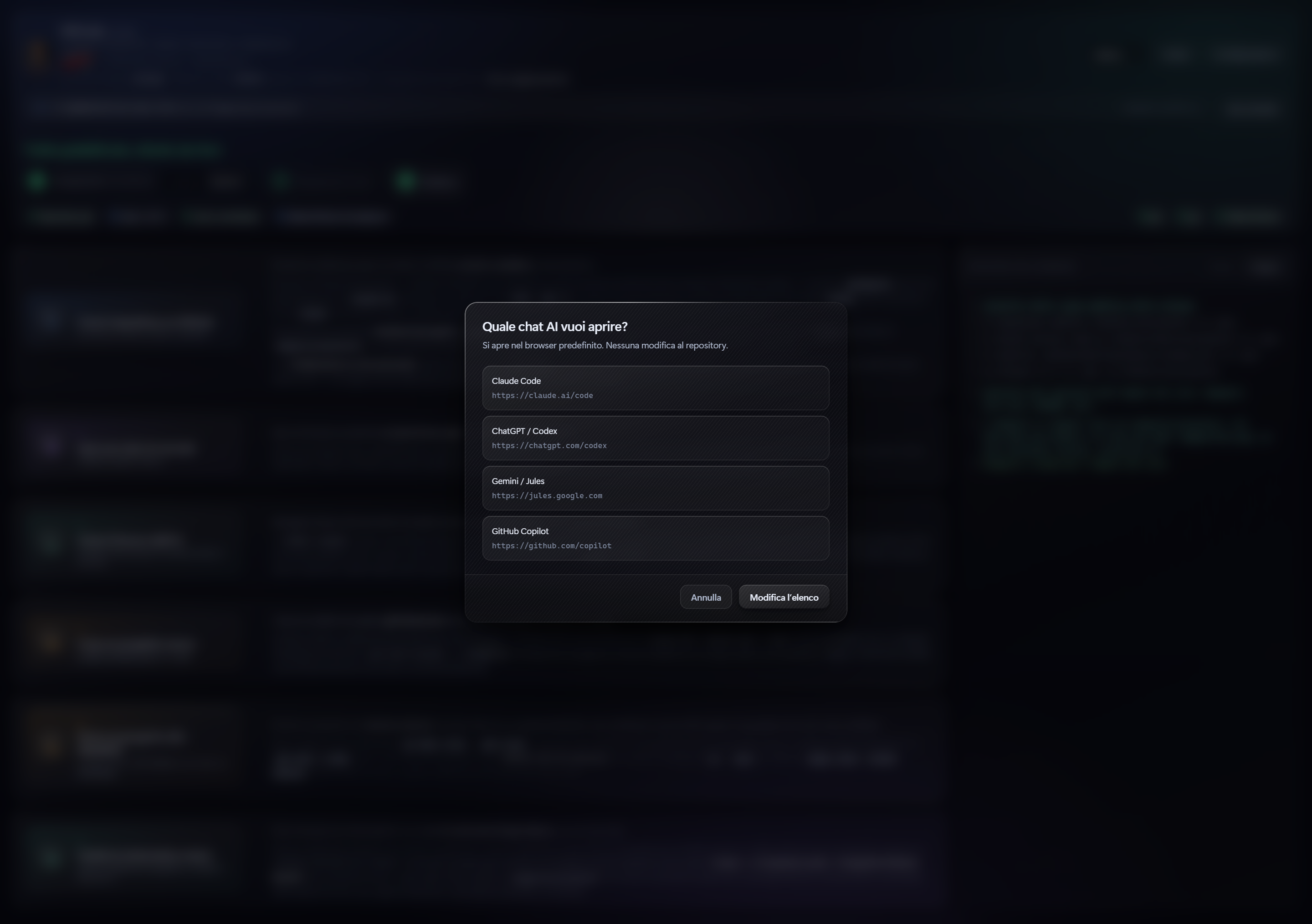
Button 2 ships with Claude Code, ChatGPT/Codex, Gemini/Jules and GitHub Copilot, but the list belongs to the user: entries can be added, renamed and removed, and the choice persists between runs. An address without https:// gets it automatically; anything that is not a web address is rejected, because the button opens the browser and must not be able to open anything else. One button restores the initial list.
Always-on-top capture bar
The Images button launches the project's program and opens a bar that captures the window in front with the key chosen by the user or with the Capture button. At the end comes the summary with the thumbnails: discards, cover, renumbering with no gaps and upload to GitHub.
Restart as administrator
If the program to be captured requires administrator rights, launching it from a normal GitCode is not enough: Windows would block the capture. GitCode says so and offers to restart elevated with the same working folder; the new instance picks up where you were. A no to the Windows prompt changes nothing.
Command log
The real output of every git and gh command, line by line, unfiltered, while it runs.
Nothing destructive without confirmation
Every operation first shows what it is going to do and waits for a yes. On conflicts it stops without resolving anything and leaves the repository inspectable.
The project standard
Button 1 brings every folder it touches to the same standard: CLAUDE.md and AGENTS.md with the same content — the rules valid for whatever AI works on it — and images/ with images/screenshots/. On files that already exist it rewrites only the section between the two placeholders: what the user wrote stays. When a folder without the rules is opened it offers to add them, and before publishing or adopting, if README.md, CLAUDE.md or AGENTS.md are not in Italian, it offers to rewrite them from the templates, never doing it on its own.
Ten recognised languages
Python, Rust, C++, C#, Arduino, MicroPython, CircuitPython, ESP-IDF (C), PlatformIO and Web (HTML/CSS/JS). The language is read from the .progetto.json metadata, otherwise from the folder contents, otherwise it is asked for; each one has its .gitignore, its starting README, the initial structure of button 4 and the environment that button 5 rebuilds.
Folders belonging to another Windows user
If git rejects the folder because it turns out to belong to another user, instead of the English error a dialog appears explaining the situation and offering to authorise it (safe.directory in the global configuration), then resumes the interrupted operation on its own, exactly as it was.
Window sized to fit
It opens by reading the work area of the monitor it sits on and sizes itself so that all the content is visible, with no cropping.
Publishing to a personal website
An option in Configuration, off by default. When on, projects get a sito.json with the listing fields (features with title and description, documentation, distribution type and format, cover and screenshots), the bar gains the «Prepare for the website» button that copies to the clipboard the prompt to fill it in and opens the project in VS Code, and the Images button offers the automatic screenshot run driven by the SHOT: markers in the window title. When off, GitCode writes none of this.
System Requirements
- Windows 10/11
- git in the PATH
- GitHub CLI (gh) with a linked account
- Optional for creating projects: uv, cargo, dotnet, py, VS Code
Documentation
GitCode runs the whole git and GitHub cycle with six buttons, without ever opening a terminal. Every command it runs appears in the log on the right with the real output, line by line, while it runs.
The first time, and only once
Open Setup, top right next to the language selector. The panel shows four steps and tells you by itself which ones are already done; the status is re-read every time the panel opens.
Installing git and GitHub CLI
If git or gh are still to be done, you have two ways:
- Install with PowerShell: a window opens with the
wingetcommand already typed, you press Enter and wait; - Go to the website: opens the official download page, for those who prefer to install by hand.
Once the installation is done press Re-check: the Windows PATH is re-read from the registry and the tool is found straight away, without restarting anything.
Connecting the GitHub account
Press Connect my GitHub account: a terminal opens asking four questions in English, and next to each one the panel writes the answer to give:
- What account do you want to log into? → GitHub.com
- What is your preferred protocol? → HTTPS
- Authenticate Git with your GitHub credentials? → Y
- How would you like to authenticate? → Login with a web browser
A code appears: you copy it into the browser and authorise. The token is kept by gh in the Windows credential store: GitCode never asks for and never saves any password.
Name and email for commits
Type name and email and press Save: they end up inside every commit. Press Re-check: if the four steps are green, you're done.
The everyday round
Pick the working folder with Change folder at the top: the program always works only on that one; Open folder opens it in File Explorer. The folder status is re-read by itself, every time the window comes back to the foreground and after every operation.
The next step
Under the folder a large line says what to do now, and below it are the three operational buttons with their order number:
- 1 · Paid, optional;
- 2 · Prepare for the website, only with publishing to a personal website switched on (without it, Publish is number 2);
- 3 · Publish.
The next one to press is highlighted, the others dimmed. Repository missing → button 1 «Create the repository on GitHub»; sito.json and README not filled in yet → Prepare for the website; changes, commits not pushed or a missing release → Publish; otherwise the line says «All published, nothing to do».
The coloured strip below says whether the folder is a repository, which branch you're on, how many changes you haven't saved yet and which GitHub repository it points to.
Publish
When you've finished working press Publish: write a line about what you changed, or keep the one already filled in with date and time, and the program runs add -A, commit and push. If the branch doesn't have an upstream yet, it creates it.
If the folder has no origin the commit stays local, and the message says so: to create it there's button 1.
The release
After a successful push, if there's something to build in the folder, GitCode asks whether to publish a release with the installer attached as well. If you say yes:
- it proposes the next patch with the notes already written from the commits;
- it bumps the version in
tauri.conf.json,package.jsonandCargo.toml(in a Cargo workspace from[workspace.package]of the root Cargo.toml, and also from the#define AppVersionline of an Inno Setup script if there is one); - it builds with
npm run tauri build, or withcargo build --releaseand Inno Setup on the.issscript for a Rust project; if the build fails because of a path that no longer exists (stale cache, folder moved) it cleanstargetwithcargo cleanand retries once, writing it in the log; - it looks for the installer across the whole project folder (outside node_modules and .git): the
.exeor.msisetup with the just-built version in the name, the most recent one if there's more than one, and writes in the log where it found it; if no file carries that version it stops, listing the setups it saw; - with publishing to a personal website switched on, before building it checks that the automatic screenshot round is really in the project code and, if it's missing, it inserts it by itself (then it rebuilds anyway: a round added after the build wouldn't be inside the executable);
- once the build succeeds it launches the just-built executable and redoes all the screenshots: the new ones take the place of the old ones in images/screenshots/ renumbered from 01.png, the cover chosen by hand stays yours and if /uploads/1788628459462-cover.png is missing it makes it from the first new screenshot, and the list in sito.json and the images in the README are updated with the files just taken;
- only afterwards does it commit, tag, push and
gh release create: images, sito.json, README and installer come out in a single release.
Only the new installer is left in the output folder. If origin is missing, if gh isn't authenticated or if the tag already exists, it stops before touching anything. If it stops later, before the commit — build failed, installer not found — the version written in the files goes back to the previous one and at the next publish the same number is proposed.
If you open an already published folder that's missing the release, GitCode writes it in the log and does nothing else: nothing gets built or published on its own. You publish it yourself from Publish, which proposes it to you even when there's nothing to save.
The public copy of the releases
The code stays in the private repositories of your account. The downloads live on a second GitHub account, public, used only as a shop window: one repository per software, with releases only. You type that account's name at the bottom of Setup, in the Public account name field.
On that account you create a fine-grained token from Settings → Developer settings → Personal access tokens → Fine-grained tokens → Generate new token:
- Repository access: All repositories;
- Permissions: Contents and Administration set to Read and write;
- expiry: none.
The token is pasted into the Public account token field, next to the name. Name and token are saved only in this PC's preferences: never in the code, never in the installer.
At every Publish, and from Prepare for the website, even before looking at whether there's anything to save, GitCode checks that the public copy is complete and does whatever is missing:
- it creates the public repository
ACCOUNT/NAMEwith releases only; - it writes the
RELEASE_TOKENsecret in the private repository; - it adds the
.github/workflows/mirror-release.ymlworkflow, which copies every new release with the installer renamedNAME-setup.exe; - it immediately copies to the public account the latest release the private one already has, with the installer renamed the same way.
The fixed link to put on the website is https://github.com/ACCOUNT/NOME/releases/latest/download/NOME-setup.exe and always points to the latest version. A software already configured by hand is recognised and left alone.
It also applies to software published before the public copy existed: just press Publish once. If the only thing missing was the workflow, Publish commits and pushes that alone, without bumping the version or creating a release; if there are real changes too, the round is the usual one. Every step is in the log. If the name or the token are missing, the public copy doesn't start, the release stays in the private repository only and the log says so.
The updates module
Every software published with button 1 receives, if it doesn't have it already, the updates module, with the public account name and the repository name already written inside:
- for Rust/Tauri a Rust module wired into the program and a bar at the bottom of the window, in five languages;
- for Python an
aggiornamenti.pywith bar and popup for tkinter and the functions for any other interface; - for the other languages the log says the module isn't available.
At the software's startup, and at every «Check for updates», the module reads the latest release on GitHub and always shows the installed version, the latest available version, the publication date and time in local time and the outcome of the last check. If the latest is newer a popup appears with a button that opens the setup link, and the line blinks until you click on it or press «Check for updates»; then it goes back to normal until the next release. No automatic download: if there's no network the program starts anyway and writes «check failed».
After every button 1, once the summary is closed, if there are commits on GitHub after the last release and there's something to build, GitCode proposes the release with the patch bumped, every time until you do it; the log writes «release proposed» or «release refused by the user». Without a new release the module doesn't reach the public copy.
GitCode uses the same module on itself: the line under the name, top left, gives the installed version, the latest published one with date and time and the outcome of the check, and «Check for updates» tells you whether you're up to date.
Which button, and when
There's no compulsory sequence: every button works on its own.
1 · Create the repository on GitHub
Takes the folder and puts it online, private or public. First it detects the language: from the .progetto.json metadata, otherwise from the folder content, otherwise it asks you. The detected language appears already selected and stays editable.
Then, in order:
git initif needed;- a
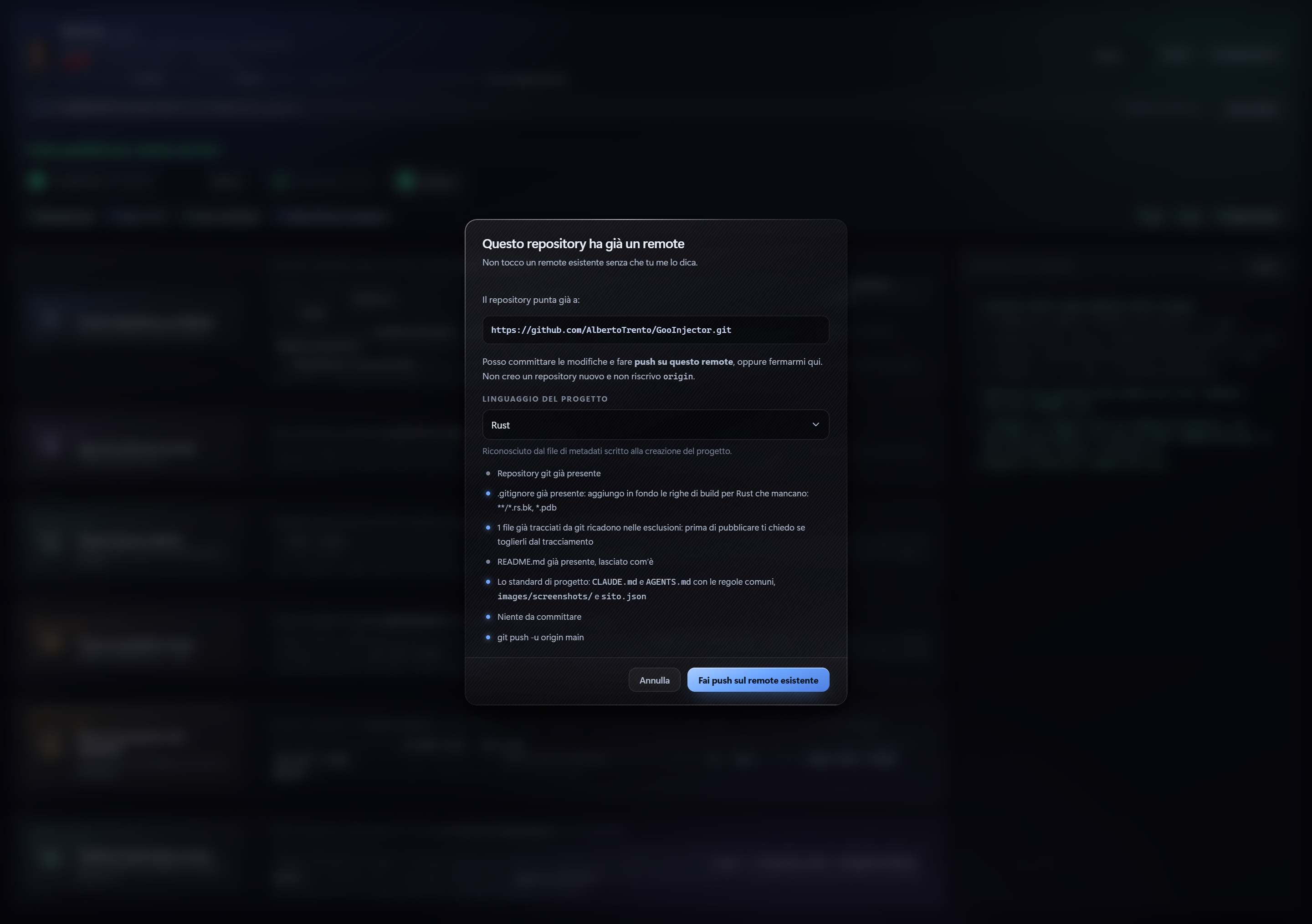
.gitignorewritten for that language if it's missing; to one that's already there it appends at the bottom only the build folders it doesn't exclude; - if git is already tracking excluded files it says so with the count and offers to untrack them without deleting them from the disk;
- a starting
README.mdif missing; CLAUDE.mdandAGENTS.mdwith the shared rules, andimages/screenshots/;add -A, commit, repository creation,origin, push and upstream.
An origin that's already there is never overwritten: GitCode says so and asks whether to push there. At the end it shows the address and offers to open it.
2 · Open an AI chat on the web
Opens in the default browser the chat you pick from the list. No commands, no changes to the repository.
The list comes with Claude Code, ChatGPT/Codex, Gemini/Jules and GitHub Copilot, but it's yours: from Edit the list you add, rename and remove entries, and the choice sticks between one launch and the next. An address without https:// gets it added automatically; anything that isn't a web address is rejected. Restore the default puts the starting list back.
3 · Merge the AI's work
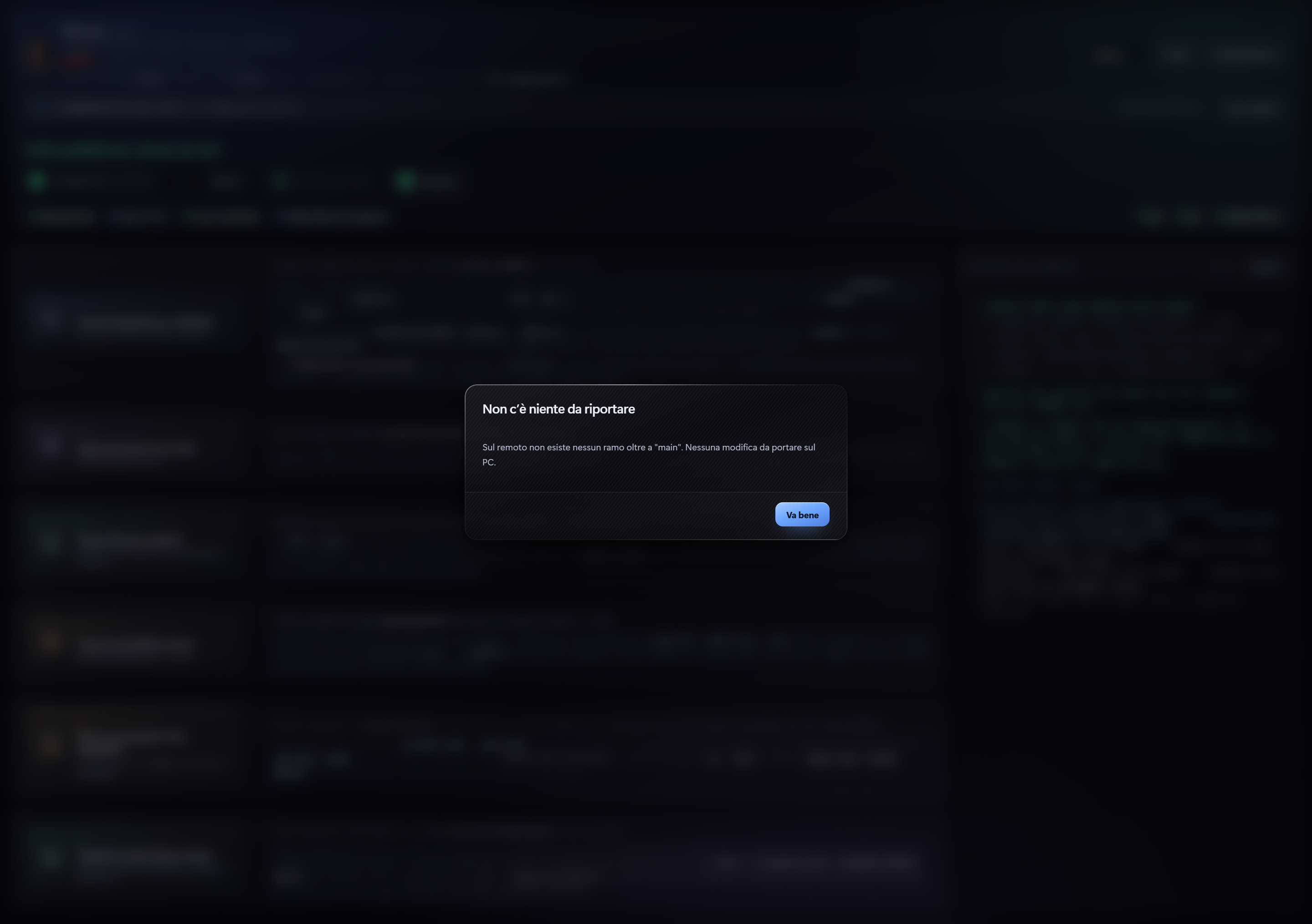
Retrieves the work an AI chat left on another branch, with or without a pull request. It runs fetch --prune, looks for remote branches other than main, uses one if it's the only one or shows them to you with date and message.
It shows you how many commits ahead they are and which files change, and only after your confirmation does it run checkout main, merge --no-ff, push, delete the remote branch and realign. On a conflict it stops, resolves nothing by itself and leaves the repository inspectable.
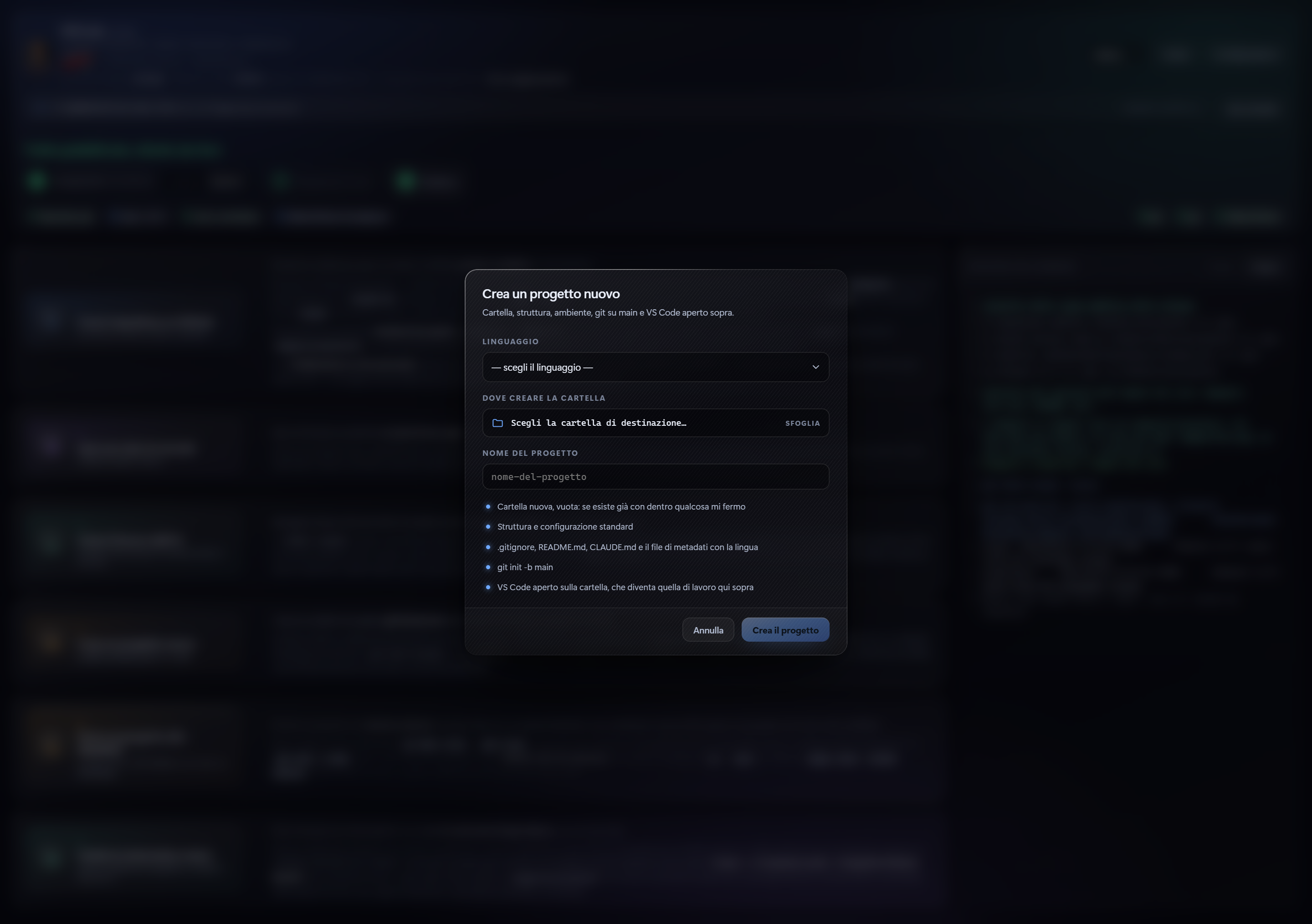
4 · Create a new project
Creates a folder that already works in the chosen language and opens it in VS Code. You pick language, destination folder and name; GitCode writes structure and configuration, and where needed builds a real environment:
cargo initfor Rust;dotnet new consolefor C#;- for Python
uv venvif uv is in the PATH, otherwisepy -m venv .venv, with VS Code already set up to activate it.
Every project gets git init -b main, .gitignore, README.md, CLAUDE.md and .progetto.json with the chosen language. The new folder becomes the working one. It stops if the destination already contains something.
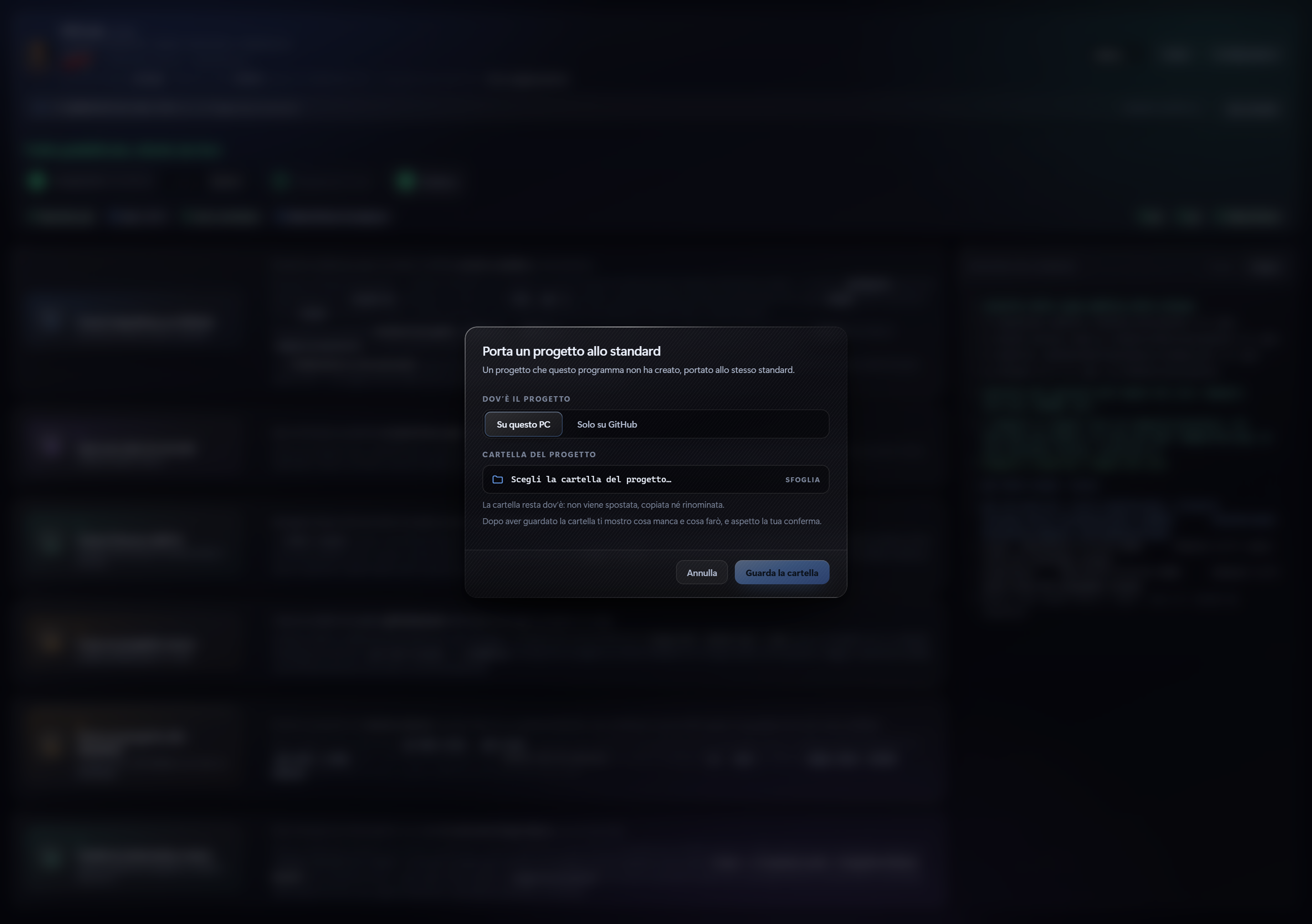
5 · Bring a project up to standard
Brings up to standard a project GitCode didn't create, in two ways:
- a folder already on this PC;
- a project that only exists on GitHub: you paste the address and choose where to clone it.
It detects the language like button 1, runs git init -b main only if the folder isn't a repository yet and writes only the files that are missing. Then it rebuilds the environment: uv or venv for Python, cargo fetch for Rust, dotnet restore for C#.
A .venv that's already there is rebuilt from scratch only if you choose so in the summary. Before writing anything it shows everything and waits for confirmation; no existing file is overwritten or reformatted.
With website publishing switched on it also brings it into line with the website import: screenshots in images/screenshots/ numbered from 01, cover, sito.json in the exact format the admin reads (features with title and description, status and distribution among the recognised values, manual instead of a cross-reference), README with the new paths. The log says what it moved and what's still missing.
6 · Take the screenshots by hand
Launches the project's program and collects the screenshots. It looks for the built executable under the folder, otherwise the command remembered in the metadata, otherwise it asks and remembers it.
If the project is Rust or Tauri and isn't built, it offers to build it first: it downloads the libraries if they're missing and adds the needed script to package.json, doing only what's missing. If something can't be fixed it says so in plain language naming the file, not the npm error.
An always-on-top bar appears, which you drag wherever you want and next time you find it there. You take shots in two ways:
- by pressing the chosen key: you click the field on the bar and press whatever key you want, and from then on that's the one;
- by clicking Shoot, which captures the window right behind the bar.
Until you choose a key it tries F9, then F8, F10, F7, and the one that won is written on the bar. If none is free the session starts anyway and you shoot with Shoot. Every shot goes into images/screenshots/ with the next number: nothing is ever overwritten.
With Done the summary opens with the thumbnails: you discard the ones you don't want, mark the cover, and only on confirmation does it delete, renumber from 01 with no gaps and copy the cover to /uploads/1788628459462-cover.png. Then it asks you whether to send the images to GitHub.
If the program to be photographed demands administrator rights, GitCode says so and offers to restart itself elevated with the same working folder.
The project standard
Button 1 brings every folder it touches to the same standard: CLAUDE.md and AGENTS.md with the same content, i.e. the rules valid for whatever AI works on it, and images/ with images/screenshots/.
On files that are already there it rewrites only the stretch between the two placeholders: what the user wrote stays. When you open a folder without the rules it offers to add them, and before publishing or adopting, if README.md, CLAUDE.md or AGENTS.md aren't in Italian, it offers to rewrite them from the templates, never doing it by itself.
Publish and button 1 say, without stopping, whether /uploads/1788628459462-cover.png is missing or whether images/screenshots/ is empty; on a project with the automatic round they don't send you off to shoot by hand, because the next release redoes the images.
Publishing to a personal website
At the bottom of Setup there's a switch, off by default, for those who publish their software on a site of their own. Switched on it adds three things.
sito.json
Buttons 1, 4 and 5 also write sito.json in the root, with the fields of the entry to fill in in Italian: name, category, subtitle, status, distribution type and format, tags, features with title and description, requirements, documentation, cover, screenshots. A sito.json that's already filled in keeps its values and its extra keys; an unreadable one is set aside as sito.json.rotto.
Prepare for the website
Among the numbered buttons 2 · Prepare for the website appears: it copies to the clipboard the prompt that makes an AI fill in sito.json and the README from the real code and makes it write the screenshot round inside autoshot.js, then opens the project in VS Code with an instructions page in front. The prompt is already in the clipboard: you paste it into Claude Code with Ctrl+V. GitCode only provides the mechanism of the round — autoshot.rs, the GITCODE_AUTOSHOT variable, the markers in the title, the capture — and writes autoshot.js only if it's missing, as a template with the protocol in the comments, never overwriting it. The list of windows belongs to the project: the AI writes it inside that file, all the windows in the order of the README's screenshot table, one literal SHOT:<number>:<name> marker for each, never a parallel round with other commands. It's done only once per project: when sito.json and README are filled in and autoshot.js has more than one marker, the button switches off with the label «Already prepared». From then on Publish redoes the screenshots, at every release.
Before starting, Prepare for the website, Publish and the release check the website import contract and fix by themselves whatever can be fixed:
- the screenshots go into
images/screenshots/with the names01.png,02.png…, taken fromimages/,screenshots/ordocs/if they were elsewhere, or renumbered if they had arbitrary names; /uploads/1788628459462-cover.pngis made from the first screenshot if it's missing;sito.jsonis rewritten in the exact import format keeping every text already written: features written as sentences become title plus description, the installer format that ended up in the distribution field goes into its own, status and distribution are normalised, a manual that's just a cross-reference is replaced by the README text if it's in Italian, cover and screenshot list are the real ones;- the README follows the moved images and gets the screenshot table if it doesn't have one.
A project that's already compliant isn't touched. What's still missing and can't be derived from the code (subtitle, category, manual, tags, a round with markers built in pieces) is in the log line by line: those are the things the AI writes with the Prepare prompt. Nothing is deleted.
The automatic screenshot round
Publish runs it, at every release, on the just-built executable: the program starts with GITCODE_AUTOSHOT=1 and takes the screenshots by itself:
- it writes
SHOT:<number>:<name>in the window title before every shot; - it writes
SHOT:DONEat the end and closes; - GitCode captures at every marker: it brings the window to the front, waits until it has finished resizing and takes the whole client area in physical pixels, whatever the Windows scaling is; an image that doesn't match the window size isn't accepted;
- the shots end up in a temporary folder and only when the round is complete does
images/screenshotsget emptied and the new ones go in renumbered from 01, never a mix of old and new; if the round fails or takes fewer screenshots than the declared markers, nothing is deleted and the log says why; - the cover is set by itself if it's missing, and the list in
sito.jsonand in the README is updated, all in the same release.
Before building, GitCode checks that the round is really in the code, not that a switch says yes, and if it's missing it writes the template into the project (for now in Rust/Tauri projects), never overwriting an autoshot.js that's already there. On a prepared project the screenshots are never skipped: if for some reason they are skipped, the log says exactly why — and that's also where you read how many old screenshots were deleted, how many new ones were taken, where they ended up and which one is the cover. Watch out for one case: a program that relaunches itself at startup (administrator rights, single instance) restarts a process that no longer has the round's variable, and the round doesn't start; GitCode tries to follow it anyway and, if it can't find it, writes it down. Button 6, Take the screenshots by hand, remains for shots taken by the user. Switching the switch off doesn't delete anything from the projects.
Paid
First of the numbered buttons under the folder there's the Paid option, optional and off for every project. Switched on for a Rust/Tauri project, GitCode inserts the licensing module by itself:
src-tauri/src/licenza.rswith the Ed25519 public key embedded and the project slug as the product name;mod licenza;and thelicenza_statoandlicenza_attivacommands inlib.rs;- the
ed25519-dalek,uuidandbase64dependencies in theCargo.toml, if missing; - the
licenza.jsactivation window in the static files, in the languages the project has.
At first launch the program asks for the XXXX-XXXX-XXXX-XXXX key, verifies it online once on the website and from then on checks the signed licence file offline: without a valid licence it stays locked. If the module is already there the option shows as on and nothing is inserted twice; on the other projects it's disabled with the label «For now Rust/Tauri only». The log records what was inserted.
The five languages
Italian, English, German, French and Spanish, with the selector at the top right. The choice sticks between one launch and the next; on first opening the Windows language applies if it's among the five, otherwise Italian. The Guide, next to Setup, goes through all of this step by step in every language.
If something goes wrong
-
Nothing is ever touched without your yes, and every operation shows first what it's going to do.
-
On conflicts it stops and leaves the repository inspectable.
-
A missing tool doesn't cancel everything: that step is skipped and it tells you in the final notes.
-
If git refuses the folder because it belongs to another Windows user, a dialog offers to authorise it with
safe.directoryand picks up from where it stopped. -
Passwords are never asked for nor saved: the access is kept by gh in the Windows credential store.
-
If
originpoints to a repository that no longer exists on GitHub, Publish, the release and button 1 recreate it with the same name, push branch and tags again, put back the public copy's secret and workflow and carry on.
Get it GitCode
Free
The entire git and GitHub cycle in six buttons, without ever typing a command
DownloadYour browser or Windows may show a warning because the file is new and not yet recognized: choose Keep / Run anyway. The file is safe and published directly by Alberto DevLabs.