GhostBar
Makes the Windows taskbar background transparent, on every monitor. No windows: just an icon in the notification area next to the clock.
What you get
Transparent background on every taskbar
Makes the taskbar background transparent through the DWM composition accent (SetWindowCompositionAttribute), applied to the primary monitor's taskbar (Shell_TrayWnd) and to the one on every secondary monitor (Shell_SecondaryTrayWnd). Icons, clock and notification area stay visible and clickable: only the background changes. The list of taskbars is recomputed on every use, so a monitor added or removed is handled straight away.
Three modes: Transparent, Semi-transparent, Normal
Transparent removes the background entirely. Semi-transparent lays down a 55% tint that lets what is behind show through, dark on the Windows dark theme and light on the light one, read from the registry. Normal turns the effect off and lets Windows draw the bar by itself. The mode is picked from the icon's menu and is remembered; on first run it is Transparent.
Real transparency on Windows 11 with the XAML provider
On Windows 11 the taskbar is a XAML island that paints its own background on top of the DWM backdrop, and the accent alone would tint it without making it transparent. GhostBar loads the ghostbar_tap.dll provider inside explorer.exe through InitializeXamlDiagnosticsEx, the Windows XAML diagnostics API (the same one behind Visual Studio's Live Visual Tree). The provider watches the visual tree and makes the BackgroundFill, BackgroundStroke and ScreenEdgeStroke elements transparent, that is the background and the border lines; it restores them when you go back to Normal or on exit.
Screenshots and video

Features
Automatic choice of technique based on the Windows version
At startup it reads the system build with RtlGetVersion and picks: accent only on Windows 10, accent plus XAML provider from Windows 11 (build 22000) onwards, including future builds. If the provider fails to attach, GhostBar falls back to the accent alone and keeps working, and the menu shows the entry "Reduced effect on this version of Windows". Builds older than Windows 10 2004 work with the same warning.
Survives Explorer restarts, monitor and theme changes
It listens for the TaskbarCreated message (Explorer restarted), WM_DISPLAYCHANGE, WM_DEVICECHANGE and WM_DPICHANGED (monitors and resolution), WM_THEMECHANGED and WM_SETTINGCHANGE (theme and colours) and reapplies the effect shortly after, once the new taskbars exist. A one-second watchdog timer rewrites the effect anyway, because Windows sometimes clears it without warning; every ten seconds it checks that the XAML provider is still alive and, if Explorer has restarted, reloads it. The notification area icon recreates itself after an Explorer restart.
Hide the bar
A checkmark in the menu turns the Windows "Automatically hide the taskbar" option (ABM_SETSTATE) on or off: the bar drops away and comes back when you move the mouse to the edge of the screen. It is the system setting, shared across all monitors, and the state shown in the menu is always re-read from the shell; it stays as it is even after GhostBar is closed, as if the user had changed it from Settings.
Autostart
A checkmark in the menu that adds or removes GhostBar from the HKEY_CURRENT_USER Run key: no administrator privileges, no effect on other users. On every startup the registered path is realigned with the executable's, so a move or an update does not leave an entry pointing nowhere. Enabled after installation.
Warning about Windows transparency effects
If the Windows "Transparency effects" setting is off the bar stays opaque whatever GhostBar does. At startup it detects this and says so with a balloon on the icon; the menu shows the entry "Turn on Windows transparency effects", which does it only on explicit request and notifies the shell so it redraws immediately. GhostBar never changes that setting on its own initiative.
Notification area icon with menu
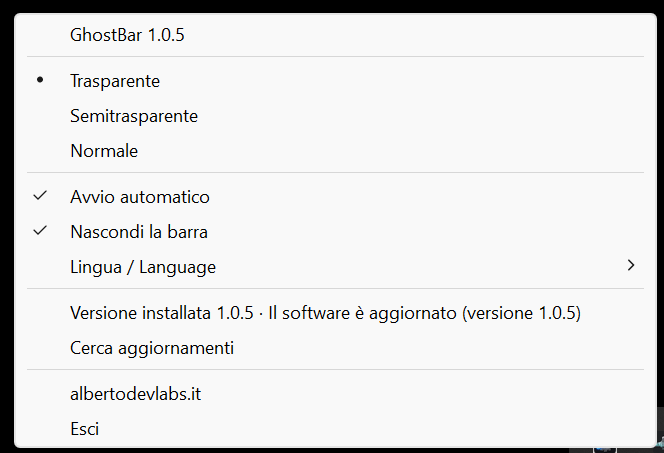
The only interface: an icon next to the clock, with the current mode in the tooltip. The menu (right or left click) shows name and version, any warnings, the three modes as an exclusive choice, Autostart, Hide the bar, the language submenu, the albertodevlabs.it link that opens the site in the default browser (with the logo next to it, if embedded) and Exit.
Interface in five languages
Italian, English, German, French and Spanish, selectable from the "Lingua / Language" submenu. On first run it adopts the Windows interface language, otherwise English, and writes it to the settings. All strings live in lang/<code>.json files loaded at startup: a new language is added by copying a file, with no recompiling. They are looked up first in %APPDATA%\GhostBar\lang, then next to the executable; the five shipped ones are also embedded in the executable as a safety net. A missing key falls back to English.
Small, forgiving settings
Mode, autostart and language live in %APPDATA%\GhostBar\config.toml. If the file is missing, partial or unreadable it starts again from the defaults without blocking startup; writing goes through a temporary file and then a rename, so an interruption does not leave a truncated file.
Single instance and clean shutdown
A session mutex prevents two copies from running: the second one warns and closes. On exit, at logoff and at shutdown GhostBar puts the taskbar back the way it was and removes the icon. The --quit command line option asks the running instance to shut down cleanly and waits until it has: the installer and the uninstaller use it.
Per-user installer, no administrator
An Inno Setup package in five languages that installs into %LOCALAPPDATA%\Programs\GhostBar without asking for elevated privileges, creates the Start menu shortcut, enables autostart and can launch the program right away. Before updating it closes the running instance; uninstalling shuts it down cleanly, removes files, shortcut and autostart, and asks whether to remove the personal settings as well.
Provider diagnostic log
The XAML provider writes to %TEMP%\ghostbar-tap.log whether it loaded, which elements it recognised and whether applying them succeeded: it is the first thing to look at when the bar does not turn transparent.
System Requirements
- Windows 10 version 2004 (build 19041) or later, 64-bit; on Windows 11 the effect is complete thanks to the XAML provider
- Windows "Transparency effects" setting turned on (Settings → Personalization → Colors)
- No additional runtime: native executable
- Run as a normal user, not as administrator: the provider must load into explorer.exe under the same user
Documentation
INSTALLATION
Run GhostBar-<version>-setup.exe. The installer does not require administrator privileges: it installs to %LOCALAPPDATA%\Programs\GhostBar, creates the Start menu shortcut and enables autostart (the checkbox can be cleared during installation). At the end it can launch GhostBar right away.
FIRST RUN
GhostBar opens no windows: only an icon appears in the notification area next to the clock, and the taskbar becomes transparent on every monitor. The icon tooltip shows the mode in use. The language follows Windows among Italian, English, German, French and Spanish; otherwise English.
If Windows has transparency effects turned off, the taskbar stays opaque: GhostBar reports this with a balloon on the icon, and the menu shows the item "Turn on Windows transparency effects". That is the only way GhostBar touches that setting: only if you ask it to.
THE MENU
Right-click (or left-click) the icon. In order:
- GhostBar and version number.
- Only when needed: "Reduced effect on this version of Windows" (the XAML provider did not attach and only the accent is used) and "Turn on Windows transparency effects".
- Transparent: the background disappears completely.
- Semi-transparent: you can glimpse what is behind; the tint follows the Windows light or dark theme.
- Normal: no effect, the taskbar goes back to the way Windows draws it.
- Autostart: GhostBar starts when you sign in to Windows (current user's Run key).
- Hide the taskbar: this is the Windows "Automatically hide the taskbar" checkbox. With it enabled the taskbar slides down and reappears when you move the mouse to the edge of the screen. It applies to all monitors together (a Windows limitation) and stays as it is even after closing GhostBar.
- Lingua / Language: the available languages; the change is immediate.
- albertodevlabs.it: opens the website in the browser.
- Exit: restores the taskbar as it was and closes the program.
HOW IT WORKS
GhostBar detects the Windows version at startup. On Windows 10 the DWM composition accent on the taskbar windows is enough. On Windows 11 the taskbar paints its own background over the backdrop, so GhostBar loads the ghostbar_tap.dll provider inside explorer.exe through the Windows XAML diagnostics, which makes the background and border lines transparent. If the provider does not attach, GhostBar carries on with the accent alone and says so in the menu. A watchdog timer reapplies the effect every second, and system events (Explorer restarted, monitor plugged in or unplugged, theme or resolution change) make it reapply immediately afterwards.
SETTINGS
They live in %APPDATA%\GhostBar\config.toml:
mode = "trasparente" (trasparente | semitrasparente | normale)
autostart = true
language = "it"
If the file is missing or unreadable, it starts again from the default values.
LANGUAGES
The strings are in lang/<code>.json files. To add or fix a language, copy a file into %APPDATA%\GhostBar\lang: that folder takes precedence over the installation folder. A missing key falls back to English.
COMMAND LINE
GhostBar.exe --quit asks the running instance to shut down cleanly and waits until it has done so. The installer and the uninstaller use it.
UNINSTALLATION
From Settings → Apps. The uninstaller closes GhostBar cleanly (so the taskbar goes back to normal), removes the files, the shortcut and the autostart entry, and asks whether to remove your personal settings in %APPDATA%\GhostBar as well. The provider stays loaded inside explorer.exe until Explorer or the computer is restarted for the first time, but it is inert: it has already restored the original background.
IF SOMETHING GOES WRONG
- The taskbar stays opaque: check that the Windows transparency effects are on (item in the menu).
- The taskbar gets tinted but is not transparent on Windows 11: look at %TEMP%\ghostbar-tap.log, which tells you whether the provider loaded and what it found.
- The menu says "Reduced effect": the Windows version is older than Windows 10 2004, or the XAML provider did not attach; GhostBar works anyway with the accent alone.
- Force-closing GhostBar (Task Manager) leaves the taskbar transparent: use Exit from the menu, or GhostBar.exe --quit.
Get it GhostBar
Free
Makes the Windows taskbar background transparent, on every monitor. No windows: just an icon in the notification area next to the clock.
DownloadYour browser or Windows may show a warning because the file is new and not yet recognized: choose Keep / Run anyway. The file is safe and published directly by Alberto DevLabs.